
Every screen in Eido has the same frame: a dark sidebar on the left with the menu, and the page you are working on to the right of it. This article walks down the sidebar from top to bottom, then covers the things that sit outside it.
What you see depends on your role and on what your organisation has switched on. Where an item is not always there, the tables below say when it appears.
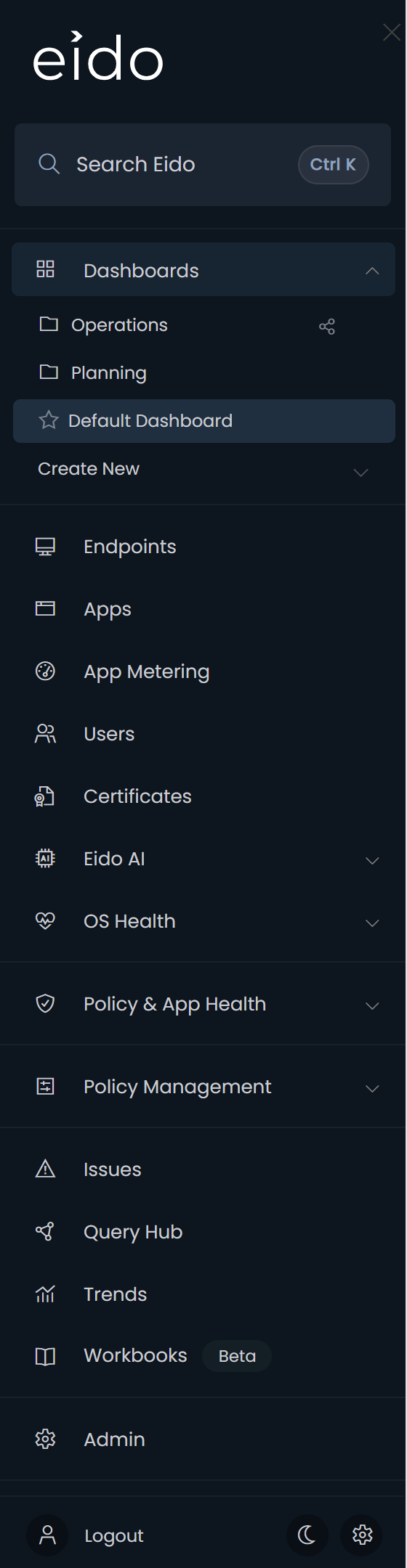
The top of the sidebar#
| What | What it does |
|---|---|
| Close icon (the cross, top right) | Collapses the sidebar. See Collapsing the sidebar. |
| Trial message | During a trial, shows how many days are left. See The trial and licence messages. |
| Search Eido | Opens Global search. The shortcut is shown on the box: Ctrl K, or Cmd K on a Mac. |
| Customer filter | Shows All Customers or the customer you have picked. Only where your organisation manages several customers. See The customer filter. |
The menu#
| Item | Opens | Shown when |
|---|---|---|
| Get Started | The set-up checklist for a new organisation. See Your first day. | Until set-up is finished |
| Customers | A health overview of every customer. See Customers overview. | You manage several customers and the filter is on All Customers |
| Dashboards | Expands to list your dashboards and folders. See Dashboards. | Always |
| Endpoints | Every device, with its health. See Endpoints. | Always |
| Apps | Apps found installed on devices. See Discovered apps. | Always |
| App Metering | Which applications are really used. See App Metering. | App Metering is switched on for at least one tenant |
| Users | The people in your tenant and their devices. See Users. | Always |
| Certificates | Certificates, with their status and expiry. See Certificates. | Always |
| Eido AI | Expands to Diagnostics and Intune Changes. See AI diagnostics and Intune changes. | Eido AI is switched on |
| OS Health | Expands to Patch Compliance and OS Compliance. See Patch compliance and OS compliance. | Always |
| Policy & App Health | Expands to six screens, listed below. | Always |
| Policy Management | Expands to Policies and Templates. See Policy backups and templates. | You are an administrator |
| Issues | Everything that is unhealthy now. See Issues. | Always |
| Query Hub | Built-in reports and your own. See Query Hub. | Always |
| Trends | Health over time. See Trends. | Always |
| Workbooks | Reports assembled into a document. Marked Beta. See Workbooks. | Always |
| Admin | The administration area. See Where Admin is. | You are an administrator |
| Help Documentation | Opens this support centre in a new tab. | Always |
| Raise a ticket | Opens the Eido support desk in a new tab. See Contact support. | The filter is on All Customers and your account is not tied to one customer |
Items with a chevron expand in place. Click the item again to fold it away.
Under Dashboards#
Expanding Dashboards lists your folders first, then the dashboards that are in no folder.
- A star marks your Default Dashboard, the one Eido opens on.
- A share icon on a folder means it is Shared with your team.
- Hover over a dashboard for its actions: Move to folder (once you have a folder of your own), and Hide for me on a dashboard that somebody else shared with you.
- Show hidden dashboards appears once you have hidden one. Click it to list them again, each with Unhide.
- Create New offers New dashboard and New folder.
Dashboard folders covers folders and hiding in full.
Under Policy & App Health#
| Item | Article |
|---|---|
| Compliance | Compliance policies |
| Config | Configuration policies |
| Managed Apps | Managed apps |
| Remediations | Remediations and scripts |
| Scripts | Remediations and scripts |
| Active Malware | Active malware |
The foot of the sidebar#
Three controls stay fixed at the bottom.
| Control | What it does |
|---|---|
| Logout | Signs you out. |
| Sun or moon icon | Switches between dark and light. See Dark mode. |
| Gear icon | Opens Settings. See Your settings. |
The customer filter#
The box under the search shows All Customers until you choose one. Click it to list your customers, then click a name. Eido returns you to the dashboard, and from then on every screen shows that customer only. The box is highlighted and shows the customer’s name for as long as one is selected.
While the list is open it takes the place of the menu. Click the box again to close it without changing anything.
Choosing a customer also changes the frame slightly: Customers and Raise a ticket leave the menu, the Customer column and filter leave the lists, and some Admin tiles are hidden. Choose All Customers to get them back.
Collapsing the sidebar#
Click the cross at the top right of the sidebar to collapse it and give the page the full width. To bring it back, move the pointer to the left edge of the window. A menu button appears in the top left corner. Click it.
The sidebar cannot be collapsed while you are editing a dashboard. The full-screen button on a dashboard collapses it for you.
Dark mode#
Eido starts in dark mode. Click the sun icon at the foot of the sidebar to switch to light, and the moon icon to switch back. The page changes straight away.
The choice is remembered by the browser you are using, not by your account. A different browser or computer starts in dark mode again.
Where Admin is#
Admin is near the bottom of the menu, and only administrators have it. It opens a page of tiles, grouped by theme. Each admin page has an Admin link at its top left that brings you back to the tiles.
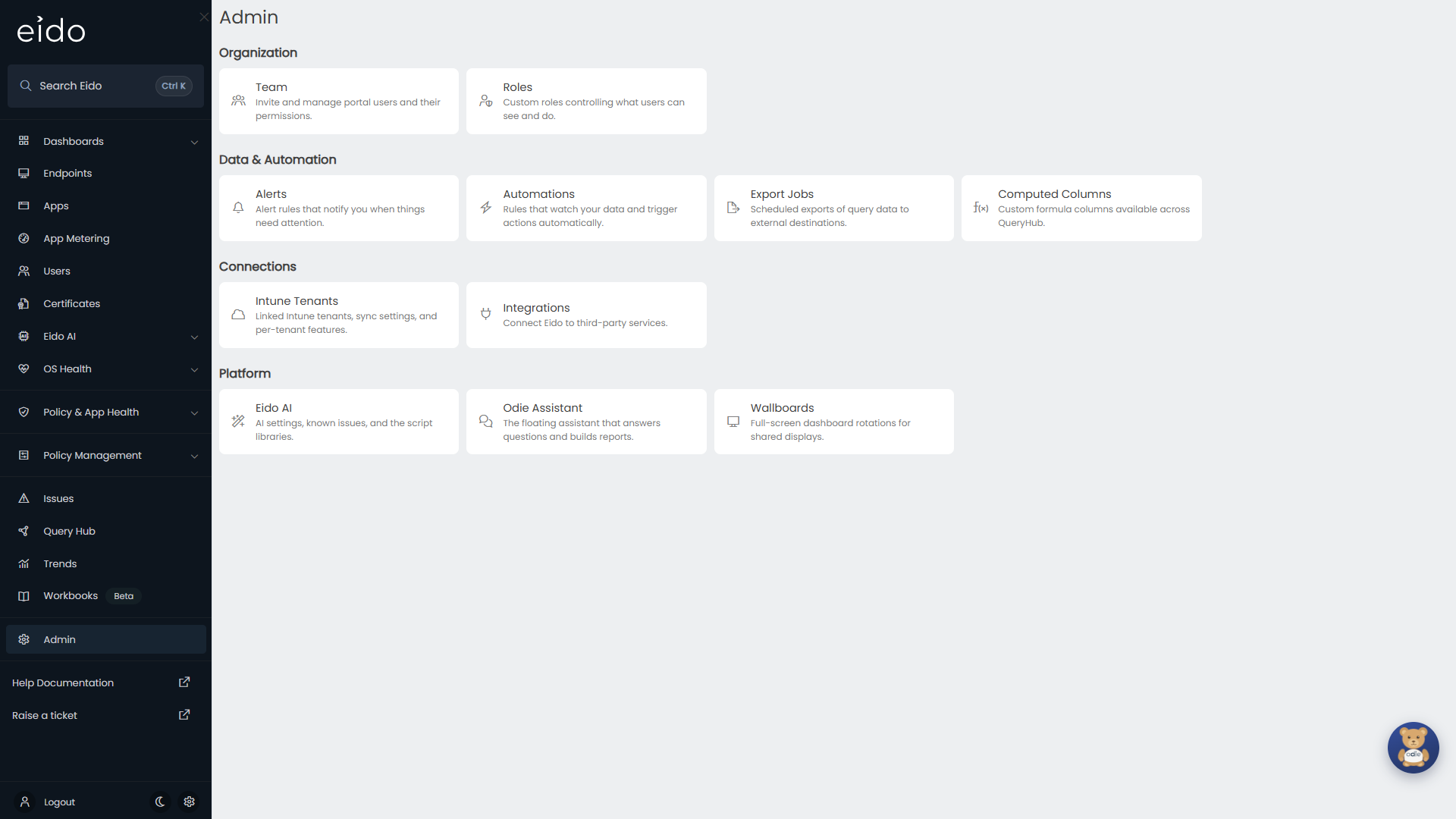
| Group | Tile | Article |
|---|---|---|
| Organization | Team | Team |
| Roles | Roles | |
| Customers | Customers | |
| Data & Automation | Alerts | Alerts |
| Automations | Automations | |
| Export Jobs | Export jobs | |
| Computed Columns | Computed columns | |
| Connections | Intune Tenants | Intune tenants |
| Integrations | Integrations | |
| Platform | Eido AI | Eido AI |
| Odie Assistant | Odie Assistant | |
| Wallboards | Wallboards |
Not every administrator sees every tile.
- An administrator whose account is tied to one customer sees Team, Alerts and Wallboards only.
- Customers is there only if you manage several customers and the filter is on All Customers.
- Intune Tenants, Integrations, Computed Columns, Eido AI and Odie Assistant are hidden while a customer is selected in the filter.
- Eido AI is there only once Eido AI is switched on for your organisation.
Odie#
Odie is the assistant that floats over the bottom right corner of every page. Click him to open a conversation, and click him again to close. He stays open as you move between pages, so you can ask a question, follow a link and carry on.
- Drag Odie anywhere on the page if he is in the way. The browser remembers the spot.
- A ? badge means Odie has asked you something and is waiting.
- A pulsing badge means Odie is still working while the panel is closed.
- To hide Odie for yourself, or to put him back in his corner, use Your settings.
Odie covers what he can do.
Help and support#
- Help Documentation in the menu opens this support centre in a new tab.
- Raise a ticket in the menu opens the Eido support desk in a new tab.
- Contact support explains how to reach the team and what to include.
- Troubleshooting covers the problems people meet most often.
The trial and licence messages#
One of three messages can appear under the logo.
| Message | When | What to do |
|---|---|---|
| A count of days left of your trial | During a trial | Nothing yet. It counts down each day. |
| Your trial has expired | The trial has ended | A box with the same title offers Upgrade Now, which takes you to billing. |
| A count of users active against the number you are licensed for | The number of people with a device in Eido is above the number on your plan | Speak to whoever manages your subscription. |
Plans and billing has the detail.
Questions people ask#
Why can I not see Admin?#
Your role is not an administrator role. Ask an administrator to change it under Team.
Why has the Customers item disappeared?#
A customer is selected in the filter at the top of the sidebar. Click the filter and choose All Customers.
Why is App Metering or Eido AI missing?#
Both appear only once they are switched on. See Setting up App Metering and Eido AI.
Why did Eido go back to dark mode?#
The theme is remembered per browser. Clearing the browser’s site data, or using a different browser, returns it to dark.
Why does every page send me to Get Started?#
Set-up is not finished. Until the steps on Get Started are completed or skipped, Eido brings you back to it. See Your first day.