
Eido has nothing to show until it is connected to an Intune tenant. Connecting takes a few minutes: you choose an access level, a Microsoft Entra administrator accepts a consent screen, and Eido starts reading. Nothing is installed on any device and nothing is changed in your tenant.
This page covers the first tenant. Adding more later works the same way and is described in Intune tenants.
Who needs to do it#
Two kinds of permission are needed, and they are often held by different people.
| Where | What is needed |
|---|---|
| In Eido | An administrator who is not limited to one customer. The person who signed up is one. |
| In Microsoft Entra | An account that can grant admin consent for the whole tenant. Eido’s own screen asks for a Global Administrator. Microsoft also allows a Privileged Role Administrator to grant this kind of consent. Roles such as Intune Administrator or Application Administrator are not enough. |
So if you are not the Entra administrator, do one of these:
- Add them to Eido first. Add your Entra administrator under Team as an administrator, and ask them to sign in to Eido and link the tenant themselves.
- Do it together. Start the link on your screen, and have the Entra administrator sign in to Microsoft in that browser when it asks. A private browser window avoids Microsoft silently using your own account.
The consent is given once, to the Eido application, for the whole tenant. The person who gave it does not need to stay an administrator, or stay with the organisation, for Eido to keep working.
Before you start#
- Decide between read-only and read-write. The next section explains the difference. If you are not sure, choose read-only. You can change it later.
- Read Permissions Eido needs if your organisation reviews applications before approving them. It lists what Eido reads and the two things it can write.
- Know which tenant you are linking. Eido links whichever tenant the Microsoft account you sign in with belongs to.
Choose an access level#
Starting a link opens Link a new Intune Tenant, which asks you to Choose your access level.
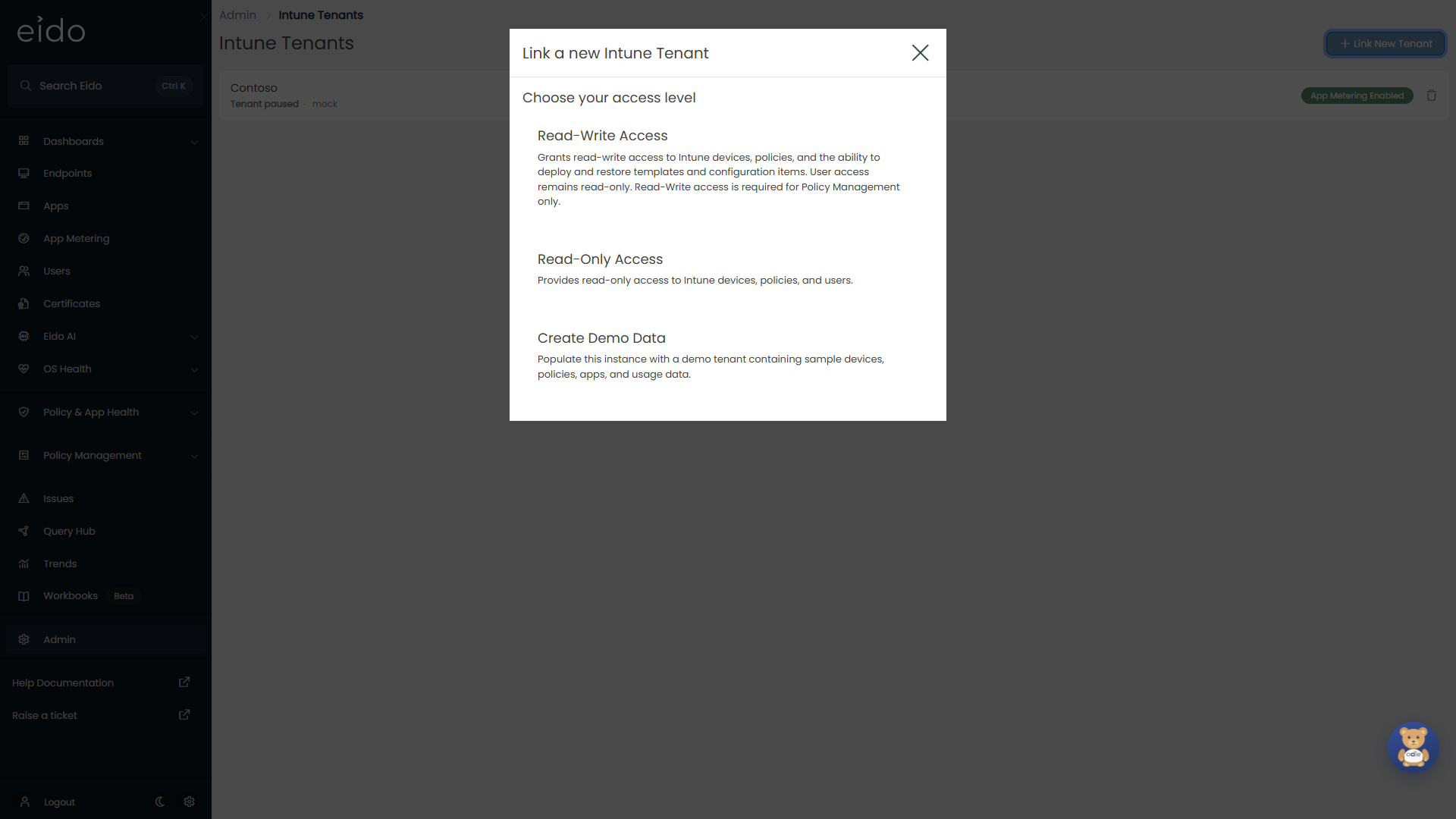
| Choice | What Eido can do in your tenant | Choose it when |
|---|---|---|
| Read-Only Access | Read devices, policies, apps and users. Eido cannot change anything. | You want reporting, alerting and troubleshooting, and you want to be certain Eido cannot alter Intune. This is enough for everything in Eido except the two actions below. |
| Read-Write Access | Everything read-only allows, plus write access to Intune policies and configuration. Access to users stays read-only. | You want to restore a policy from one of Eido’s backups, or deploy policy templates to the tenant. |
| Custom / Manual App Registration | Whatever you have granted to your own app registration. | Your organisation will not consent to a multi-tenant application, or your tenant is in a national cloud. Shown only when it has been enabled for your organisation. See Using your own app registration. |
| Create Demo Data | Nothing. No tenant is connected. | You want to explore Eido with sample data. See Intune tenants. |
What read-write adds#
Read-write is needed for exactly two things, both of which only happen when an administrator presses a button:
- Restoring a policy from a backup, with or without its assignments.
- Deploying a policy template to the tenant, which creates a policy or updates one.
Templates are described in Policy backups and templates. Before either action, Eido asks the administrator to confirm their identity with a fresh Microsoft sign-in.
With read-write access, syncing is still read-only. Eido never changes your tenant in the background, and it has no action that deletes a policy, wipes or retires a device, or changes a user or a group.
With read-only access, the restore and deploy actions are refused. Everything else in Eido behaves the same.
Link the tenant#
-
Start the link
On the Get Started page, press Grant Access in the Connect your Intune tenant step. Later on, use Admin, Intune Tenants, Link New Tenant.
-
Pick Read-Only Access or Read-Write Access
Eido sends the browser to Microsoft.
-
Sign in to Microsoft with the Entra administrator account
Use an account from the tenant you want to link. If Microsoft signs you in automatically with an account that cannot grant consent, it says that you need admin approval. Sign out of that account, or use a private window, and sign in with the administrator account.
-
Review what is being asked for and press Accept
Microsoft shows the name of the Eido application, its publisher and the list of permissions it is requesting for your organisation. This screen is Microsoft’s, and its list is the authoritative record of what you are granting. Press Accept to grant it, or Cancel to stop without linking anything.
-
Name the tenant
You are returned to Eido.
- From Intune Tenants, Eido shows Intune Authorization Successful and asks for a friendly name (and a customer, if you manage several). Press Confirm.
- From Get Started, the tenant is named after your organisation and the step is ticked. You can rename it at any time in tenant settings.
The tenant now appears under Intune Tenants, and its first sync starts within about a minute.
If something goes wrong#
| What you see | What it means | What to do |
|---|---|---|
| Microsoft says you need admin approval | The account you signed in with cannot grant consent for the tenant. | Sign in with a Global Administrator account. See Who needs to do it. |
| An error page after accepting, or you are back in Eido and no tenant has been added | Consent was cancelled, or it was completed in a different browser, or more than 15 minutes passed between starting and accepting. | Start again from Link New Tenant and finish in one go, in one browser. |
| Failed to start Intune authentication | Eido could not prepare the Microsoft sign-in. | Try again. If it keeps happening, raise a ticket with Eido support. |
| The wrong tenant was linked | The Microsoft account you signed in with belongs to a different tenant. | Remove it under Intune tenants and link again in a private window. |
Using your own app registration#
Instead of consenting to Eido’s application, you can create an app registration in your own Entra tenant and give Eido its details. Eido then signs in to your tenant as your application.
What is different about this route:
- You decide the permissions. You add Microsoft Graph application permissions to your app and grant admin consent for them in Entra. Eido can read only what you grant. Permissions Eido needs lists what each part of Eido reads, so you can match it.
- You own the secret. You create a client secret, give it to Eido and replace it before it expires. If it expires, syncs fail until you enter a new one.
- It is treated as read-only. Restoring policies and deploying templates are available only with Read-Write Access. They are not available to a tenant connected this way, whatever your app has been granted.
- There is no Microsoft consent screen from Eido. The tenant is added as soon as you press Confirm.
Add the tenant#
-
Create the app registration in Entra
In the Microsoft Entra admin centre, register an application for your tenant, add the Microsoft Graph application permissions you have decided on, grant admin consent, and create a client secret. Note the tenant ID, the application (client) ID, the secret value and its expiry date.
-
In Eido, press Link New Tenant, then Custom / Manual App Registration
Manual Tenant Registration opens.
-
Fill in the form
Field What to enter Friendly name The name Eido shows for this tenant. Azure Cloud Type Azure Global (Public) for most tenants. Azure US Government or Azure China for a tenant in one of those clouds. Entra Tenant Id The directory (tenant) ID. Entra Client ID The application (client) ID of your app registration. Entra Client Secret The secret’s value, not its ID. Client Secret Expiration The date the secret expires. -
Press Confirm
The button becomes available once every field is filled in. The tenant appears under Intune Tenants and its first sync starts within about a minute.
If Eido says Intune tenant already exists, that tenant ID is already linked to your organisation.
The secret is never shown again after it is saved. To replace it, see tenant settings.
The first sync#
You do not need to start anything. Eido notices the new tenant and begins reading it within about a minute. The first sync can take up to 30 minutes. Dashboards and lists may be empty or partly filled until it is complete.
Data arrives in roughly this order:
| Order | What appears |
|---|---|
| First | People and groups from Entra, then the devices themselves. Endpoints and Users fill up. |
| Next | Hardware details and Autopilot deployments. |
| Then | The result of every compliance policy, managed app and configuration policy on every device. |
| Then | Patch status, health grades and issues, which are worked out from everything above. Dashboards become meaningful at this point. |
| Last | Policy definitions and their backups, certificates and tokens, discovered apps, and the remaining reports such as Defender, malware and remediations. |
After that, Eido reads the tenant again about once an hour. What Eido syncs lists each area and how often it is refreshed.
To watch progress, open Admin, Intune Tenants. The tenant shows Sync in progress while it runs, then a countdown to the next sync. See Sync status.
Disconnecting#
To stop Eido reading a tenant, remove it under Intune tenants. That deletes what Eido holds about it.
Removing the tenant from Eido does not withdraw the consent in your tenant. To revoke Eido’s access on the Microsoft side as well, delete the Eido application from Enterprise applications in the Microsoft Entra admin centre. Doing only that, without removing the tenant in Eido, leaves the tenant listed in Eido with syncs that fail.
Questions people ask#
Does Eido need a licence or anything installed in our tenant?#
Eido reads what Intune already knows, through Microsoft Graph. Nothing is installed to connect. Two optional features do add something to devices, and only if you switch them on: App Metering and the Eido Client.
Can I start read-only and move to read-write later?#
Yes. Link the same tenant again with the other access level. Eido updates the existing tenant instead of adding a second one. See Change a tenant’s access level.
We skipped this step during sign-up. Where is it now?#
Under Admin, Intune Tenants, Link New Tenant.
Our Global Administrator will not sign in to a third-party product#
They do not need an Eido account of their own if you do it together on one screen: they only sign in to Microsoft, on Microsoft’s page, and Eido never sees their password. If that is still not acceptable, ask Eido support about using your own app registration.
Can I connect more than one tenant?#
Yes, as many as you look after. See Intune tenants.