
An automation watches your data for you. You choose a Query Hub view, narrow it with filters, and say what should happen when something new matches: send an email, post to Slack or Microsoft Teams, call a webhook, or open a ServiceNow incident.
Where an alert covers the issues Eido raises itself, an automation covers anything you can express as a query. “Tell the service desk when an app install fails on a director’s laptop” and “tell me when there are more than five active malware detections” are both automations.
Open the page from Admin, then Automations. Only an instance-level administrator can open it. An action can send device and user details outside Eido, so the page is kept to the people who run your Eido. Roles explains the kinds of administrator.
How an automation is put together#
Every automation has three parts.
| Part | What it is | Where you set it |
|---|---|---|
| Query | A Data View and any filters. This is what the automation watches. | Trigger tab |
| Trigger | When to act: for each new matching row, or when the number of matching rows crosses a value. | Trigger tab |
| Actions | One or more notifications, run in order. | Actions tab |
Alerts or automations?#
| Alerts | Automations | |
|---|---|---|
| Watches | Eido’s device and certificate issues | Any Query Hub view, with your own filters |
| Tells you when it clears | Yes | No |
| Can repeat a reminder | No | Yes |
| Several destinations in one rule | No | Yes |
| You write the message | Only for ServiceNow | Yes, for every action |
| Who can set it up | Any administrator | Instance-level administrators |
Reading the list#
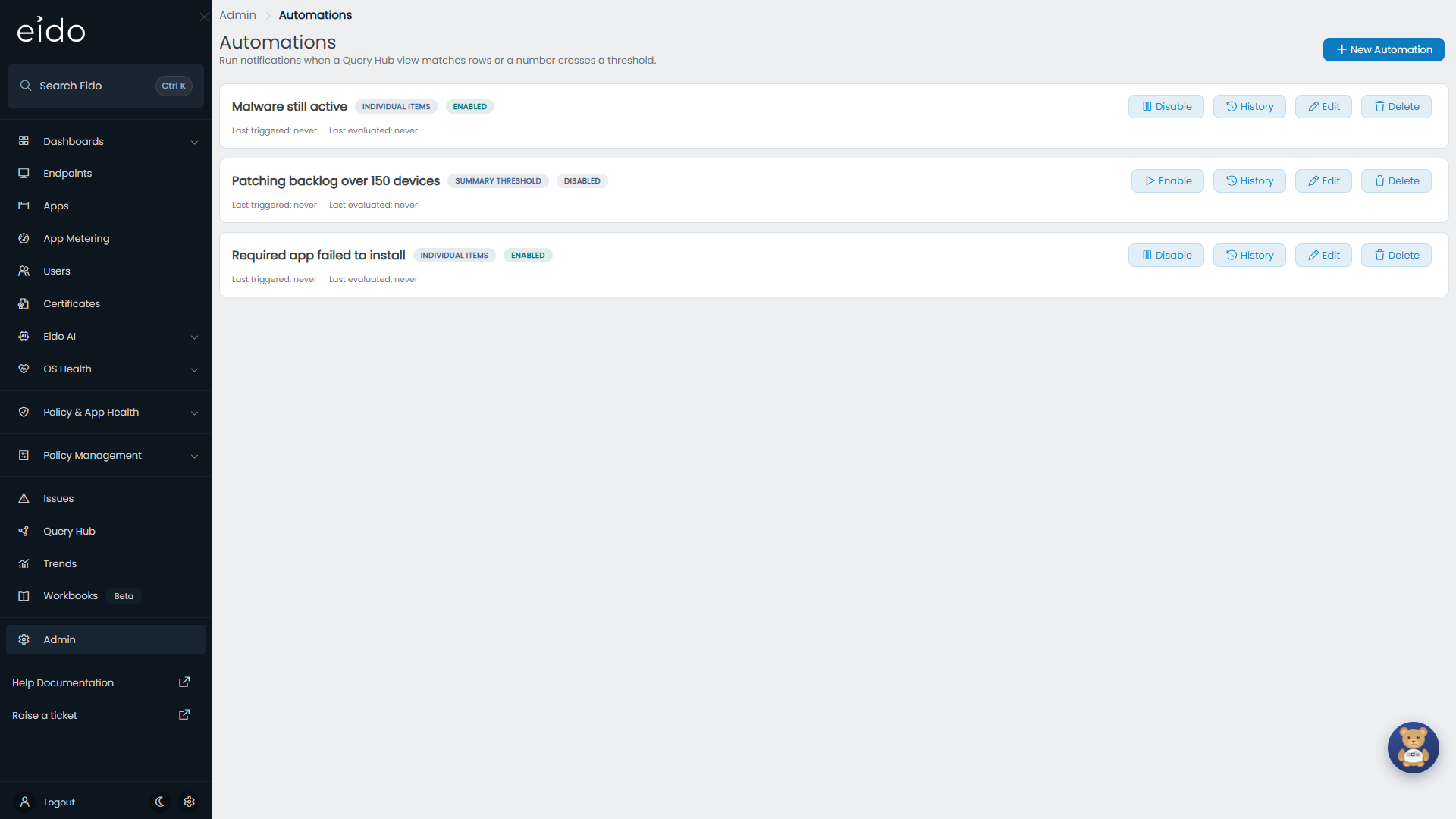
Each automation is a card, in alphabetical order.
| On the card | Meaning |
|---|---|
| Individual Items or Summary Threshold | The trigger mode. |
| Enabled or Disabled | Whether it is running. |
| Last triggered | When it last fired its actions, or never. |
| Last evaluated | When it last checked your data, or never. |
| Disable / Enable | Stops or starts it. |
| History | Opens its past runs. |
| Edit | Opens the builder. |
| Delete | Deletes it, after a confirmation. |
Build an automation#
-
Start
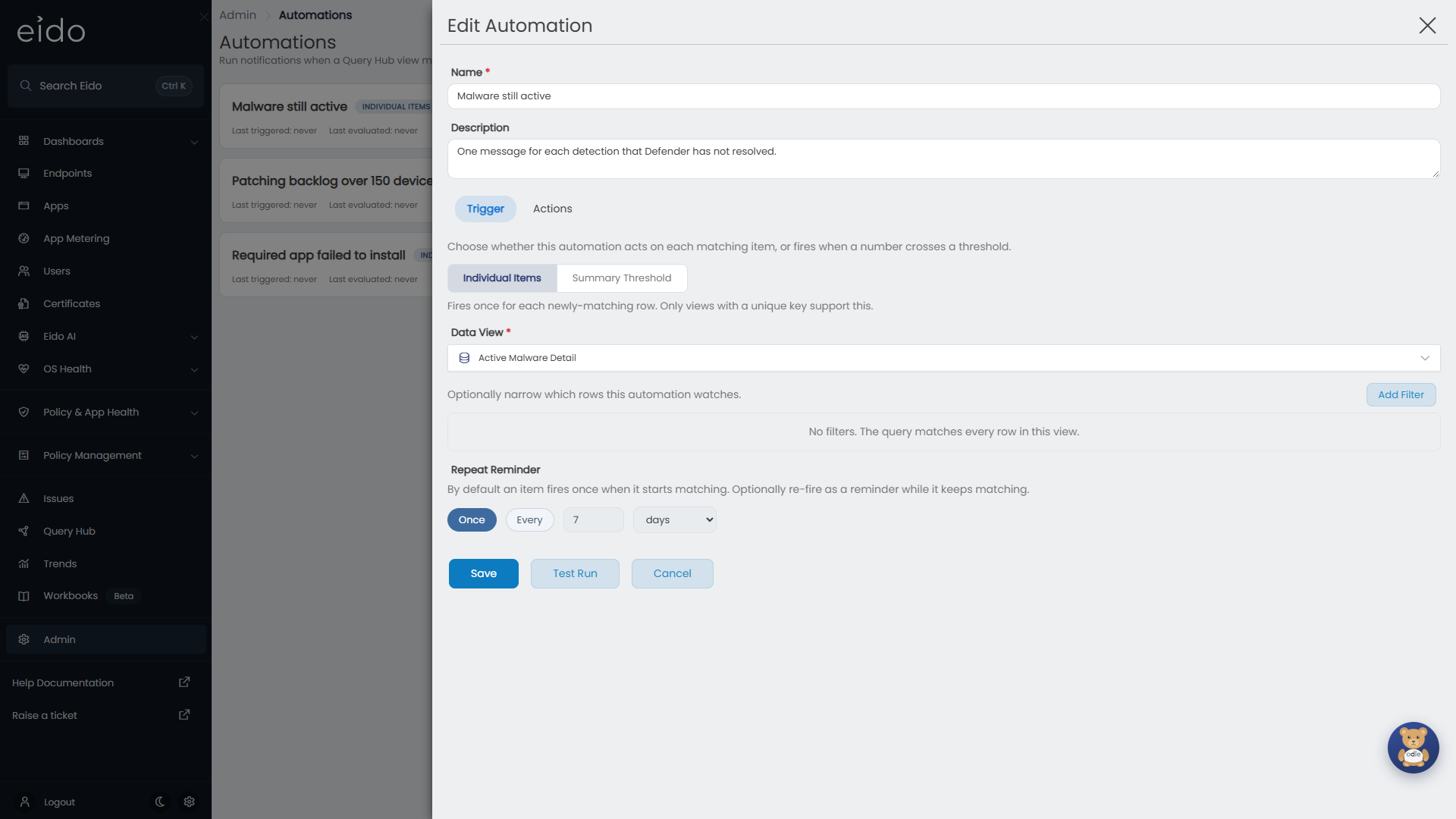
Press New Automation. Give it a Name, which is required, and optionally a Description.
-
Choose the mode
On the Trigger tab, pick Individual Items or Summary Threshold.
-
Choose the data
Pick a Data View. The list can be searched.
-
Narrow it
Press Add Filter for each condition. With no filters, the automation watches every row in the view.
-
Finish the trigger
For Summary Threshold, set the comparison and the Value. For Individual Items, choose whether to repeat a reminder.
-
Add actions
On the Actions tab, press Add Action, choose its type and fill it in. Add as many as you need.
-
Save
Leave Enable this automation as soon as it is created on to start it straight away.
Save is available once the automation has a name, a data view, at least one action, a threshold value if it needs one, and valid recipients on every email action.
The trigger#
Individual Items#
Use this to act on each thing that goes wrong: this device, this install, this detection.
The automation fires once for each row when that row starts matching. While the row keeps matching, it stays quiet. If the row stops matching and later matches again, that is a new occurrence and it fires again.
Only some views can be watched row by row, because Eido has to be able to tell one row from another between runs. In this mode the Data View list shows only the views that can. If the view you want is missing, use Summary Threshold, which works on every view.
Repeat Reminder
| Setting | Behaviour |
|---|---|
| Once | Fires when the row starts matching and not again while it stays that way. This is the default. |
| Every N hours or days | Also fires again each time that long has passed while the row is still matching. |
Use Every for things that should not be forgotten, such as a device that has been non-compliant for a week.
Summary Threshold#
Use this to act on a total: too many of something, or too few.
Choose a comparison under Matching row count is, and a Value.
| Comparison | Fires when the number of matching rows |
|---|---|
| Less than (<) | Drops below the value. |
| Less than or equal (<=) | Drops to the value or below. |
| Greater than (>) | Rises above the value. |
| Greater than or equal (>=) | Rises to the value or above. |
| Equals (==) | Becomes exactly the value. |
The automation fires once when the count crosses the line, not on every check while it stays crossed. When the count goes back to the right side of the line, the automation is ready again, and the next crossing fires.
The threshold always compares the number of matching rows. To act on a condition, put the condition in the filters and count what is left. For example, filter Active Malware Detail to the detections you care about and set Greater than (>) with a value of 5.
Filters#
Filters work as they do in Query Hub. See Filters, grouping and charts. Changing the Data View clears the filters, because they belonged to the old view’s columns.
Actions#
Actions run in the order shown, top to bottom. If one fails, the others still run.
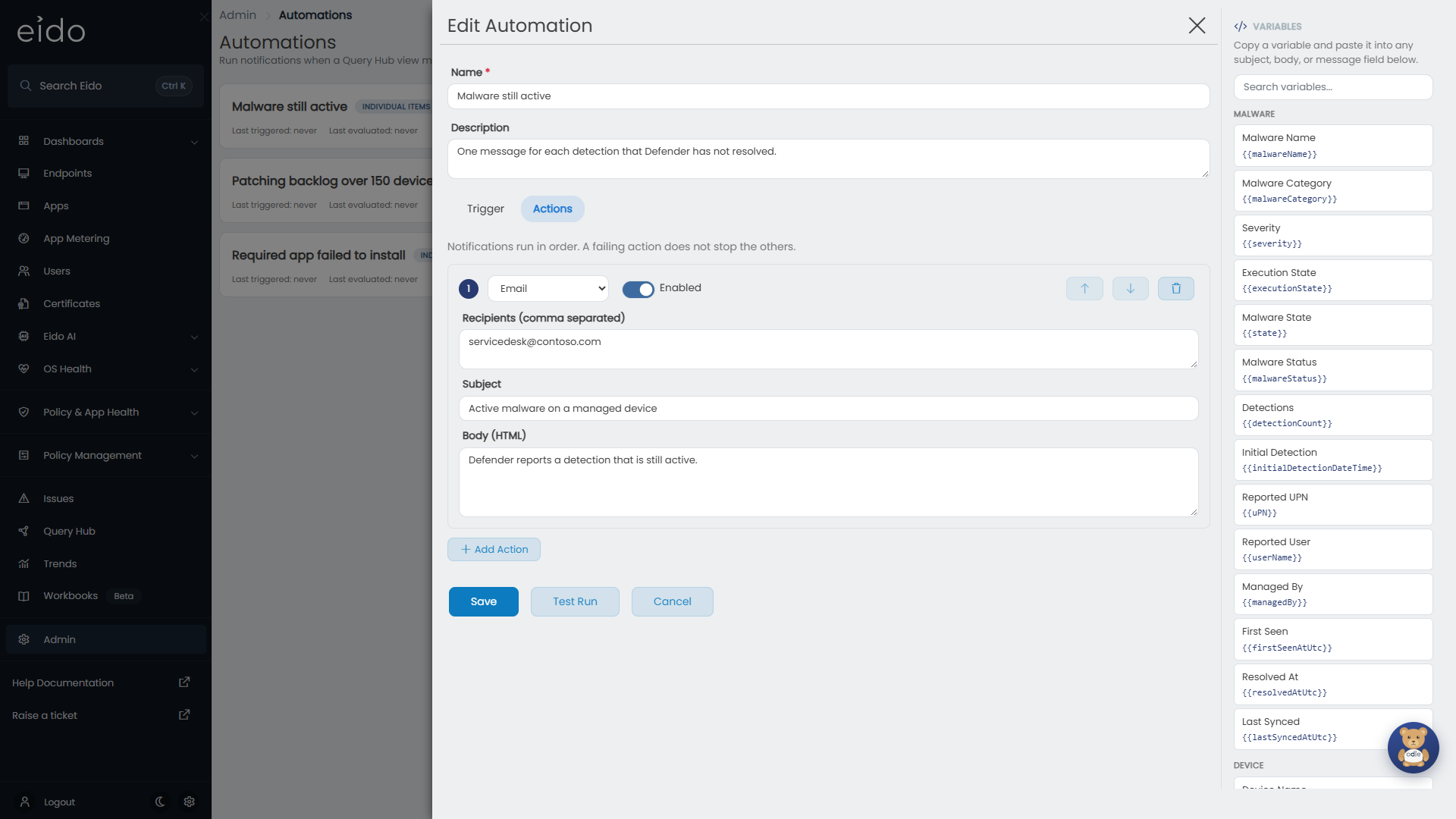
Each action card has a number, its type, an Enabled switch, arrows to move it up or down, and a bin icon. Switch Enabled off to keep an action’s settings while leaving it out of the run. Changing an action’s type clears its settings.
Email#
| Setting | What it is |
|---|---|
| Recipients (comma separated) | One or more addresses. At least one is required, and each must be a valid address. |
| Subject | The subject line. Variables are allowed. |
| Body (HTML) | The message, as HTML. Variables are allowed. |
Each recipient is sent their own copy.
Slack#
| Setting | What it is |
|---|---|
| Webhook URL | The incoming webhook address for the channel. |
| Message | The text to post. Variables are allowed. |
Teams#
| Setting | What it is |
|---|---|
| Webhook URL | The webhook address for the Teams channel. |
| Message | The text to post. It arrives as a card. Variables are allowed. |
Webhook#
Calls an address of your choosing, for anything that accepts an HTTP request.
| Setting | What it is |
|---|---|
| URL | Where to send the request. |
| Method | POST, PUT, PATCH or GET. POST unless you change it. |
| Content Type | The type of the body. application/json unless you change it. |
| Auth Header | Optional. Sent exactly as typed, as the value of the Authorization header, for example Bearer followed by a token. |
| Body | The request body. Variables are allowed. |
ServiceNow#
Opens an incident.
| Setting | Required | What it is |
|---|---|---|
| ServiceNow URL | Yes | The address of your instance’s incident table. The box shows the expected shape. |
| Username and Password | Yes | A ServiceNow account that may create incidents. A saved password is shown masked. Leave it to keep it. |
| Caller Email | Yes | The incident’s caller. A fixed address, or a variable such as {{primaryUserEmail}} to raise it on behalf of the device’s user. |
| Short Description | Yes | Variables are allowed. |
| Description | Yes | Variables are allowed. |
| Assignment Group | Yes | The group the incident goes to. |
| Assign To Email (optional) | A person to assign it to. | |
| Impact (optional) and Urgency (optional) | ServiceNow’s own values, for example 2. |
This action stands alone. It does not use the ServiceNow connections under Integrations.
Variables#
A variable is a name in double curly brackets, such as {{deviceName}}. When the automation fires, Eido replaces it with the value from the row that matched.
The Variables panel beside the Actions tab lists every variable you can use for the view and mode you have chosen. Search it, press the copy button beside a variable, and paste it into the box where you want it.
| Mode | Variables |
|---|---|
| Individual Items | Every column of the data view, including columns that are hidden by default, plus {{automationName}} and {{rowKey}}, an identifier Eido makes for the row. |
| Summary Threshold | {{matchedRowCount}}, {{thresholdActualValue}}, {{thresholdValue}}, {{viewName}} and {{automationName}}. |
Variables work in an email’s subject and body, a Slack or Teams message, a webhook’s body, and a ServiceNow incident’s caller email, short description and description. They do not work in addresses or recipients.
A variable that Eido does not recognise is left in the message as you typed it, which makes a misspelling easy to spot.
When an automation runs#
Automations are checked each time Eido finishes synchronising a tenant, which is about once an hour. They do not run on a clock, and there is no button to run one now.
The first check fires nothing#
The first time an automation is checked after it is created, edited or enabled, Eido only takes note of what matches at that moment. It sends nothing.
That is on purpose. Without it, switching on “tell me about non-compliant devices” would send a message for every device that is already non-compliant. From the second check onwards, only changes fire.
It also means:
- A new automation cannot fire until its second check. Allow a couple of hours before you expect anything.
- Editing an automation resets it. Rows that were already matching are not announced again.
- A threshold automation enabled while the count is already over the line stays quiet until the count drops back and crosses again.
Use Test Run to see what matches right now.
With more than one tenant#
Each tenant is checked on its own, after its own synchronisation. For Individual Items this makes no difference to what you receive. For Summary Threshold it does: the count is the number of matching rows in that tenant. “Greater than 5” means more than five in one tenant, not five across all of them.
Limits#
Two limits stop an over-broad automation from flooding a channel.
| Limit | What happens |
|---|---|
| More than 200 rows to fire for one tenant in one check | The first 200 fire. The run is marked Capped in History, and the rest fire on the following checks. |
| More than 10,000 rows match for one tenant in Individual Items mode | The automation does not run for that tenant. History records a failed run, with an error telling you to tighten the filter or use threshold mode. |
Test Run#
Test Run shows what the automation matches at this moment. It sends nothing and changes nothing.
Save the automation first, then open it with Edit and press Test Run. The test uses the automation as it was last saved, so save any changes before you test them.
The result shows:
- Matched rows: how many rows match, across all your tenants.
- Threshold crossed: Yes or No, for a Summary Threshold automation.
- A sample of up to 25 matching rows, with the view’s main columns.
- A warning if the automation matches too many rows to run.
If nothing matches you see No rows currently match. That is the answer to most “why has it not fired?” questions.
History#
Press History on a card to open the automation’s Execution History: its 50 most recent runs.
| Column | Meaning |
|---|---|
| Triggered | When the run happened. |
| Status | Success: every action worked. PartialFailure: some worked and some failed. Failed: none worked, or the automation could not run. |
| Matched | How many rows matched in that tenant. |
| Fired | How many of them the actions were run for. A threshold run counts as 1. |
| Capped | Yes if the 200 limit was reached. |
| Duration (ms) | How long the run took. |
| Error | Why the automation could not run, if it could not. |
Only runs where something happened are listed. A check that finds nothing new leaves no row here. It still updates Last evaluated on the card. With several tenants, each tenant’s run is its own row.
Press a run to see Action results below the grid.
| Column | Meaning |
|---|---|
| Action | The action’s type. |
| Status | Whether that action succeeded or failed. |
| Target | Where it went: the recipients of an email, or the host of a webhook, Slack, Teams or ServiceNow address. |
| Detail | What came back: how many recipients were sent to, the response code from a webhook, the number of the ServiceNow incident, or the error. |
| Time | When the action ran. |
In Individual Items mode there is one line for each action for each row that fired.
Change, pause or delete#
- Edit opens the builder. Saving resets the automation, as described above.
- Disable stops it being checked. Enable starts it again, and its first check fires nothing.
- Delete asks you to confirm, then removes it.
Troubleshooting#
It has never fired#
Look at the card.
- Last evaluated says never: it has not been checked yet. Either it is disabled, or no tenant has finished synchronising since it was created. Enable it, or wait for the next synchronisation.
- Last evaluated has a time and Last triggered says never: it is being checked and nothing new has matched since its first check. Open it and press Test Run. If rows match there, they were already matching when the automation started, and it is waiting for something new.
It fired, but nothing arrived#
Open History, press the run and read Action results. A failed action shows why in Detail. An email action that succeeded and did not arrive is usually in a junk folder.
A run says Failed with a message about too many rows#
The automation matches more than 10,000 rows in a tenant. Add filters until it selects only what you want to hear about, or switch to Summary Threshold.
I got hundreds of messages at once#
A filter was too wide, and many rows started matching at the same check. Tighten the filters. If one message about the total would do, use Summary Threshold instead.
It fired again for something I already knew about#
Either Repeat Reminder is set to Every, or the row stopped matching and then matched again. A row that flips in and out of the filter fires each time it comes back.
The threshold is crossed in Test Run but it did not fire#
Test Run counts across all your tenants. The automation counts each tenant separately, so no single tenant may be over the line. If it was already over the line when you enabled it, it is waiting for the count to drop and cross again.
A message shows the variable name, not a value#
The variable is not one Eido recognises for this view. Copy it again from the Variables panel instead of typing it.
The data view I want is not in the list#
In Individual Items mode, only views that can be watched row by row are offered. Switch to Summary Threshold to see every view.
Eido will not save an action#
Check its address. It must begin with https and must not be a private or internal address. For an email action, every recipient must be a valid address.