
An alert is a standing rule: when Eido raises an issue of a kind and severity you choose, tell somebody. Eido can send an email, post to Slack or Microsoft Teams, call a webhook, or open a ServiceNow incident. It tells the same destination again when the issue clears.
Open the page from Admin, then Alerts. Any administrator can open it. An administrator who is restricted to one customer sees and manages only that customer’s alerts.
Alerts and issues#
Alerts are built on Issues. Eido works out issues for itself as it synchronises each tenant, whether or not any alert exists. An alert only decides who is told.
- Every alert you receive is about one issue: one device and one policy, app or update problem, or one certificate.
- An alert does not change the issue. The issue stays on the Issues screen until the underlying problem is fixed.
- Deleting an alert deletes the rule, not the issues.
Alerts cover the issues Eido raises itself. To be notified about anything else you can query, such as a new device of a certain model, use an automation.
Reading the list#
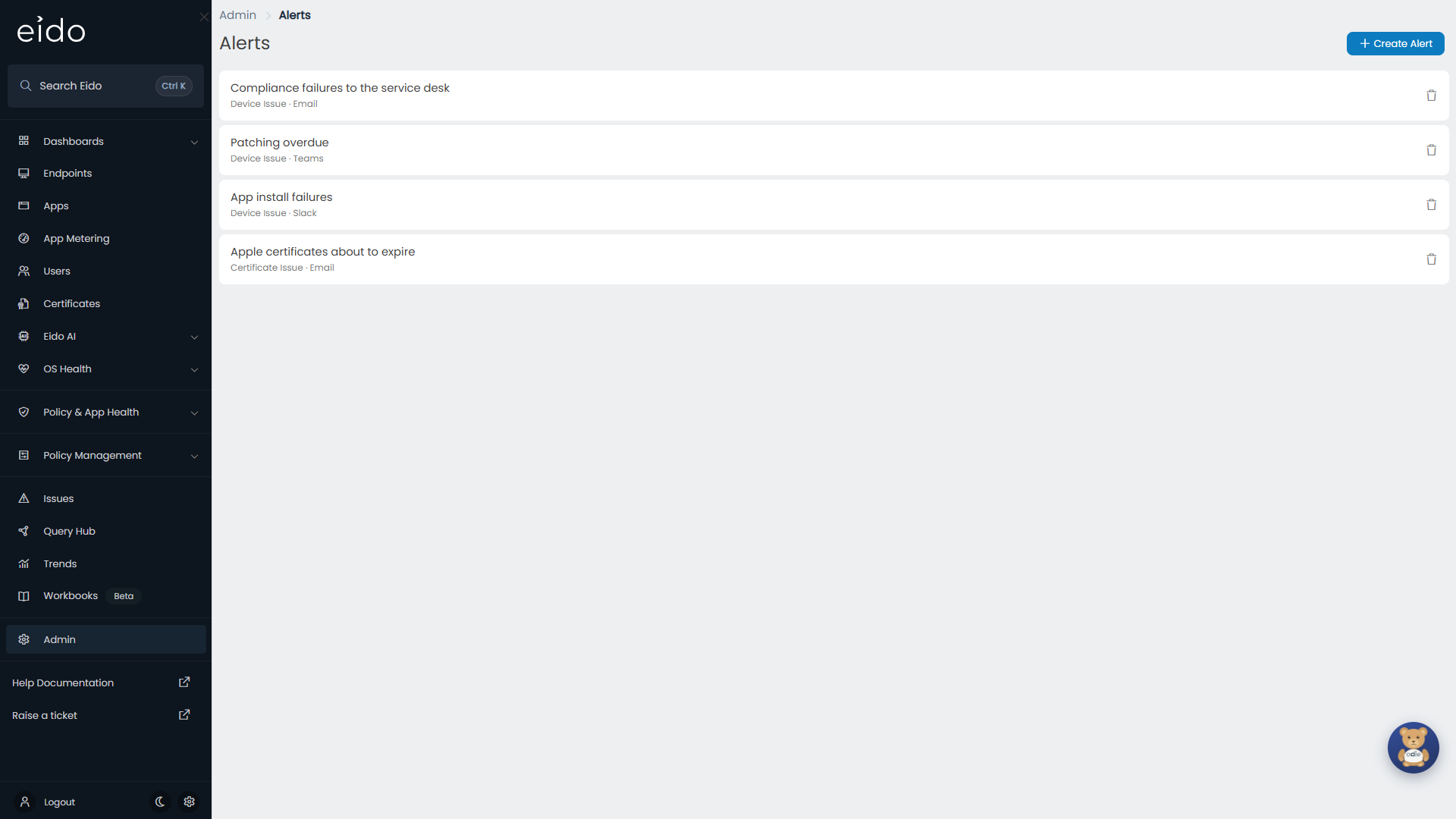
Each row shows the alert’s name, and under it the kind of issue it watches and its destination. Press a row to edit the alert, or the bin icon to delete it.
If your organisation manages several customers, three tabs appear.
| Tab | Shows |
|---|---|
| All Alerts | Every alert. |
| Tenant Alerts | Alerts that cover every customer. |
| Customer Alerts | Alerts that cover one customer only. |
See Alerts for one customer for how an alert gets its scope.
Create an alert#
-
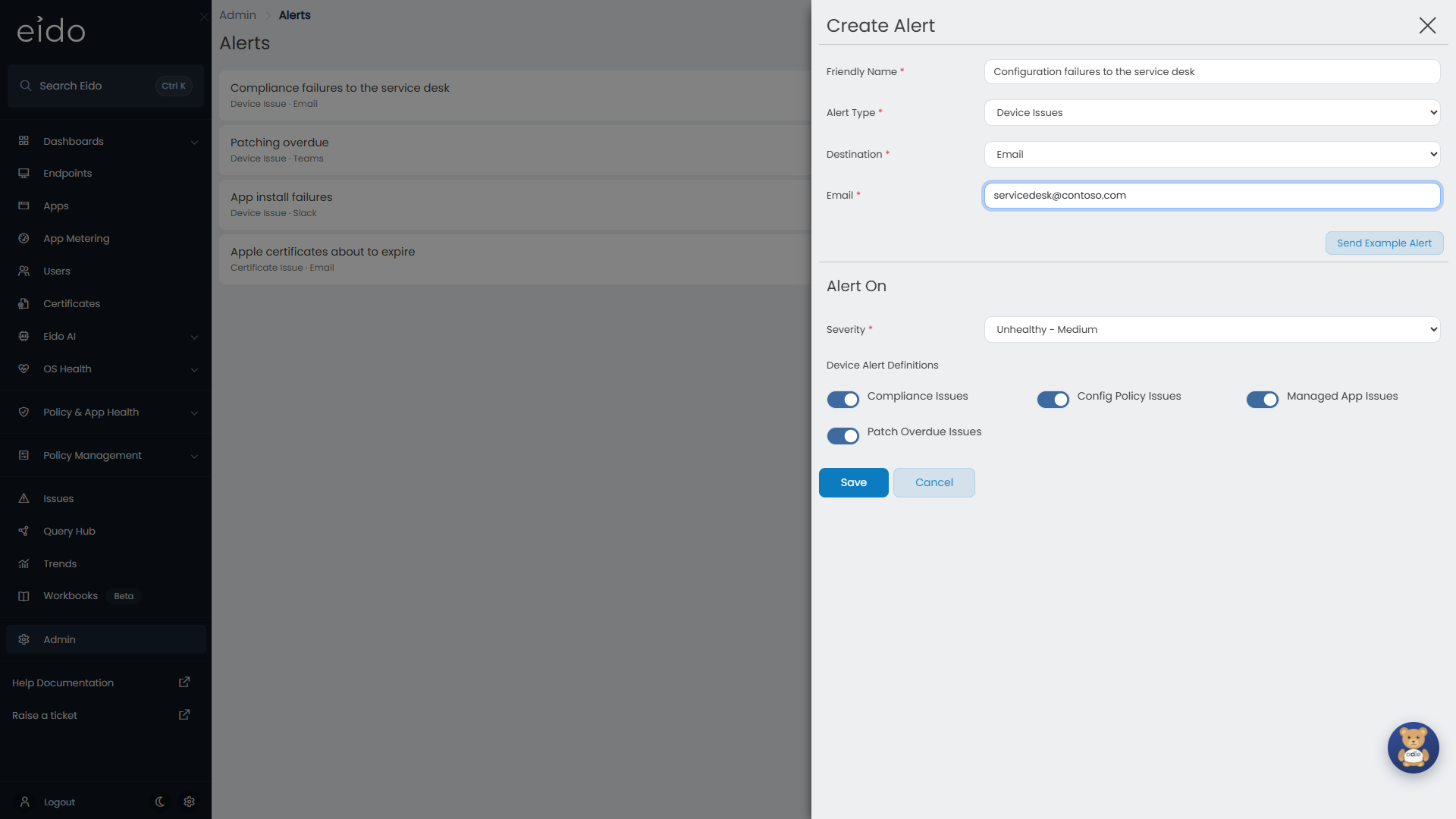
Open the form
Press Create Alert.
-
Name it
Friendly Name is what the alert is called in the list.
-
Choose what it watches
Set Alert Type to Device Issues or Certificate Issues.
-
Choose where it sends
Set Destination and fill in the boxes that appear for it.
-
Test it
Press Send Example Alert and check that the example arrives.
-
Choose the severity and the issues
Under Alert On, set Severity and switch the kinds of issue on or off.
-
Save
What an alert can watch#
Alert Type picks one of two families. An alert watches one family. Make a second alert for the other.
Device Issues#
Under Device Alert Definitions, four switches choose the kinds of device issue. All four are on for a new alert.
| Switch | Alerts on |
|---|---|
| Compliance Issues | An issue with an Intune compliance policy on a device. |
| Config Policy Issues | An issue with an Intune configuration profile on a device. |
| Managed App Issues | An issue with an Intune managed app on a device, such as a failed install. |
| Patch Overdue Issues | A device that is overdue for updates. |
Certificate Issues#
Under Certificate Alert Definitions there is one switch.
| Switch | Alerts on |
|---|---|
| Certificate Expiry | A certificate that is close to expiring, or has expired. See Certificates. |
Severity#
Severity is required and has two values.
| Severity | Alerts on |
|---|---|
| Unhealthy - Medium | Issues at Medium severity only. |
| Unhealthy - High | Issues at High severity only. |
What makes an issue Medium or High is decided by the thresholds on each tenant, for example how many days before expiry a certificate becomes Medium and then High. See Tenant settings.
Where an alert can send#
Each alert has one Destination. To tell two places about the same issues, create two alerts.
| Destination | You provide | What arrives |
|---|---|---|
| Email, one address | An email. | |
| Slack | Webhook URL of a Slack incoming webhook | A message in the channel. |
| Teams | Webhook URL for a Teams channel | A card in the channel. |
| Webhook | Webhook URL, and optionally a secret | An HTTP POST with the issue as JSON. |
| ServiceNow | Your ServiceNow address, an account, and how to fill in the incident | A ServiceNow incident. |
Email#
One address for each alert. To reach several people, use a shared mailbox or a distribution list, or create an alert for each person.
The subject is “Eido - Device Issue” or “Eido - Certificate Expiring”. A device email names the issue, its severity, the device and its primary user, with a link to the device in Eido. A certificate email names the issue, its severity, the certificate and its expiry date, with a link to Certificates.
Slack and Teams#
Paste the incoming webhook address for the channel into Webhook URL.
A device message says whether the issue was raised or cleared, the issue, the severity and the device, with a link, View Device in Eido. A certificate message gives the certificate and its expiry instead, with View Certificates in Eido.
Webhook#
Eido sends an HTTP POST with a JSON body to Webhook URL.
Switch Webhook Authorization Header Required on if your endpoint needs a secret, and type it into Header Secret. Eido sends it exactly as typed, as the value of the Authorization header, so include the scheme if your endpoint expects one, for example Bearer followed by the token.
A device issue has these fields.
| Field | Contains |
|---|---|
eido_issue_id | Eido’s number for the issue. The raised and cleared calls for one issue carry the same number. |
eido_device_id | Eido’s number for the device. |
device_name | The device’s name. |
intune_device_id | The device’s ID in Intune. |
intune_tenant_id | The ID of the Intune tenant. |
is_intune_issue | Always 1. |
raised_or_cleared | raised or cleared. |
start_date | When the issue was raised. |
end_date | When it cleared. Empty on a raised call. |
status | Amber for a Medium issue, Red for a High one. |
intune_metric_type | The kind of issue, for example compliance. |
intune_metric_name | The name of the policy, app or update the issue is about. |
intune_metric_identifier | Its identifier. |
A certificate issue has eido_issue_id, raised_or_cleared, start_date, end_date, status and the three intune_metric fields as above, with eido_device_id and device_name empty, and adds:
| Field | Contains |
|---|---|
friendly_issue_description | A sentence describing the issue, including the days left. |
certificate_name | The certificate’s name. |
certificate_expiry_date | When it expires. |
ServiceNow#
Eido opens an incident when the issue is raised. When the issue clears, it adds the comment “This issue has been cleared by Eido” to the same incident. It does not close the incident for you.
| Setting | Required | What it is |
|---|---|---|
| URL | Yes | The address of your instance’s incident table. The box shows the expected shape. |
| Username and Password | Yes | A ServiceNow account that may create and update incidents. |
| Use Device Primary user as ServiceNow Caller | On by default. The incident’s caller is the device’s primary user. | |
| Fallback Caller Email | Yes | The caller when the switch is off, or when the device has no primary user. Certificate incidents always use it. |
| Short Description Template | Yes | The incident’s short description. |
| Description Template | Yes | The incident’s description. |
| Assignment Group Name | Yes | The group the incident is assigned to. |
| Assign To Agent Email | A person to assign the incident to. | |
| Impact and Urgency | Instance default, 1 - High, 2 - Medium or 3 - Low. Instance default leaves ServiceNow to decide. |
Both templates start with sensible text, and you can change it. Words in curly brackets are replaced with details of the issue.
| Placeholder | Replaced with | Device issues | Certificate issues |
|---|---|---|---|
{IssueId} | Eido’s number for the issue | Yes | Yes |
{IssueSeverity} | The severity | Yes | Yes |
{IssueType} | The kind of issue | Yes | Yes |
{IssueName} | The policy, app, update or certificate | Yes | Yes |
{IssueStart} | The date it was raised | Yes | Yes |
{IssueEnd} | The date it cleared, empty on a new incident | Yes | Yes |
{IssueUrl} | A link to the device, or to Certificates | Yes | Yes |
{EidoCustomerName} | The customer, if you manage several | Yes | |
{DeviceName} | The device’s name | Yes | |
{PrimaryUserName} | The primary user’s name | Yes | |
{PrimaryUserEmail} | The primary user’s email | Yes | |
{DeviceOperatingSystem} | The operating system | Yes | |
{DeviceSerialNumber} | The serial number | Yes | |
{DeviceIntuneLastSync} | The date the device last synchronised with Intune | Yes | |
{EidoDeviceLink} | A link to the device in Eido | Yes | |
{FriendlyIssueName} | A sentence describing the issue | Yes | |
{CertificateName} | The certificate’s name | Yes | |
{CertExpiryDate} | When it expires | Yes |
This destination is separate from the ServiceNow connections under Integrations. See ServiceNow.
When alerts are sent#
| What happens to the issue | What the alert sends |
|---|---|
| It is raised at the alert’s severity | One alert. |
| It stays open | Nothing more. Alerts do not repeat. |
| It clears | One alert saying so. For ServiceNow, a comment on the incident. |
| Its severity changes, say from Medium to High | The Medium issue is cleared and a High issue is raised. An alert on Medium is told it cleared, and an alert on High is told it was raised. |
Alerts are sent every five minutes, so expect one within a few minutes of Eido finding the issue. Eido finds issues as it synchronises each tenant.
An alert only speaks for issues raised after it was created. Issues that were already open when you saved it do not produce a flood. You may, though, be told when one of those older issues clears.
Test an alert#
Send Example Alert sends a made-up issue to the destination, using whatever is in the form at that moment. You do not have to save first, so you can test a destination before committing to it.
The button is available once the destination’s required boxes are filled in. A message confirms when the example has been sent.
The example is clearly fake: a device called EXAMPLE-LAPTOP-01, or a certificate called Example VPN Certificate.
Testing is worth doing. The Alerts page does not show a history of what was delivered, so a wrong address or an expired webhook is otherwise only noticed when alerts stop arriving.
Stop or change an alert#
There is no mute or pause switch on an alert. To quieten one:
- Narrow it. Open it and switch off the kinds of issue you do not want, or change Severity to Unhealthy - High.
- Delete it. Press the bin icon and confirm. Anything it had not yet sent is dropped.
To edit an alert, press its row. A saved Password or Header Secret is shown masked. Leave it as it is to keep the saved value, or type a new one to replace it.
If alerts are noisy because too many issues are raised in the first place, look at the tenant’s thresholds in Tenant settings before you turn the alert down.
Alerts for one customer#
If your organisation manages several customers, an alert covers either all of them or one of them. The form has no customer box. The scope comes from the customer switcher at the moment you create the alert.
| Created while | The alert covers | Listed under |
|---|---|---|
| All Customers is selected | Every tenant, in every customer | Tenant Alerts |
| One customer is selected | That customer’s tenants only | Customer Alerts |
So to send one customer’s device issues to that customer’s own service desk, select the customer in the switcher, then go to Admin, then Alerts, and create the alert there.
While a customer is selected, the list shows that customer’s alerts only. An administrator who is restricted to one customer always creates alerts for that customer. See Customers.
Questions#
An issue was raised but no alert arrived#
Work down this list.
- Severity. It must match exactly. A High issue does not trigger a Medium alert.
- The kind of issue. Its switch must be on, and the Alert Type must be the right family.
- Timing. The issue must have been raised after the alert was created.
- Scope. An alert created for one customer does not cover the others.
- The destination. Open the alert and press Send Example Alert. If the example does not arrive, the address, webhook or account is the problem.
- Junk mail. For email, check the junk folder and any mail filtering.
Why did I get a cleared alert and a raised alert together?#
The issue changed severity. Eido treats that as the old issue clearing and a new one being raised.
Why did I get a cleared alert for something I was never told about?#
The issue was already open when the alert was created.
Can one alert go to several addresses?#
No. One alert has one destination. Use a distribution list, or create several alerts.
Can I be reminded while an issue stays open?#
Not with an alert. An automation can: it has a repeat reminder that fires again for as long as a row keeps matching.
Send Example Alert is greyed out#
A required box for the destination is empty, or the email address is not valid.
The ServiceNow incident was not closed when the issue cleared#
That is expected. Eido adds a comment to the incident and leaves closing it to your process.