
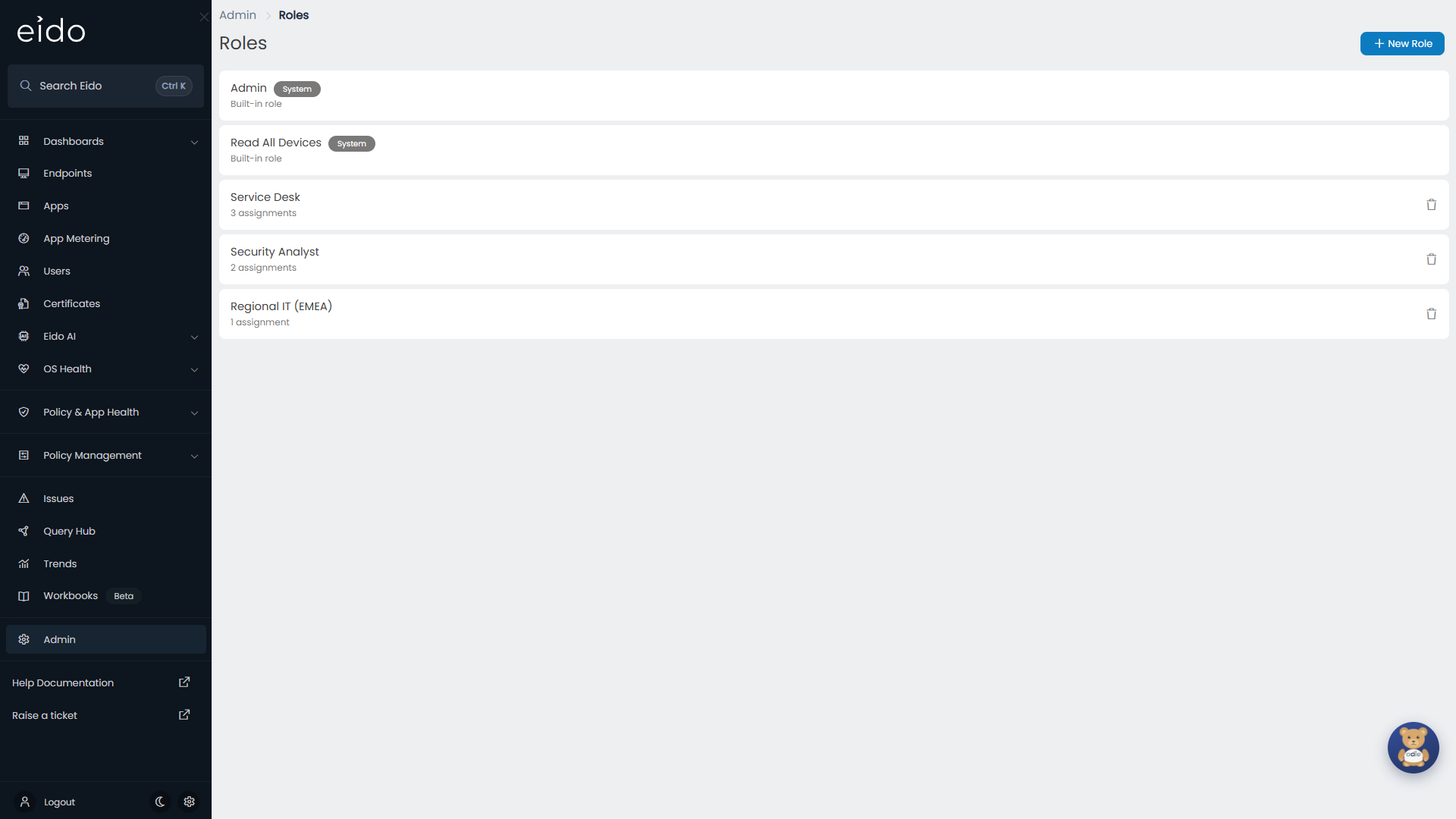
A role decides what a person can see and do in Eido. Every user holds exactly one. Two roles are built in, and you can make your own to show somebody only part of your data.
Open the page from Admin, then Roles. Only an instance-level administrator can open it. That term is explained further down.
What a role decides#
A role answers two questions.
- Is this person an administrator? Only the built-in Admin role makes somebody an administrator. A custom role never does.
- Which data do they see? A custom role can limit a person to chosen customers, hide whole views from them, or filter a view so that they only ever see matching rows.
There is no list of individual tick boxes for features. Everybody who is not an administrator can use the same screens: dashboards, Endpoints, policies, apps, Issues, Query Hub, Trends and Workbooks, and can build and save their own dashboards, queries and workbooks. What changes from role to role is the data those screens show.
The built-in roles#
| Role | Administrator | Sees | Use it for |
|---|---|---|---|
| Admin | Yes | All data | People who run Eido: they manage users, alerts, tenants and the rest of Admin. |
| Read All Devices | No | All data | Everybody else who should see everything and change no settings. |
Both carry a System badge and the words Built-in role. They cannot be edited, deleted or linked to Entra groups, so there is always a plain way to make somebody an administrator.
Instance-level and customer-level administrators#
Your instance is your organisation’s whole Eido: every Intune tenant you have connected and everybody in Team.
Whether an administrator is instance-level or customer-level depends on the Customer box on their user in Team, not on the role.
| Kind | How it is set up | Scope |
|---|---|---|
| Instance-level administrator | Admin role, Customer left on All Customers | The whole instance. |
| Customer-level administrator | Admin role, Customer set to one customer | That customer only. |
If your organisation does not manage several customers, there is no Customer box and every administrator is instance-level.
Which Admin pages each can open#
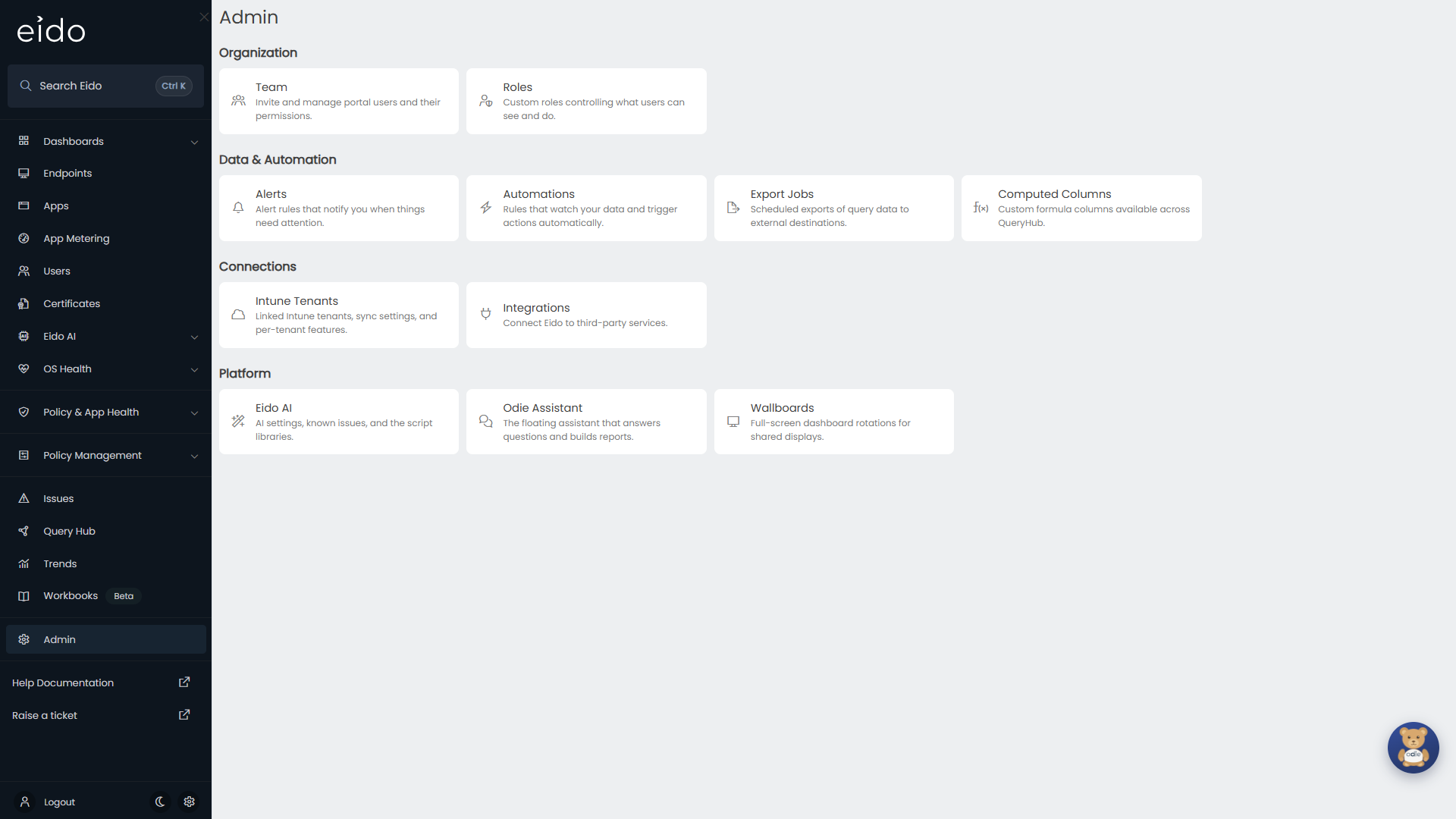
Admin is one page of tiles. A tile is only shown to somebody who can open the page behind it, and typing the address of a page you cannot open sends you back to the dashboard.
| Group | Page | Instance-level administrator | Customer-level administrator |
|---|---|---|---|
| Organization | Team | Yes | Yes, their own customer’s people |
| Organization | Roles | Yes | No |
| Organization | Customers | Yes, if you manage several customers | No |
| Data & Automation | Alerts | Yes | Yes, their own customer’s alerts |
| Data & Automation | Automations | Yes | No |
| Data & Automation | Export Jobs | Yes | No |
| Data & Automation | Computed Columns | Yes | No |
| Connections | Intune Tenants | Yes | No |
| Connections | Integrations | Yes | No |
| Platform | Eido AI | Yes, once Eido AI is switched on for your instance | No |
| Platform | Odie Assistant | Yes | No |
| Platform | Wallboards | Yes | Yes |
What else needs an administrator#
Outside Admin, a few things are kept for administrators:
- The Policy Management menu in the sidebar. See Policy backups and templates.
- Eido Client tool actions that change a device, such as stopping a service. See The Eido Client.
- Approving or rejecting a fix that Eido AI recommends, which needs an instance-level administrator. See AI diagnostics.
Permissions are enforced by Eido itself, not only by hiding menus. Somebody who reaches a page from a bookmark is refused in the same way.
Reading the Roles page#
Roles are listed oldest first, so the built-in roles are at the top.
| Part of the row | What it shows |
|---|---|
| Name | The role’s name, with a System badge on a built-in role. |
| N assignments | How many people hold the role today. |
| N groups | For a role filled from Entra, how many groups are linked. |
| N created by this role | How many accounts the role has created at sign-in. |
| N groups not matched | Linked groups that no sign-in has matched yet. |
| From Entra | The role is handed out by Entra group membership. |
| Creates users | The role may create accounts for people who are not in Eido yet. |
| Bin icon | Deletes the role. |
Press a custom role to edit it. The last four lines of the table are explained in Linking roles to Entra groups.
Create a custom role#
-
Open the editor
Press New Role. The Create Role panel has two tabs, General and Permissions.
-
Name it
Role Name is required. It is shown wherever the role is picked or listed.
-
Choose how people get it
Under Assignment, leave Assigned by on An admin to hand the role out yourself in Team, or choose Entra groups to let group membership decide.
-
Choose which customers it covers
If you manage several customers, set Scope under Customer Access to All Customers or Selected, and pick the customers.
-
Restrict the data
On the Permissions tab, block views or add required filters in the Access Designer.
-
Save, then assign it
A role you assign yourself does nothing until somebody holds it. Go to Admin, then Team, edit a user and pick the role.
A new role with nothing changed behaves like Read All Devices: all customers, every view, no filters.
Every setting on a role#
| Setting | Tab | Options | What it does |
|---|---|---|---|
| Role Name | General | Text, required | The name shown in Team and on this page. |
| Assigned by | General | An admin or Entra groups | Whether an administrator picks the role for each person, or Entra group membership decides at sign-in. |
| Entra Groups | General | One or more groups | Shown when Assigned by is Entra groups. Members of these groups get the role. |
| Create users who are not in Eido yet | General | On or off | Shown when Assigned by is Entra groups. Lets a member of the groups sign in with no user in Team, and creates one for them. |
| Scope | General | All Customers or Selected | Only if you manage several customers. Whether the role reaches every customer or only the ones you pick. |
| Customers | General | One or more customers | Shown when Scope is Selected. Only these customers’ data is visible to the role. |
| Blocked | Permissions | On or off, for each view | People with the role cannot open or query that view. |
| Required Filters | Permissions | Any number of filters, for each view | Filters that are always applied when somebody with the role uses that view. |
| Apply to those views too | Permissions | On or off, for each filter | Applies the same filter to every other view that has the same column. |
The Access Designer#
The Permissions tab is where a role’s view of the data is narrowed. It works on Query Hub views, which are the data sets behind Query Hub and behind most lists in Eido, such as Endpoints, Users and Issues. A rule on a view applies wherever that view is queried, not only in Query Hub itself.
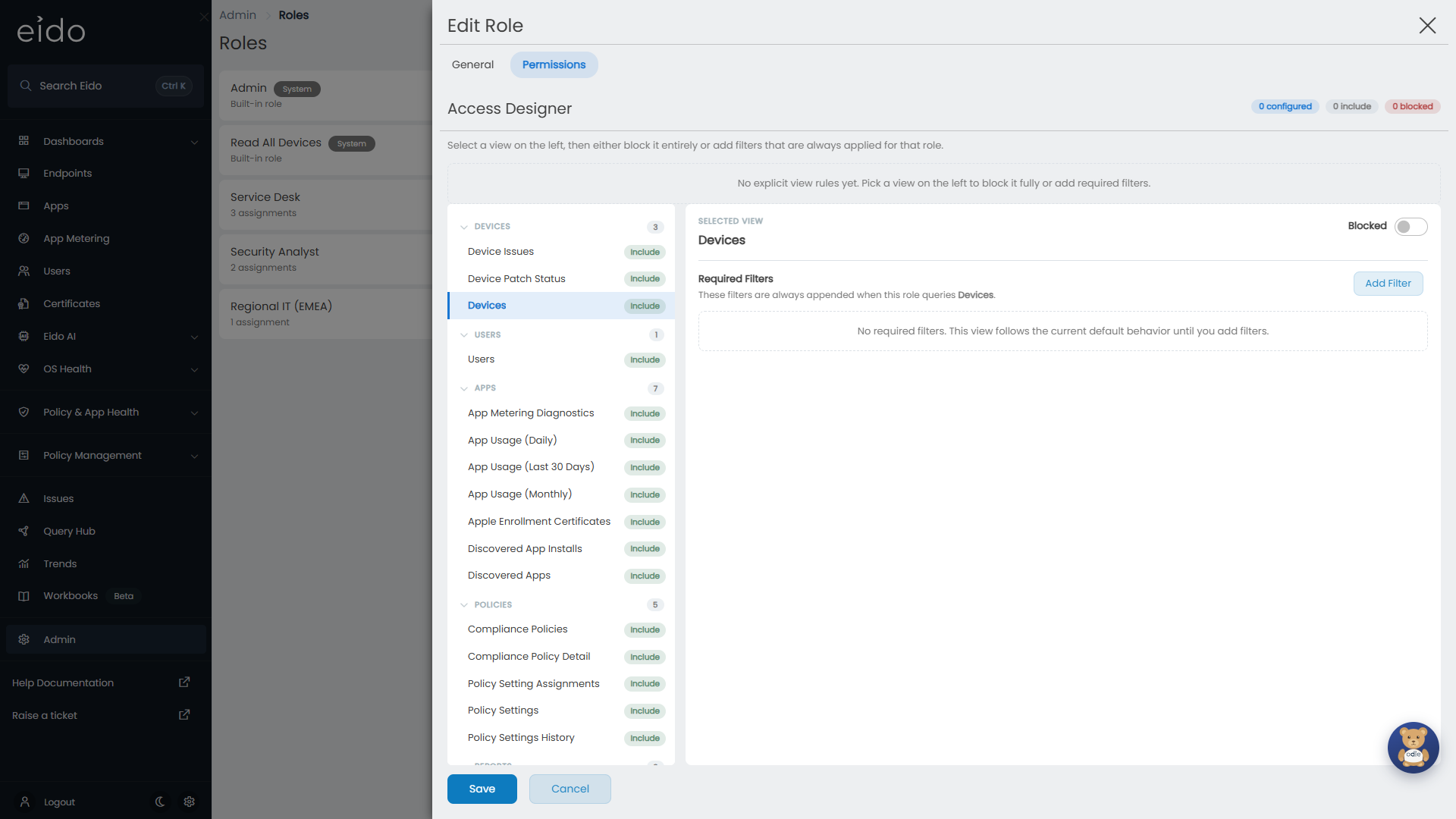
The views are listed on the left in groups: Devices, Users, Apps, Policies, Reports, Issues, Security, Remediations and Other. Press a group to fold it away. Each view carries a badge.
| Badge | Meaning |
|---|---|
| Include | The role can use the view. This is how every view starts. |
| Blocked | The role cannot use the view. |
Three counters at the top right sum the role up: how many views have a rule (configured), how many of those rules are include rules, and how many are blocked.
Block a view#
Select the view and switch Blocked on. A banner confirms that people with the role will not be able to open or query it. Any filters on that view are removed.
Always filter a view#
Select the view and press Add Filter. Choose a column, a comparison and the values, as you would when filtering a query. Add as many as you need.
These are Required Filters: they are added to everything the person does with that view, on top of any filters they choose themselves. They cannot be removed by the person.
For example, on the devices view a filter where Intune Tenant is one of your tenants means that people with the role only ever see that tenant’s devices.
Apply a filter to every view with the same column#
When the column you filtered on also exists on other views, a line under the filter says how many and names them, with a switch, Apply to those views too.
Switch it on and the filter follows the role across all of those views. Filtering Intune Tenant once then narrows devices, users, apps and every other view that has an Intune Tenant column.
On those other views the filter appears under Inherited from other views, with a link back to the view it came from. Remove there stops the filter applying to other views. The original filter stays on the view where you made it.
Only one filter for each column can be applied across views. If a second filter on the same column disagrees with the first, its switch is disabled until you sort out which one you want.
Remove a rule#
Clear Rule removes the block or the filters from the selected view and returns it to Include.
Edit or delete a role#
Press a custom role to open Edit Role. Changes apply to everybody who holds the role as soon as you save.
To delete a role, press the bin icon and confirm. Eido refuses to delete a role that people still hold. Move them to another role in Team first.
Questions#
Can I make a custom role that is an administrator?#
No. The only administrator role is the built-in Admin. To limit an administrator, set Customer on their user to make them a customer-level administrator.
Somebody with a custom role sees an empty list#
Check the role’s Required Filters for that view, and the filters inherited from other views. A filter whose values match nothing leaves the list empty. If the role’s Scope is Selected, check that the customers you expect are picked.
Somebody is told they do not have access to a view#
The view is Blocked for their role. Open the role, select the view on the Permissions tab and switch Blocked off, or press Clear Rule.
Why can I not edit Admin or Read All Devices?#
They are built in. Make a custom role if you need different rules.
Why can I not delete a role?#
Somebody still holds it. The row shows how many assignments it has.