
Global search is the quickest way to get anywhere in Eido. Type a device name, a person, a policy, an app or the name of a screen, and jump straight to it. Everybody has it. The records it finds are limited to what your role lets you see, and the admin pages are offered to administrators only.
Open it#
Click Search Eido at the top of the sidebar, or press Ctrl K (Cmd K on a Mac) from any page.
The shortcut is ignored while the cursor is in a text box, so that it does not interrupt your typing. Click somewhere else on the page first.
To close the search without choosing anything, press Esc, click the cross, or click outside the box.
Search#
Type in the box. Results appear a moment after you stop typing. Press Enter or click Search to search at once.
A match is any result that contains what you typed, anywhere in the text. Capital letters make no difference. There are no wildcards or operators: type less to find more.
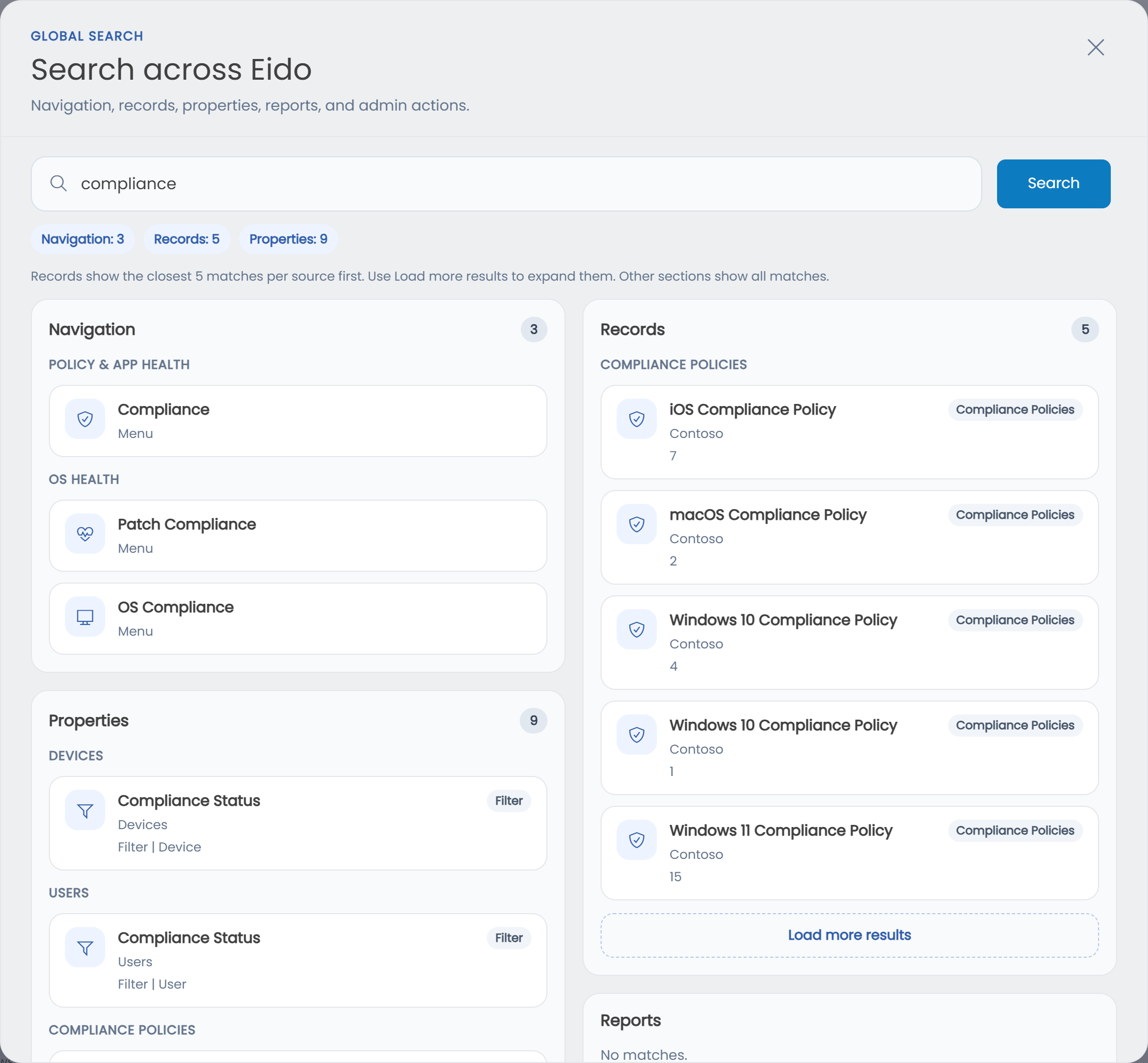
Results are sorted into four sections. A line above them gives the count for each section that found something.
| Section | What it finds | Where a result takes you |
|---|---|---|
| Navigation | Screens and menu items. Administrators also get admin pages and actions. | The screen |
| Records | Your own data: devices, people, apps, policies and scripts | The record, or the list filtered to it |
| Properties | Things you can filter by, such as OS Version or Compliance Status | The list, with that filter added and ready to fill in |
| Reports | The built-in reporting pages | The report |
A section with nothing to show says No matches.
Records#
This is the section that searches your data. It looks in eight places.
| Source | Matches on | Clicking a result |
|---|---|---|
| Devices | Device name, serial number, primary user’s name or email, IMEI, Intune device ID, Entra device ID | Opens the device |
| Users | Display name, email address, user principal name. Member accounts only, not guests. | Opens Users, filtered to that person |
| Discovered Apps | Application name | Opens Discovered apps, filtered to that app |
| Compliance Policies | Policy name | Opens Compliance policies, filtered to that policy |
| Configuration Policies | Policy name | Opens Configuration policies, filtered to that policy |
| Managed Apps | App name | Opens Managed apps, filtered to that app |
| Proactive Remediations | Remediation name | Opens Remediations, filtered to that remediation |
| Script Run States | Script name | Opens Scripts, filtered to that script |
Each result shows its name, the source it came from, and one or two extra details to tell similar results apart, such as a device’s user and serial number.
Records start with five matches from each source. Within those, a name that matches exactly comes first, then names that start with what you typed, then names that contain it. Load more results adds five more per source each time you click it, up to 25 per source.
When a lot of records match, the one you want may not be among the first five. Type more of the name to narrow the search.
If a customer is selected in the customer filter, records come from that customer only.
Navigation#
Type the name of a screen, such as “patch” for Patch Compliance or “issues” for Issues, and click the result to go there. Results are grouped: Navigation for the main screens, then OS Health, Policy & App Health, Policy Management and Admin.
Administrators also see the Admin pages, and an Actions group that opens a page with the form already open:
| Action | What it opens |
|---|---|
| Add New Intune Tenant | Intune tenants, ready to link a tenant |
| Invite Team Member | Team, with a new user form |
| Create Customer | Customers, with a new customer form. Only where you manage several customers. |
| Create Role | Roles, with a new role form |
| Create Alert | Alerts, with a new alert form |
Typing “action” lists them all.
Properties#
Properties answer “where can I filter by this?”. Type “department” and each list that can be filtered by department is offered, grouped by list. Click one, and the list opens with that filter already added, waiting for you to choose a value.
Every result in this section carries a Filter badge. The lists covered are the same eight as in Records.
Reports#
The built-in reporting pages, such as Inventory, Warranty, Encryption, Mobile, Disk Capacity, Intune Management Certificate, Intune Co-Management, OS Support, OS Patch Devices and Autopilot V1 Status, plus Trends and Built-in Reports, which opens Query Hub.
Recent Items#
Open the search and leave the box empty to see Recent Items: the last eight results you opened, newest first. Click one to go there again.
- Click the cross on a row to remove that one.
- Click Clear all to empty the list.
Recent items are the results you opened, not the words you typed. They are kept by the browser you are using, so a different browser or computer starts with an empty list.
Shortcuts#
| Key | What it does |
|---|---|
| Ctrl K or Cmd K | Opens the search from any page |
| Enter | Searches at once, without waiting |
| Esc | Closes the search |
Questions people ask#
Why can I not find one of my saved reports or dashboards?#
Search does not look through saved Query Hub reports or dashboards by name. Reports lists the built-in reporting pages only. To find a saved report, open Query Hub and use Search reports… there. Dashboards are listed in the sidebar.
Why is a device I know exists missing?#
Check three things. The spelling, because search looks for exactly the run of characters you typed. The customer filter, because with a customer selected only that customer’s devices are searched. And your role, because a role can hide whole lists or limit you to some customers. If the device is one of many matches, type more of its name, click Load more results, or go to Endpoints and filter there.
Why does Load more results stop adding rows?#
Search shows at most 25 results from each source. If there are more than that, open the list itself and filter it. Clicking any result from that source gets you to the right list.
Why does Ctrl K do nothing?#
The cursor is probably in a text box, a drop-down or another field you can type in. Click an empty part of the page and try again, or use Search Eido in the sidebar.
Why does a section say “Failed to load”?#
That section could not be fetched. Search again. If it keeps happening, contact support.