
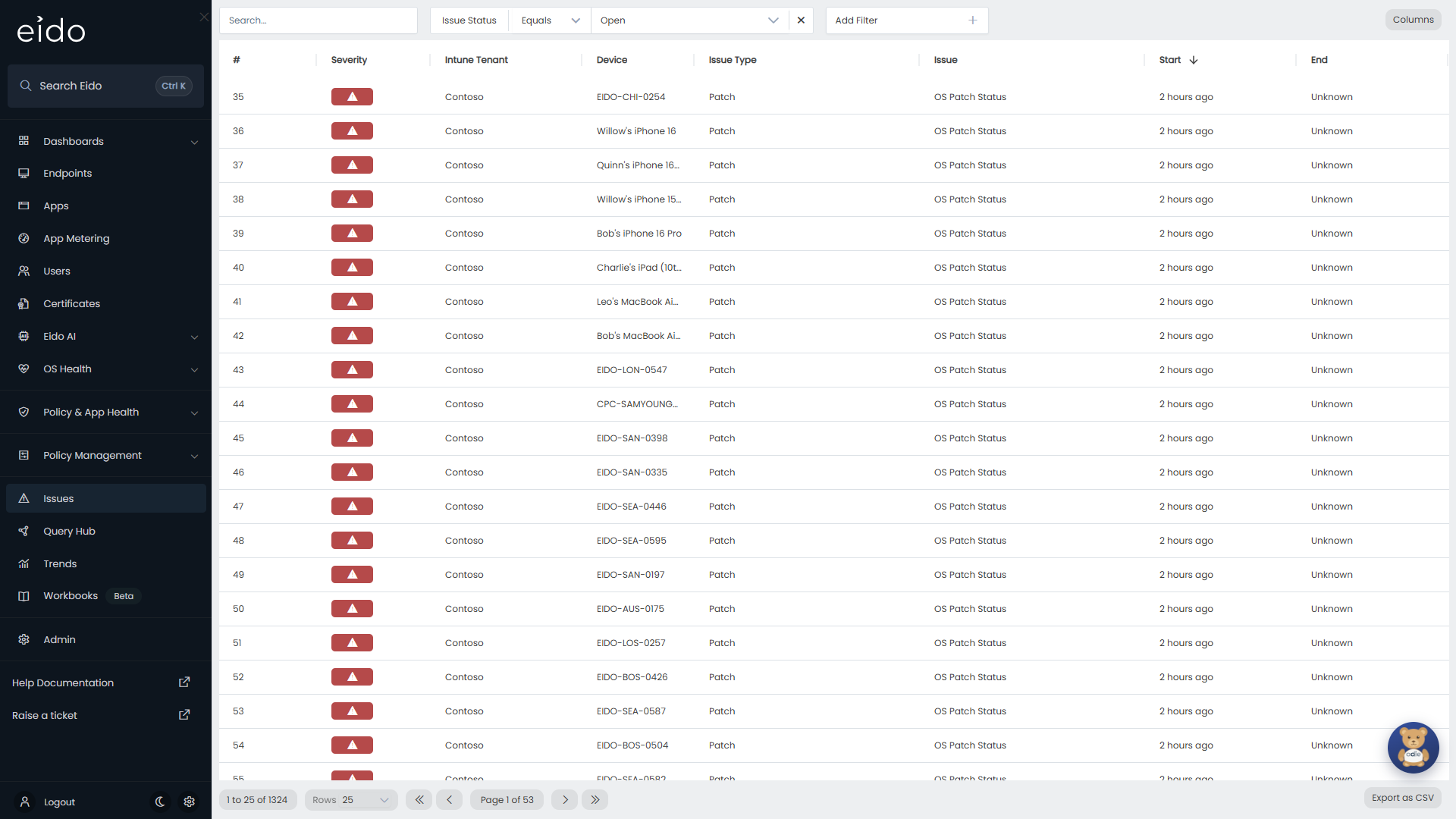
An issue is Eido’s record that one device is failing one thing: a compliance policy, a configuration policy, a managed app, or its patching. The issue starts when Eido first sees the failure and ends when the device is healthy again. The Issues page, in the sidebar, lists them all.
Everybody who can sign in can open Issues. You see issues for the devices your role allows.
Where issues come from#
Nobody raises an issue by hand, and nobody closes one. Each time Eido syncs with Intune it works out a status for every device against every policy and app assigned to it, and against its patch level. See also Key concepts.
- When a device becomes unhealthy for something, Eido opens an issue.
- When the device is healthy for it again, Eido closes the issue and records the end time.
- When the severity changes, Eido closes the issue and opens a new one at the new severity. In the history that reads as two issues, one after the other.
A device has at most one open issue for any one policy or app.
| Issue Type | Raised by | The Issue column shows |
|---|---|---|
| Compliance | A compliance policy the device does not meet. See Compliance policies. | The policy’s name |
| Config | A configuration policy that has not applied properly. See Configuration policies. | The policy’s name |
| App | A managed app that is not installed as it should be. See Managed apps. | The app’s name |
| Patch | The device’s update level or the support status of its operating system. See Patch Compliance and OS Compliance. | Patch Status or OS Support Status |
| Majorosversionstatus | The major operating system version the device is running. | Major OS Compliance |
Certificates that are close to expiring are not listed here. They are on the Certificates page.
Severities#
| Severity | Colour | Meaning |
|---|---|---|
| Unhealthy - High | Red | The worse of the two levels. |
| Unhealthy - Medium | Amber | The lesser of the two levels. |
The severity of an issue is the status Eido gave the device for that policy, app or patch level. On dashboards and in Trends the same two levels are written High and Medium.
The Severity filter also offers Healthy and Unknown. An issue is only raised when a device is worse than healthy, so those two normally return nothing.
The columns#
| Column | What it holds |
|---|---|
| # | The issue’s number. |
| Severity | High or Medium, as above. |
| Customer | The customer the device belongs to. Only shown if you manage several customers and have All Customers selected. |
| Intune Tenant | The Intune tenant the device is in. |
| Device | The device’s name. |
| Issue Type | One of the types in the table above. |
| Issue | The policy, app or check the device is failing. |
| Start | How long ago the issue started. |
| End | How long ago it was resolved. Empty while the issue is open. |
The list opens showing open issues only, newest first, 25 to a page.
- Press a column heading to sort by it.
- Columns, at the top right, chooses which columns are shown.
- Rows, at the foot, sets 25, 50, 100 or 250 to a page.
Find the issues you want#
The search box at the top left looks for a device by name.
Each filter is a chip beside the search box. The list starts with one, Issue Status, set to Open. Change it to Resolved, or tick both, to see issues that have ended.
Add Filter adds another:
| Filter | Narrows the list to |
|---|---|
| Issue Status | Open or resolved issues. |
| Start Date, End Date | Issues that started or ended in a period. |
| Severity | One severity. |
| Customer | One customer, when you manage several. |
| Intune Tenant | One tenant. |
| Issue Category | Device issues. Every issue on this page is one. |
| Issue Type | Compliance, config, app, patch or major OS version. |
| Policy | One policy, app or check. This is the value in the Issue column. |
| Device | One or more named devices. |
| Primary User | Devices belonging to a named person. |
| User > Office, City, Company Name, Country, Department, State | Devices whose primary user has that detail in Entra ID. |
A text filter starts as Equals, with a list of values to tick. Change it to Not Equals, Contains, Not Contains, Starts With or Ends With as needed. A date filter offers In the Last, More Than Ago, After, Before and Not Set, among others. Remove a filter with the cross on its chip.
Some useful combinations:
| To see | Set |
|---|---|
| Everything that went wrong this week, fixed or not | Issue Status to both values, Start Date to In the Last 7 days |
| Long-running problems | Start Date to More Than Ago 30 days |
| Every device failing one policy | Policy to that policy |
| One department’s problems | User > Department to that department |
Arriving from a dashboard sets filters for you. Pressing the Config Issues tile opens this page filtered to that type. Pressing a row in TOP ISSUES filters it to that one policy.
Export the list#
Export as CSV, at the foot of the list, downloads every issue that matches your search and filters, not only the page on screen.
Open the device#
Press a row to open Device details for that device in a panel over the list. From there you can see everything else about the device, including its other issues. Close the panel to return to the list where you left it.
Issues and alerts#
Issues are what alerts act on. An administrator sets up an alert for a type of issue at a severity. When an issue of that kind opens, the alert fires. When the issue closes, the alert is told it has cleared.
So the Issues page is the full record, and an alert is a notification about part of it. If no alert has been set up, issues are still opened, listed here and counted on dashboards. Nothing is sent.
Issues also feed:
- The issue tiles, top lists and charts on dashboards.
- Trends, which uses the start and end of every issue to chart health over time.
Common questions#
An issue has gone from the list. Where is it?#
It was resolved. The list starts filtered to open issues. Set Issue Status to Resolved to find it, with its end time.
I fixed the device. Why is the issue still open?#
An issue closes when Eido next syncs with Intune and Intune reports the device as healthy. Until the device has checked in with Intune and Eido has synced, the issue stays open. See What Eido syncs.
Why is the same device listed twice for the same policy?#
Either the two rows are different issues over time, one resolved and one open, or the severity changed. A change of severity ends one issue and starts another.
Why does a device appear many times?#
A device has one issue for each thing it is failing. A device that misses three policies and an app has four issues. The DEVICES WITH MOST ISSUES dashboard widget ranks devices by this count.
Why is the list empty?#
Check the chips at the top. A filter carried over from a dashboard, or a search term, may be hiding everything. If there are truly no open issues, every device is healthy for everything assigned to it.
Can I close or ignore an issue myself?#
No. Issues follow the statuses Eido works out from what Intune reports. An issue closes on its own once the device is healthy again.