
Eido uses a small vocabulary consistently across every screen. Learn these words once and the rest of the product reads easily. Each section below links to the article that goes into detail.
How your organisation is arranged#
Everything in Eido hangs off four levels.
| Word | What it means |
|---|---|
| Instance | Your organisation’s Eido account, created when you sign up. It holds your team, your customers, your Intune tenants and everything you build. You see the word in places such as the tooltip on Share Dashboard, which shares with “other users in your instance”. |
| Customer | A named organisation whose devices you look after. Customers exist only if your instance was set up for managing several organisations. An internal IT team has none and never sees the word. See Customers overview. |
| Intune tenant | One Microsoft Intune tenant that has been connected to Eido. An instance can hold several. Where customers are used, each tenant is linked to one customer. Screens show the tenant’s friendly name in the Intune Tenant column. |
| Endpoint | One device that Intune manages: a laptop, desktop, phone, tablet or Cloud PC. The sidebar calls them Endpoints; columns and filters mostly say Device. The two words mean the same thing. |
A device belongs to one tenant, a tenant belongs to one customer (where customers are used), and everything belongs to your instance.
Health statuses#
Eido grades things with four statuses. They look the same everywhere: in lists, on device pages, in charts and in filters.
| Status | Colour | Icon | Meaning |
|---|---|---|---|
| Healthy | Green | Tick | Nothing is wrong. A clock replaces the tick where an update is pending or deferred, which is healthy but not yet finished. |
| Unhealthy - Medium | Amber | Warning triangle | Something needs attention. |
| Unhealthy - High | Red | Warning triangle | Something needs attention first. |
| Unknown | Grey | Question mark | Eido does not have enough information to judge. |
If red, amber and green are hard to tell apart, switch on Colour-accessible mode in Your settings. It changes the palette and adds shapes and labels.
The four categories#
Every device is graded four times, once per category. On Endpoints these are the Compliance, Config, Apps and Patch columns.
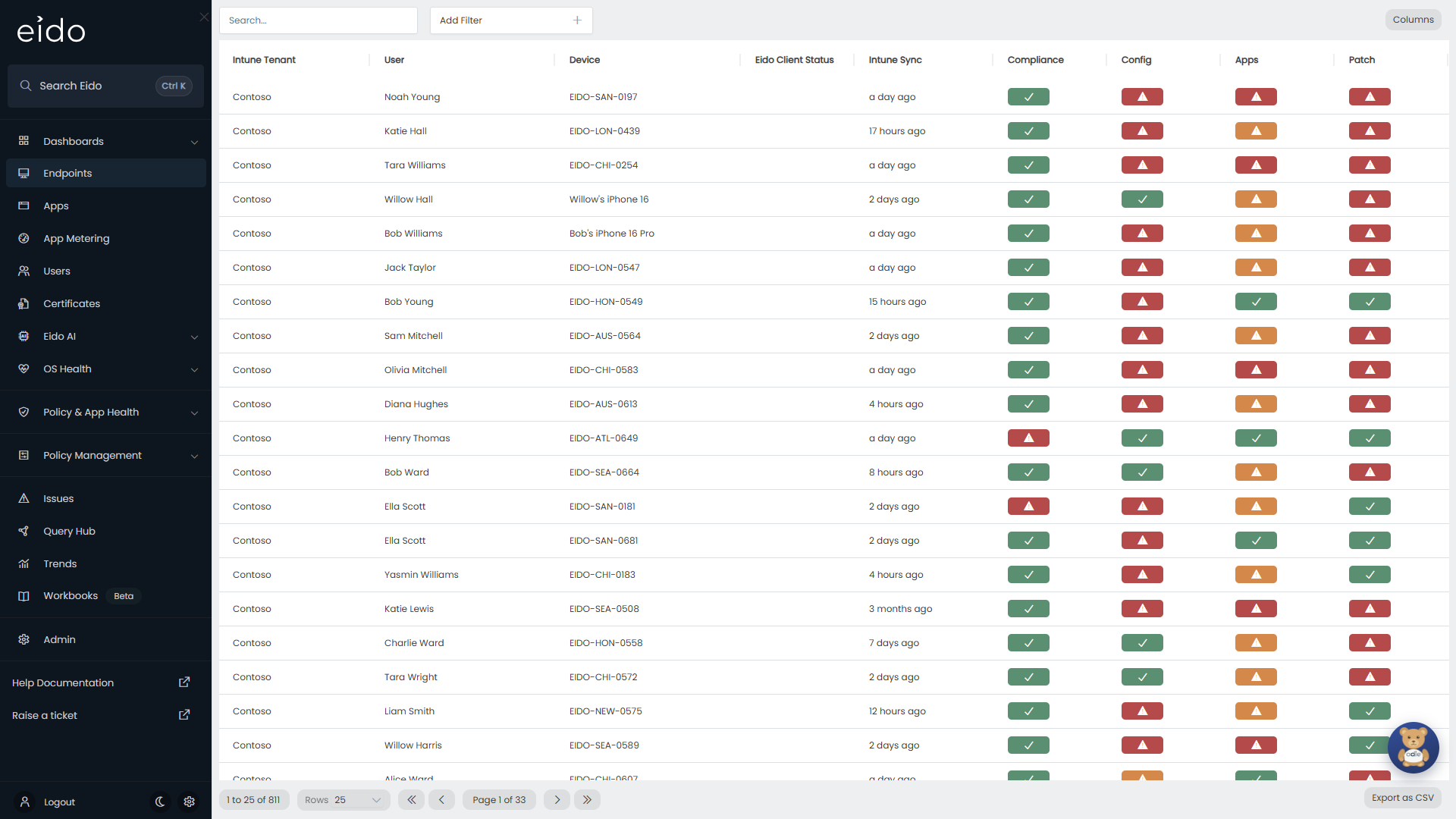
| Category | What is being judged | If nothing is reported |
|---|---|---|
| Compliance | The result of each Intune compliance policy assigned to the device | Unknown |
| Config | The result of each configuration profile assigned to the device | Healthy |
| Apps | The install result of each app you deploy to the device | Healthy |
| Patch | Whether the operating system version is still supported, how far behind the latest update the device is, and any major OS version rules you have switched on | Unknown |
Three rules explain almost every status you will see.
- A category is as bad as its worst item. One failing configuration profile at High makes the device’s Config status Unhealthy - High, however many other profiles applied cleanly.
- The device is as bad as its worst category. The overall Device Status is the worst of the four. A device that is green on Compliance, Config and Apps but red on Patch is a red device.
- You decide how serious a failure is. When a policy or app fails on a device, the severity it raises comes from that policy’s or app’s setting in Tenant settings: Medium, High, or ignored altogether. Unless you change it, a failing compliance policy counts as High, and a failing configuration policy or app counts as Medium. The Patch thresholds (how many days behind counts as Medium, and how many as High) are set in the same place.
The same four statuses are used for whole policies and apps on the policy health screens. See Compliance policies, Configuration policies, Managed apps and Patch compliance.
Issues#
An issue is a record that something on a device was unhealthy, with the time it started and the time it ended.
- Eido opens an issue when an item on a device becomes Unhealthy - Medium or Unhealthy - High.
- The issue is Open until the item is healthy again, and then it becomes Resolved. You do not close issues by hand.
- Each issue has a Severity (the same statuses as above), an Issue Type that says which category it came from, and the name of the policy, app or check that failed.
If the severity of a problem changes, for example from Medium to High, Eido closes the first issue and opens a new one at the new severity.
The Issues screen lists open issues by default. Alerts are sent when an issue opens, so an alert tells you about a new problem once, not on every sync.
Query Hub: views and reports#
Query Hub is where you ask your own questions of the data.
| Word | What it means |
|---|---|
| View | One kind of data you can query, such as Devices, Users, Discovered Apps or Compliance Policies. You pick it under Select a view when building a query. A view decides which columns and filters are on offer. |
| Report | A saved query: a view, plus the filters, columns, grouping and chart you chose. A report is shown as a Table, Bar, Pie or Tile. |
| Out of the Box | Reports that come with Eido. They carry a System badge. |
| My Reports | Reports you saved. |
| Shared With You | Reports that somebody else in your team saved and shared. They carry a Shared badge. |
Most list screens in Eido, including Endpoints, Users and Issues, are views with a sensible set of columns already chosen. That is why they all filter, sort and export in the same way. See Filters, grouping and charts.
Dashboards#
A dashboard is a page of tiles and charts that you arrange yourself. Each item on it is a report or a ready-made widget.
- Eido opens on your default dashboard, marked with a star in the sidebar.
- A dashboard belongs to the person who made it. Only its owner can edit it.
- The owner can switch on Share Dashboard so that the rest of the team can view it.
- Dashboards can be grouped into folders, and a dashboard that was shared with you can be hidden from your own list.
See Dashboards, Building a dashboard and Dashboard folders.
People and roles#
Two different lists of people appear in Eido, and it helps to keep them apart.
| Word | Who they are | Where |
|---|---|---|
| Users | The people in your Intune tenant, who own and use the devices. They do not sign in to Eido. | Users |
| Team | The people who sign in to Eido. | Team |
Every team member has one role, which decides what they can see and do.
- A role can be an administrator role. Administrators see Admin in the sidebar.
- A role can limit somebody to selected customers, block a Query Hub view altogether, or apply filters to a view that the person can never remove.
- Built-in roles carry a System badge and cannot be changed. You can add your own.
- A role is given either by an administrator, or automatically from membership of a Microsoft Entra group.
A team member can also be tied to a single customer. They then see only that customer’s data, whatever their role. An administrator who is tied to a customer manages that customer’s team, alerts and wallboards, but not tenants, roles or integrations.
See Roles and Linking roles to Entra groups.
Questions people ask#
Why is a device Unknown for Compliance?#
Either no compliance policy has reported a result for the device, or Intune itself reports the device’s compliance as unknown. Unlike Config and Apps, Compliance starts at Unknown and not at Healthy, because a device with no compliance result has not been shown to be compliant.
Why is a device red when Intune says it is compliant?#
Compliance is one of four categories. The device may be compliant and still be behind on updates, have a configuration profile in error or have a required app that failed to install. Open the device to see which category is red. See Device details.
Why did a status not change straight after I fixed the device?#
Eido works from its copy of Intune’s data. The device has to check in with Intune, and Eido then has to sync, which happens about once an hour. See What Eido syncs.
Is an endpoint the same as a device?#
Yes. Endpoints is the name of the screen. Device is the word used in columns, filters and reports.