
Compliance lists every Intune compliance policy Eido has found in your tenants, with how many devices and users it reaches and what share of them are healthy. It answers “which compliance policy is causing the most trouble?” in one screen, and takes you from the policy to the devices behind the number.
It is under Policy & App Health in the sidebar. Everyone who signs in can open it. An administrator can block or filter the data behind it for a role, in which case the list is empty or shorter for people in that role.
What the list shows#
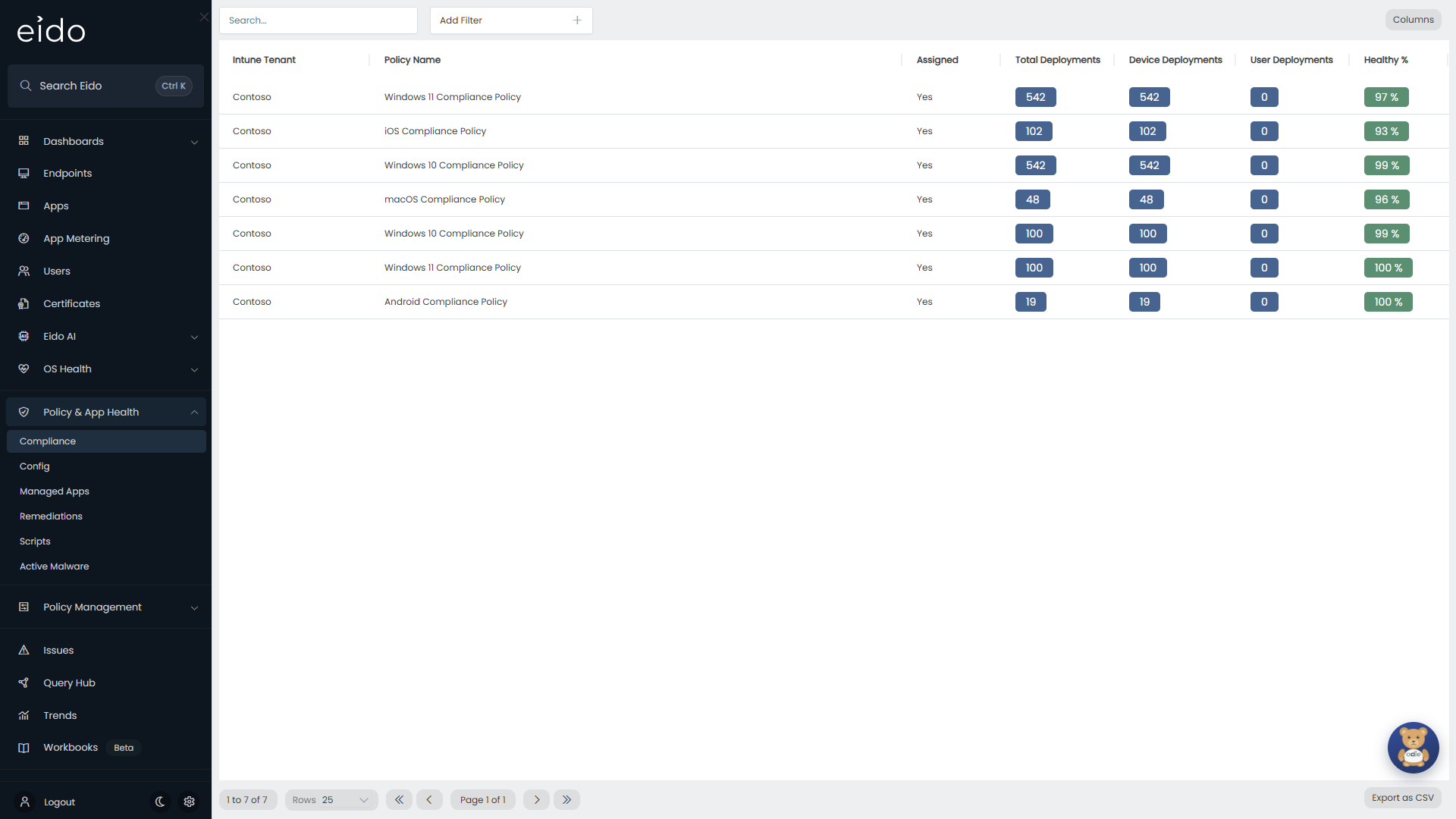
There is one row for each compliance policy in each Intune tenant. The list opens with the policies that have the most unhealthy deployments at the top.
| Column | What it means |
|---|---|
| Customer | The customer the tenant belongs to. Only shown when you look after several customers and have not picked one. See Customers overview. |
| Intune Tenant | The tenant the policy lives in. |
| Policy Name | The policy’s name in Intune. |
| Assigned | Yes for every policy in the list. A policy appears here once at least one device or user is reporting a state for it. |
| Total Deployments | How many states Intune has reported for the policy. A policy reports once for the device and once more for each user it is evaluated for, so this can be higher than your device count. |
| Device Deployments | The deployments evaluated for the device itself. |
| User Deployments | The deployments evaluated for a user on a device. |
| Healthy % | Healthy deployments as a share of Total Deployments, rounded to a whole number. Blank when the policy has no deployments. |
The Healthy % colours#
| Colour | Healthy % |
|---|---|
| Green | 90 or more |
| Amber | 75 to 89 |
| Red | Below 75 |
Only deployments with the status Healthy count towards the percentage. A deployment whose status is Unknown is still in the total, so a policy with many of those scores lower.
What counts as healthy#
For every device (and user) a policy reaches, Intune reports a state. Eido turns that state into one of four statuses.
| Status | Icon | When |
|---|---|---|
| Healthy | Green tick | Intune reports compliant, in grace period, remediated, not applicable or unknown. |
| Medium | Amber triangle | Intune reports anything else, such as non-compliant, error or conflict, and the policy’s severity is Medium. |
| High | Red triangle | The same, and the policy’s severity is High. |
| Unknown | Grey question mark | Intune sent no state at all for that deployment. |
A newly discovered compliance policy starts at High. An administrator can change that for each policy in the tenant’s settings, under Compliance Policies:
- Ignore treats every state as healthy. Use it for a policy you do not want to be chased about.
- Medium or High decides how serious a failure is.
- Advanced lets you write your own rules, one Intune state at a time, with a default for anything you have not listed. Once it is on, your rules replace the table above for that policy.
See Tenant settings.
The status feeds the rest of Eido. A device’s Compliance status is the worst status of any compliance policy on it, and a device that is Medium or High on a policy gets an issue for it.
Find a policy#
- Search… matches any part of the policy name.
- Add Filter narrows the list by Customer, Intune Tenant, Policy Name or Assigned. Each filter appears as a chip that you can change or remove.
- Press a column heading to sort by it, and again to reverse the order.
- Columns opens Select Columns, where you switch columns on and off and drag them into a different order. Reset to Defaults puts them back. Your choices, column widths and sort order are remembered for you on this screen.
- Under the list you can page through the results and change Rows per page (25, 50, 100 or 250).
- Export as CSV downloads every row that matches your search and filters, not only the page you are looking at, with the columns you have showing.
See the devices behind a policy#
Press a policy to open its devices in a panel on the right.
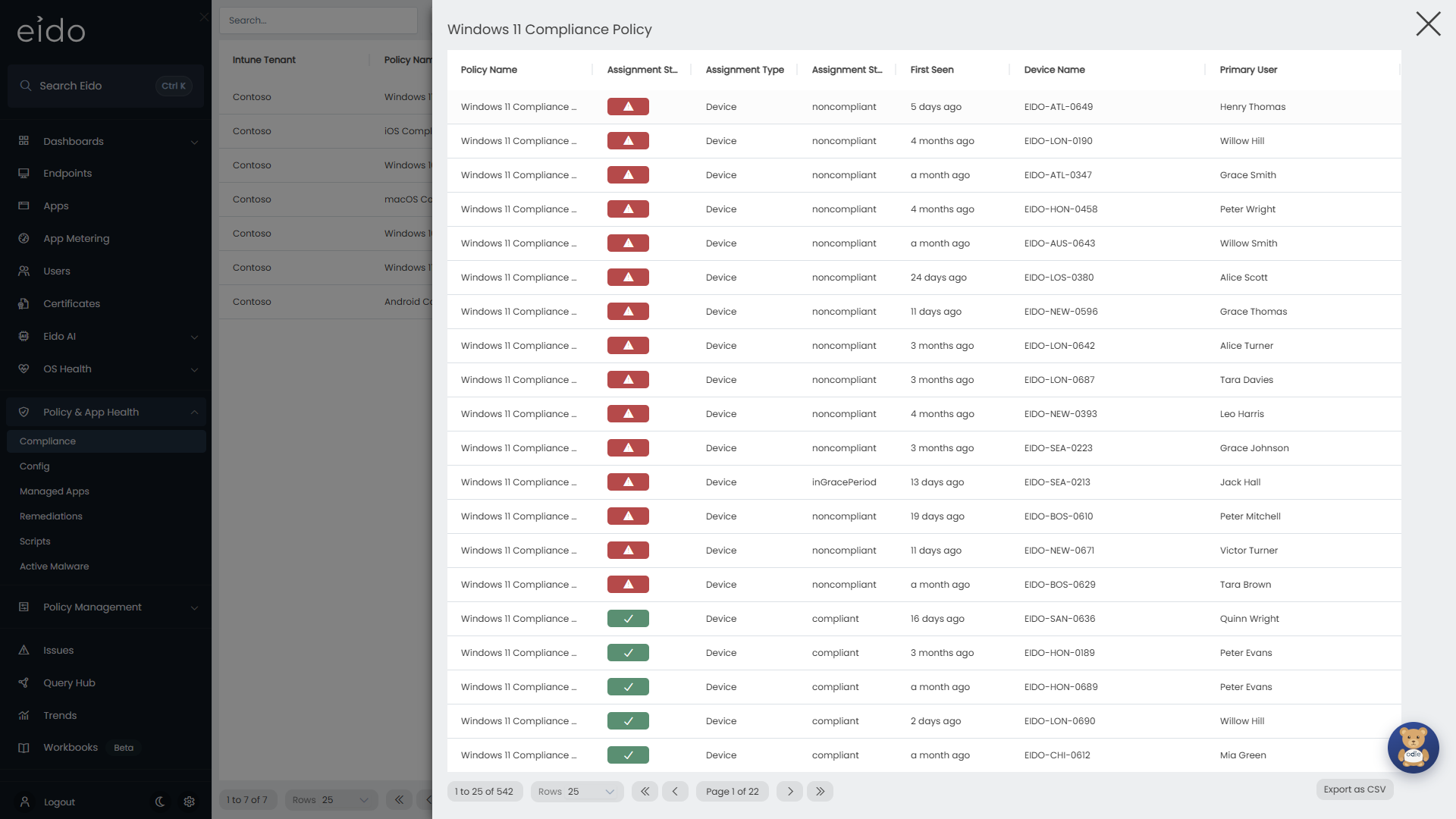
There is one row for each deployment, with High at the top, then Medium, Healthy and Unknown.
| Column | What it means |
|---|---|
| Policy Name | The policy you opened. |
| Device | The device’s name. |
| User | The device’s primary user. |
| Assignment Status | The Eido status from the table above, as an icon. |
| Assignment Type | Device when the state is for the device itself, User when it is for a user on the device. |
| Assignment State | The state exactly as Intune reported it. |
| First Seen | When Eido first saw this policy on this device. |
Sort by any column, page through the rows, and use Export as CSV to take the whole list away. Press a row to open that device in Device details.
See which settings are failing#
The list tells you that a policy is failing on a device. To see which setting inside the policy is the cause, go through the device.
-
Open the device
Press its row in the policy’s device list, or find it in Endpoints.
-
Open Compliance
In the device’s left-hand menu, choose Compliance. Each policy on the device is a line with a coloured dot: green, amber, red, or grey for unknown. Press a line to expand it.
-
Press a row inside the policy
The expanded policy lists its deployments, with the Intune State and the Assignment for each. Press one, and a panel opens with the policy’s settings for this device, read from Intune at that moment.
Each setting shows its state (Compliant, Remediated, Non-compliant, Error, Conflict, Not applicable, Not assigned or Unknown), Intune’s explanation where it gives one, and where available the value, the error code and the user it applies to. Compliant and remediated settings are green, non-compliant amber, and errors and conflicts red.
- Problems only is on when the policy has at least one setting in error, in conflict or non-compliant, so you see those first. Switch it off to see every setting.
- Refresh asks Intune again.
- The line beside it says when Eido retrieved the settings and how old Intune’s own data is. Intune’s reporting can be hours behind the device.
Nothing in this panel is stored. It is always what Intune says now. There is more about it in Device details.
The same data elsewhere#
- In Query Hub, the Compliance Policies view is this list with more columns, including the Healthy, Unhealthy and Unknown counts. Compliance Policy Detail is one row for each device and policy, with every device column available. Both are also ready-made reports under Policy Health.
- Global search finds this screen, and individual compliance policies by name.
Why does it show that?#
A policy is missing from the list#
A policy is listed once at least one device or user is reporting a state for it. If it is not here, either it is not assigned in Intune, or it was assigned recently and nothing has reported yet.
Total Deployments is higher than the number of devices#
Intune reports a compliance policy separately for the device and for each user it is evaluated for. Each of those is a deployment.
Intune says the device is non-compliant but Eido shows the policy as Healthy#
The policy’s severity is probably set to Ignore, or an Advanced rule maps that state to Healthy. Check the tenant’s Compliance Policies settings.
A setting panel says detail is not available#
The panel shows the reason. The ones you may see are:
| Message | What to do |
|---|---|
| Intune has no report for this policy on this device yet. It can take a while to appear after a policy is assigned. | Wait and press Refresh later. |
| Intune is rate limiting requests right now. Try again in a moment. | Wait a minute and press Refresh. |
| Eido does not have permission to read policy reports from this Intune tenant. | The tenant was linked with fewer permissions than Eido needs. See Permissions Eido needs. |
| Intune does not publish a per-setting report for this policy type. | There is nothing more to show for this policy. |
The numbers look out of date#
Eido reads compliance states from Intune as part of syncing the tenant, which happens about once an hour, and Intune’s own reports can lag the device. See What Eido syncs. The per-setting panel is the exception, because it asks Intune live.