
A computed column is a column you define yourself. You give it a name and a formula, and from then on it appears in Query Hub alongside the columns Eido provides. People can show it, filter by it, sort by it, group and chart by it, export it and use it in dashboard widgets, exactly as they would any other column.
Typical uses: turning a country into a sales region, labelling devices as stale after 30 days without a sync, checking device names against a naming standard, or marking each device as on the latest version, one behind or further behind.
A computed column stores nothing. Its value is worked out from the current data each time a query runs.
Computed Columns is under Admin, in the Data & Automation group. It is for instance administrators, and it is only there when no customer is selected: computed columns apply to your whole organisation, not to one customer.
Reading the list#
Each row is one computed column.
| On the row | Meaning |
|---|---|
| The name, then a name in square brackets | The display name people see, and the field name the column is known by internally. |
| Device, User or View followed by a view’s name | The scope: where the column appears. |
| Type | What the formula returns: string, number, boolean or datetime. |
| The formula | As it will be run. |
| Broken | The formula no longer works, usually because a column it refers to has changed. The reason is shown beneath. Fix it promptly: reports that use a broken column may not run. |
| The bin | Deletes the column. |
Press a row to edit it.
Create a computed column#
-
Press New Computed Column
-
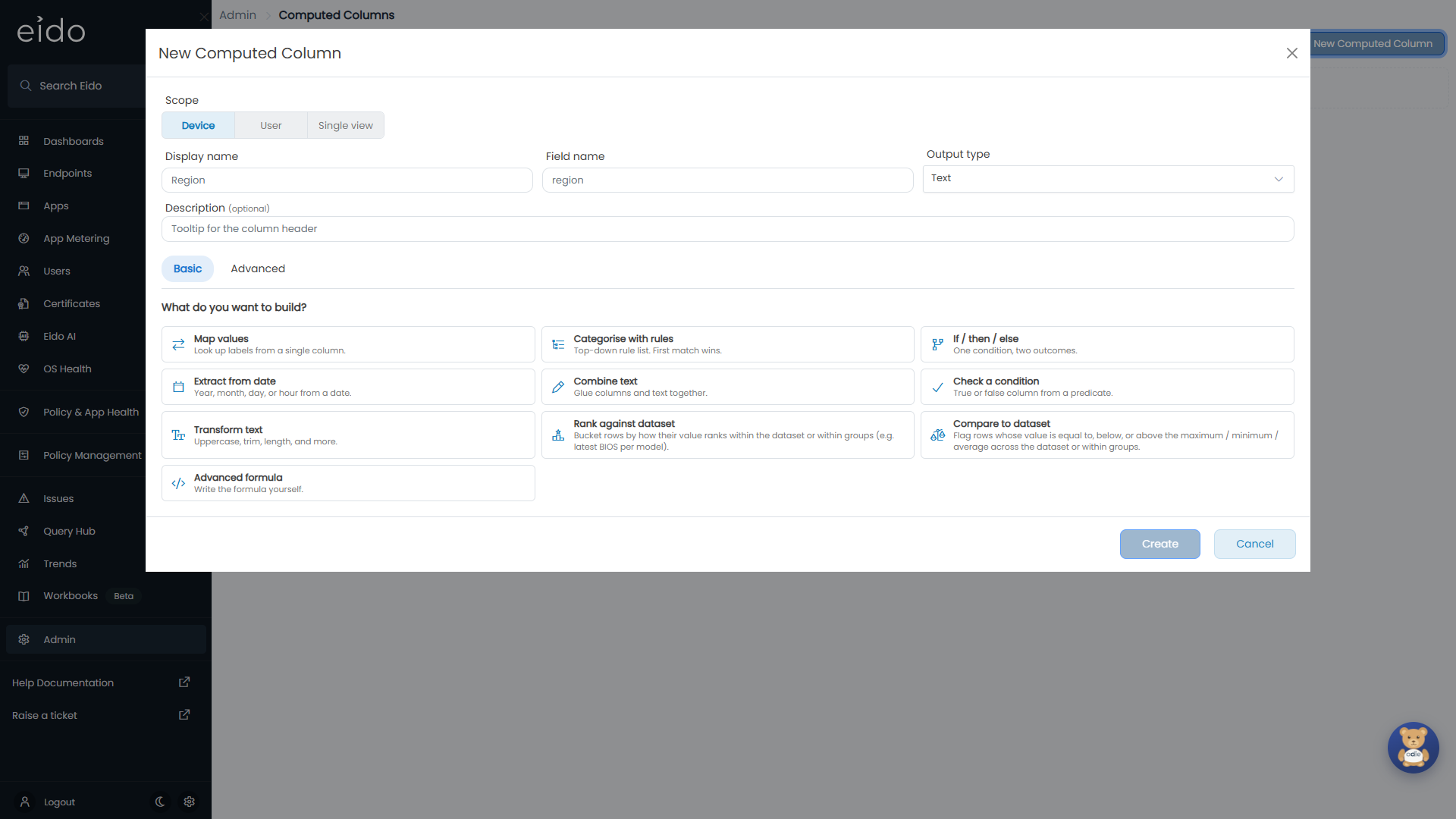
Choose a Scope
This decides which views the column appears on and which columns its formula can use. See Scope.
-
Give it a Display name
This is the column heading people will see. The Field name fills itself in from it.
-
Choose an Output type
Text, Number, True / False or Date / Time. In Basic mode this is set for you.
-
Add a Description
Optional. It becomes the tooltip on the column heading.
-
Build the formula
In Basic, pick what you want to build and fill in the form. In Advanced, type the formula. Both are described below.
-
Check the result
At the foot of the window, “Returns” shows what the formula produces. A tick means it matches the output type. An error in the formula is explained in red.
-
Press Create
The column is available in Query Hub within a minute or so. Anybody who already has the query builder open needs to reopen it to see the new column, which is listed in the Computed group.
Scope#
| Scope | The column appears on | The formula can use |
|---|---|---|
| Device | Devices and every view that carries device columns, such as Device Issues or Managed App Detail. | Any column of the Devices view. |
| User | Users, and every view that carries the device’s primary user. | Seven columns only: the user’s name, office, city, company, country, department and state. |
| Single view | The one view you choose under View. | Any column of that view. |
Choose Device or User when the column describes a device or a person, so that it follows them into every related view. Choose Single view when the formula needs a column that exists on only one view.
The field name#
The field name is how reports refer to the column behind the scenes.
- It starts with a lower-case letter and contains only letters and digits, such as
salesRegion. - It is at most 40 characters.
- It cannot be the same as an existing column on any view in scope, or as another computed column that overlaps with this one.
Basic mode#
Basic mode asks “What do you want to build?” and offers a set of patterns. Each has a short form, and Eido writes the formula for you.
| Pattern | Use it to | You provide |
|---|---|---|
| Map values | Turn the values of one column into labels, such as countries into regions. | The column, then a row for each “When value is … becomes …”. Bulk paste… takes a pasted list, one pair per line, separated by a comma or a tab. Otherwise is the label for everything else. |
| Categorise with rules | Put rows into categories using conditions. Rules are checked from the top and the first that matches wins. | For each rule, one or more conditions and a Label as. Otherwise is the label when no rule matches. |
| If / then / else | Choose between two outcomes. | The condition, a Then value and an Else value. |
| Extract from date | Take the year, month, day or hour from a date. | The date column and the part. Optionally Group these into named buckets, such as months into quarters. |
| Combine text | Join columns and fixed text into one value. | The pieces, in order. |
| Check a condition | Make a true or false column. | The conditions that make it true. |
| Transform text | Uppercase, Lowercase, Trim whitespace, First N characters, Last N characters or Length. | The column, and the number of characters where needed. |
| Rank against dataset | Label each row by where its value ranks among the others, such as the latest BIOS version for each model. | The column to rank, optional columns to rank within, and a label for each rank. Highest is rank 1. Everything else labels the remaining ranks and No value labels rows where the column is empty. Leave the labels empty to get the rank as a number. |
| Compare to dataset | Label each row as equal to, below or above the Maximum, Minimum or Average of a column. | The column, what to compare against, optional columns to compare within, and the three labels. |
| Advanced formula | Write the formula yourself. | See below. |
Conditions#
Wherever a pattern asks for a condition, you choose a column, an operator and, where needed, a value. The operators depend on the kind of column.
| Column | Operators |
|---|---|
| Text | equals, does not equal, contains, does not contain, starts with, ends with, is empty, is not empty |
| Number | =, ≠, >, ≥, <, ≤, is empty, is not empty |
| True or false | is true, is false, is empty, is not empty |
| Version | equals, is newer than, is older than, is empty, is not empty |
| Date | is in the past, is in the future, is today, was within the last (days), is within the next (days), is empty, is not empty |
Several conditions are joined with All (AND) or Any (OR). Basic mode has one level of this: for “A and (B or C)”, use Advanced.
Moving between Basic and Advanced#
Switching to Advanced shows the formula Basic built, ready to edit. If you switch back without touching it, your Basic form is still there. Once you edit the formula by hand it can no longer be shown as a form, so going back to Basic starts again from an empty pattern, after asking you to confirm.
A column made in Basic opens in Basic when you edit it. One written by hand opens in Advanced.
Advanced mode#
Advanced mode is a box for the formula with a reference panel beside it.
- The Columns tab lists every column the formula can use in the current scope, with a search box. Press one to insert it.
- The Functions tab lists every function with a description and an example. Press one to insert its example.
The formula is checked as you type, and Validate checks it on demand. An error names the line and column where it was found. Create and Save Changes are unavailable while the formula has an error.
The formula language#
Anybody who has written a spreadsheet formula will recognise it.
| Element | How it is written | Example |
|---|---|---|
| A column | Its field name in square brackets | [deviceName] |
| Text | In double quotes | "Europe" |
| A number | As it is | 30 or 2.5 |
| True, false and empty | TRUE, FALSE, NULL | |
| A comparison | =, <> or !=, >, >=, <, <= | [azureCountry] = "Germany" |
| Combining conditions | AND, OR, NOT, with brackets to group | [isSupervised] AND ([azureCountry] = "Germany" OR [azureCountry] = "France") |
| A function | Its name, then its arguments in brackets, separated by commas | UPPER([deviceName]) |
Function names can be typed in upper or lower case. Inside quoted text, write \" for a double quote and \\ for a backslash.
A column is always referred to by its field name, not its heading. The Columns tab shows both.
Functions#
Choosing between values
| Function | What it returns | Example |
|---|---|---|
IF(condition, then, else) | The first value if the condition is true, otherwise the second. Both values must be of the same kind. | IF([isSupervised], "Supervised", "Not supervised") |
IFS(condition1, result1, condition2, result2, ...) | The result for the first condition that is true. End with TRUE, default to catch everything else. | IFS([percentageDiskSpace] >= 95, "Critical", [percentageDiskSpace] >= 90, "Low", TRUE, "Fine") |
SWITCH(value, match1, result1, ..., default) | The result whose match equals the value. The last argument, on its own, is the default. | SWITCH([azureCountry], "United Kingdom", "Europe", "United States", "North America", "Other") |
SWITCH(TRUE(), condition1, result1, ..., default) | As IFS, but with a default as the last argument. | SWITCH(TRUE(), [percentageDiskSpace] >= 95, "Critical", [percentageDiskSpace] >= 90, "Low", "Fine") |
COALESCE(value1, value2, ...) | The first value that is not empty. | COALESCE([azureCity], "Unknown") |
True and false
| Function | What it returns | Example |
|---|---|---|
AND(a, b, ...) | True when every argument is true. | AND([isSupervised], [percentageDiskSpace] < 90) |
OR(a, b, ...) | True when any argument is true. | OR([azureCountry] = "Germany", [azureCountry] = "France") |
NOT(a) | The opposite. | NOT([isSupervised]) |
TRUE(), FALSE() | The value true, or false. | TRUE() |
ISNULL(value) | True when the value is empty. | ISNULL([intuneLastSync]) |
ISBLANK(value) | True when the value is empty or is text with nothing in it. | ISBLANK([serialNumber]) |
Text
| Function | What it returns | Example |
|---|---|---|
CONTAINS(text, find) | True when the text contains the other, ignoring case. | CONTAINS([deviceName], "kiosk") |
STARTSWITH(text, find) | True when the text starts with the other, ignoring case. | STARTSWITH([deviceName], "LON-") |
ENDSWITH(text, find) | True when the text ends with the other, ignoring case. | ENDSWITH([deviceName], "-LT") |
UPPER(text), LOWER(text) | The text in upper or lower case. | UPPER([deviceName]) |
TRIM(text) | The text without spaces at either end. | TRIM([serialNumber]) |
LEN(text) | The number of characters. | LEN([deviceName]) |
LEFT(text, n), RIGHT(text, n) | The first or last n characters. | LEFT([deviceName], 3) |
CONCAT(text1, text2, ...) | The pieces joined together. Two or more, all text. | CONCAT([manufacturer], " ", [model]) |
Dates
| Function | What it returns | Example |
|---|---|---|
NOW() | The current date and time, in UTC. | NOW() |
TODAY() | Today’s date at midnight, in UTC. | TODAY() |
YEAR(date), MONTH(date), DAY(date), HOUR(date) | That part of the date as a number: the year, the month from 1 to 12, the day from 1 to 31, the hour from 0 to 23. | MONTH([intuneLastSync]) |
DATEDIFF(unit, from, to) | The difference between two dates as a number. The unit is typed in quotes and is one of "minute", "hour", "day", "month" or "year". | DATEDIFF("day", [intuneLastSync], NOW()) |
Versions
| Function | What it returns | Example |
|---|---|---|
VERGT(version, other) | True when the first version is newer. Versions are compared part by part as numbers. | VERGT([osVersionRaw], "10.0.19045") |
VERLT(version, other) | True when the first version is older. | VERLT([osVersionRaw], "10.0.19045") |
Across the whole set of data
These functions let a row be compared with the others. They are what the Rank against dataset and Compare to dataset patterns are built on.
| Function | What it returns | Example |
|---|---|---|
DATASET_MAX(value), DATASET_MIN(value) | The largest or smallest value across every row. Works on text, numbers and dates. | DATASET_MAX([intuneLastSync]) |
DATASET_SUM(number), DATASET_AVG(number) | The total or the average across every row. | DATASET_AVG([percentageDiskSpace]) |
DATASET_COUNT(value) | How many rows have a value. | DATASET_COUNT([serialNumber]) |
PARTITION_MAX(value, group1, ...), PARTITION_MIN(...) | The largest or smallest value among the rows that share the same group columns. | PARTITION_MAX([intuneLastSync], [azureDisplayName]) |
PARTITION_SUM(number, group1, ...), PARTITION_AVG(...) | The total or average among the rows that share the same group columns. | PARTITION_AVG([percentageDiskSpace], [model]) |
PARTITION_COUNT(value, group1, ...) | How many rows in the same group have a value. | PARTITION_COUNT([serialNumber], [model]) |
RANK_DESC(value, group1, ...) | The row’s rank, highest first, so 1 is the top. Tied rows share a rank and the next rank follows on without a gap. The group columns are optional. | RANK_DESC([biosVersion], [model]) |
RANK_ASC(value, group1, ...) | The same, lowest first. | RANK_ASC([intuneLastSync]) |
Three things to know about them:
- “Every row” means every row of the view that the person running the query is allowed to see. The report’s own filters do not narrow it. A report filtered to one department still compares each row with the whole estate, unless the department is one of the group columns.
- The group arguments must be plain columns, not text or other functions, and the
PARTITION_functions need at least one. - They cannot be placed inside one another.
On a text column, largest, smallest and rank go by alphabetical order. That matches version order only when the versions are written with the same number of digits in each part.
Examples#
| Goal | Scope and type | Formula |
|---|---|---|
| A sales region from the user’s country | User, Text | SWITCH([azureCountry], "United Kingdom", "Europe", "Germany", "Europe", "United States", "North America", "Other") |
| Days since the device last synced | Device, Number | DATEDIFF("day", [intuneLastSync], NOW()) |
| Stale or active | Device, Text | IF(DATEDIFF("day", [intuneLastSync], NOW()) > 30, "Stale", "Active") |
| Does the device follow the naming standard? | Device, True / False | OR(STARTSWITH([deviceName], "LON-"), STARTSWITH([deviceName], "NYC-")) |
| Make and model in one column | Device, Text | CONCAT([manufacturer], " ", [model]) |
| Which of a user’s devices synced most recently? | Device, Text | IF([intuneLastSync] = PARTITION_MAX([intuneLastSync], [azureDisplayName]), "Most recent", "Older") |
| Latest BIOS, one behind, or older, for each model | Single view (Inventory: System Info), Text | SWITCH(RANK_DESC([biosVersion], [model]), 1, "Latest", 2, "N-1", "N-2+") |
The last of these is the classic traffic-light chart: group a pie chart by the column and pin green, amber and red to its three values. See Filters, grouping and charts.
Edit or delete a computed column#
Press a row to edit it, change what you need, and press Save Changes. The change applies to every report that uses the column the next time it runs.
Press the bin on a row to delete a column, and confirm. Check first whether reports or dashboards use it: they will lose the column.
Limits#
- No arithmetic. A formula cannot add, subtract, multiply or divide. Use
DATEDIFFfor the difference between dates and the dataset functions for totals and averages. - No computed columns built on computed columns. A formula can use only the columns Eido provides.
- The output type has to match. A formula that returns text cannot be saved as a number. Every branch of
IF,IFSandSWITCHhas to return the same kind of value. - User scope is limited to seven columns, because those are the ones every view with a user has in common.
- Values are shown as plain text or numbers. A computed column cannot show Eido’s coloured status badges. Use slice colours on a chart instead.
- Computed columns are not included in export jobs. See Export jobs.
- Field names are at most 40 characters and have to be unique.
Questions#
Why is Computed Columns missing from Admin?#
Either you are not an instance administrator, or you have a customer selected. Clear the customer selection and it returns.
Why does a column say Broken?#
A column its formula uses is no longer available. Read the message under the name, open the column and correct the formula. Until then, reports that use the column may not run.
Why can I not find the column I need in the Columns tab?#
It is not in the scope you chose. User offers only seven columns, and Device offers the columns of the Devices view. For a column that exists on one view only, choose Single view.
Why does it say the formula returns something that does not match?#
The formula produces a different kind of value from the Output type. Change the output type to match what “Returns” shows, or change the formula.
Why does my dataset average ignore the report’s filters?#
The functions that look across the data use every row you are allowed to see, before the report’s filters are applied. To compare within a subset, add the column that defines the subset as a group, using a PARTITION_ function.
I created a column but nobody can see it. Why?#
It can take a minute to appear, and the query builder has to be reopened. Then look in the Computed group of the Columns panel, on a view that is in the column’s scope.