
Policy Management is where Eido keeps a copy of every policy in your Intune tenants, and a record of every change to each one. From that record you can see what changed and when, put a policy back the way it was, and make a template from a policy you trust so that it can be deployed to another tenant and watched for drift.
It is a group of two screens in the sidebar, Policies and Templates, and only administrators see it.
Policies#
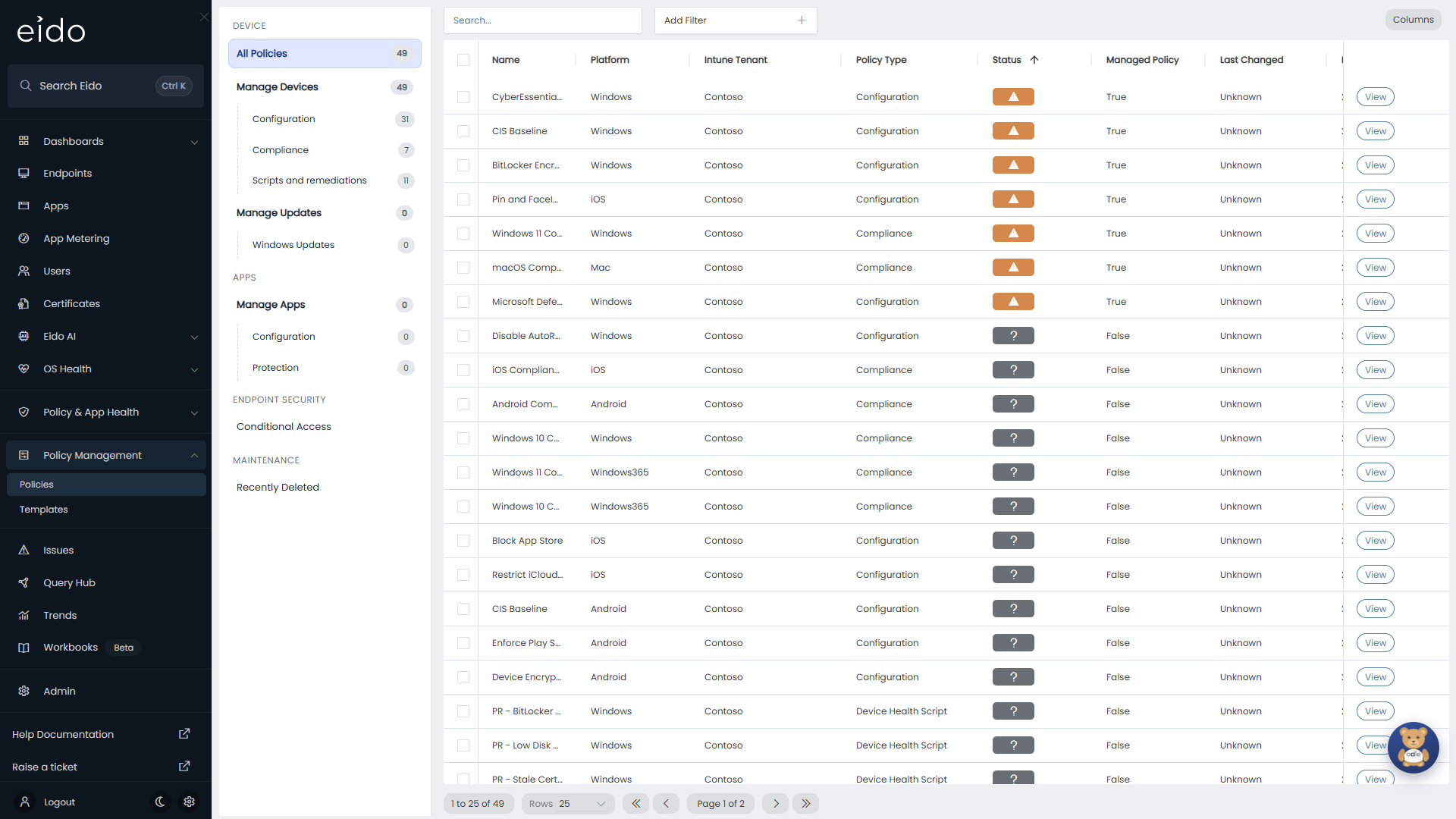
Policies lists every policy Eido has found. The menu down the left filters the list by kind, with a count beside each entry.
| Section | Entries |
|---|---|
| Device | All Policies, Manage Devices (with Configuration, Compliance and Scripts and remediations beneath it) and Manage Updates (with Windows Updates) |
| Apps | Manage Apps (with Configuration and Protection) |
| Endpoint Security | Conditional Access |
| Maintenance | Recently Deleted |
Eido backs up compliance policies, device configuration and settings catalog policies, PowerShell and shell scripts, remediations, Windows driver, quality and feature update profiles, app configuration and app protection policies, Windows Information Protection policies and Conditional Access policies.
The columns#
| Column | What it means |
|---|---|
| Name | The policy’s name in Intune. |
| Platform | The platform the policy targets. |
| Customer | The customer the tenant belongs to. Only shown when you look after several customers and have not picked one. |
| Intune Tenant | The tenant the policy lives in. |
| Policy Type | The kind of policy. |
| Status | An icon for the policy’s state. See the table below. |
| Managed Policy | True when the policy is linked to a template, False when Eido only backs it up. |
| Last Changed | When Eido last recorded a new version of the policy. |
| Last Checked | When Eido last looked at the policy in Intune, whether or not it had changed. |
| Template Version | For a linked policy: Latest, New version available or Out of sync. Blank otherwise. |
| Last Updated | When the policy was last modified in Intune. |
Hover over a Status icon to read what it means.
| Icon | Hover text | Meaning |
|---|---|---|
| Green tick | Policy backup is up to date | Not linked to a template, and Eido holds a backup of it. |
| Green tick | Policy is in sync | Linked to a template, and its settings match the version it is linked to. |
| Amber triangle | Policy is out of sync with the template | Linked to a template, and somebody has changed its settings since. |
| Grey question mark | Policy was not deployed using Eido | Not linked to a template, and not backed up yet. |
| Grey bin | Policy deleted | Removed from Intune. Found under Recently Deleted. |
Search… finds a policy by name. Add Filter narrows the list by Policy > Name, Customer, Intune Tenant, Policy > Type, Policy > Platform, Status, Managed Policy, Template Version or Last Checked. Columns chooses which columns to show.
Open a policy#
Press View on a row. The policy opens in a panel.
- Details has the policy’s name, type and platform, when it was created and last updated in Intune, and when Eido last backed it up. It also shows the Template the policy is linked to, if any.
- Policy Data opens the Policy Viewer, with the policy’s full settings as a tree.
- Version History lists every version Eido has recorded.
- Sync reads the policy from Intune now, and records a new version if anything has changed. Use it straight after editing a policy in Intune when you do not want to wait for the next sync.
Version history#
Eido checks every policy each time it syncs the tenant. When a policy’s settings or its assignments have changed, it records a new version.
| Column | What it means |
|---|---|
| Backup Date/Time | When the version was recorded. |
| Action | What caused the version, with who did it and when, where Eido can tell. That is either a change made in Intune, taken from Intune’s audit log, or something done in Eido such as creating a template, deploying or restoring. Otherwise it says Backup. |
| Policy Changes | Changes when the settings differ from the version before, otherwise No Changes. |
| Assignment Changes | Changes when the assignments differ from the version before, otherwise No Changes. |
Press Changes to open a side-by-side comparison of that version and the one before it, with the differences highlighted.
Restore an earlier version#
-
Open the policy and find the version
In Version History, press Restore on the version you want back.
-
Choose what to restore
Switch on Restore Policy, Restore Assignments, or both. Both start off. Review Policy and Review Assignments show exactly what will be written.
-
Press Confirm Restore
Eido asks you to confirm, and may then ask you to confirm it is you.
-
Wait for the result
The dialog shows Restore Successful! or Restore Failed with the reason.
Before it changes anything, Eido records the policy as it is now, so the restore can itself be undone from Version History.
Policies removed from Intune#
When a policy disappears from Intune, Eido marks it as deleted instead of forgetting it. It moves to Recently Deleted, where a Deleted column shows how long ago, and it stays there with its version history for 30 days.
Opening one shows a Policy removed from Intune banner, and Sync is unavailable. You can still restore a version from its history. If a compliance policy no longer exists in Intune, restoring creates it again.
Templates#
A template is a copy of a policy’s settings, without its assignments, kept in Eido with a version number. You make one from a policy, deploy it to other tenants, and Eido then tells you when a deployed copy has been changed or has fallen behind.
Make a template from a policy#
- Open the policy in Policies and press Convert to Template.
- Review Policy JSON shows what the template will contain. It cannot be edited here.
- Press Create Template, and confirm.
The policy becomes the template’s master policy, and is linked to version 1 of it.
To convert several at once, tick them in the Policies list and press Convert to template. A progress window shows each one succeed or fail.
What the Templates list shows#
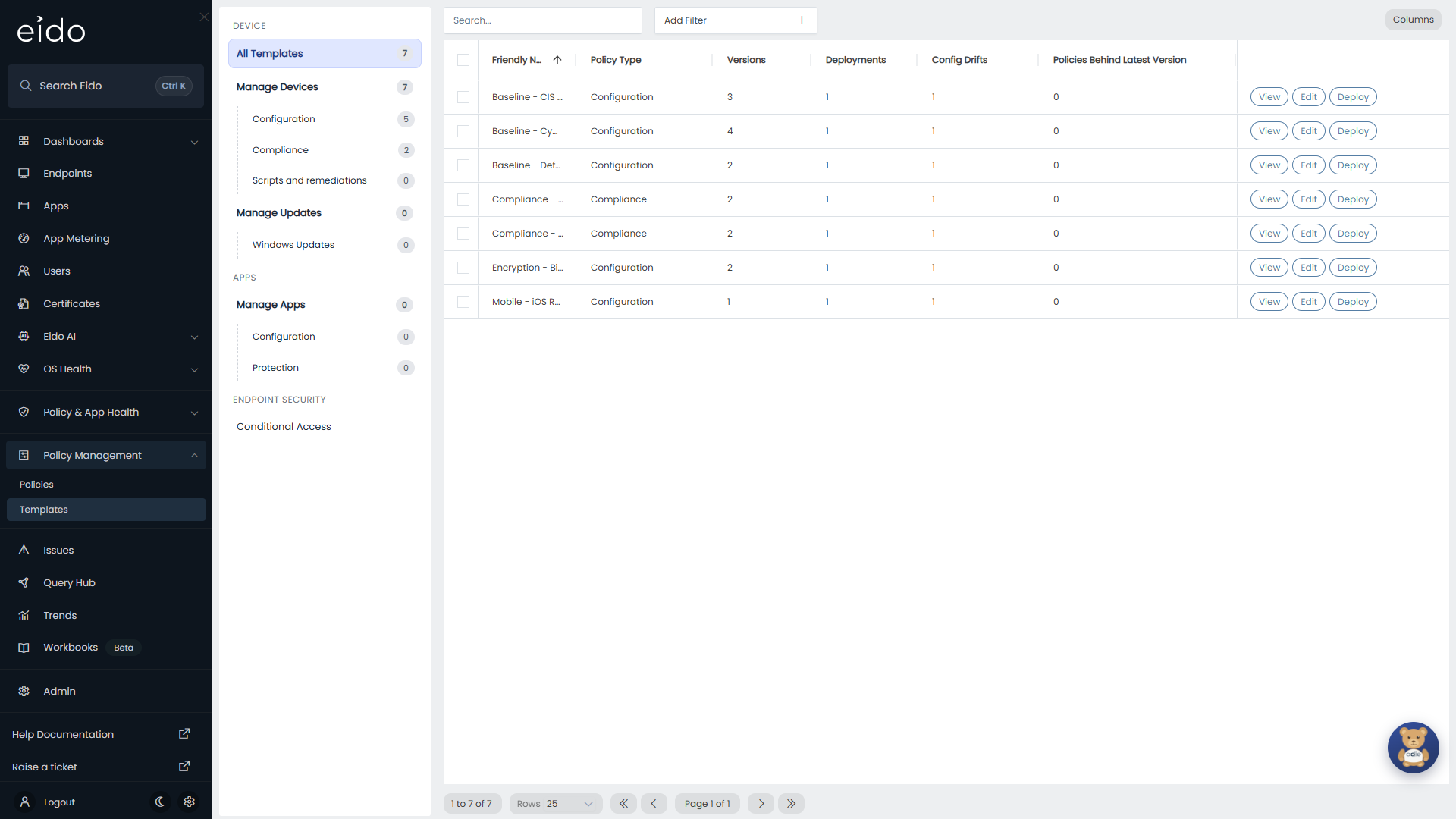
| Column | What it means |
|---|---|
| Friendly Name | The template’s name. It starts as the name of the policy it was made from. |
| Policy Type | The kind of policy. |
| Versions | How many versions the template has. |
| Deployments | How many policies currently in Intune are linked to the template. |
| Config Drifts | How many of those have settings that no longer match the version they are linked to. |
| Policies Behind Latest Version | How many are linked to a version older than the newest. |
| Master Policy Name | The policy the template was made from. |
| Created and Last Updated | When the template was made and last changed. |
The menu down the left filters templates by kind, in the same way as Policies.
Open a template#
Press View on a row.
- Master Policy names the policy the template follows. When that policy has changed since the newest version, Create new version becomes available.
- Versions lists each version with its number, how many deployments are on it, and when it was created. The newest is tagged Latest. Press a version to expand it, then choose Deployments to see the policies on that version, or Policy Data to see its settings.
- Deployments lists every policy linked to the template, in every tenant, with its Deployed Version and a Drift Status of Up to date or Out of Sync. View opens the policy. Deploy updates that policy from the template.
Edit on a row changes the template’s Policy Name and Description. It does not change its settings.
Change a template#
A template’s settings are never edited in Eido. They follow the master policy.
- Edit the master policy in Intune.
- Let Eido see the change. Wait for the next sync, or open the policy in Policies and press Sync.
- Open the template and press Create new version.
Creating a version does not deploy it anywhere. Policies deployed from earlier versions now show New version available, and are counted under Policies Behind Latest Version, until you update them.
Deploy a template to a tenant#
- Press Deploy on the template’s row.
- Select Intune Tenant and Select Template Version. The newest version is marked (Latest).
- Review Policy shows the settings that will be written. It is read only.
- Press Deploy Template, and confirm it is you if asked.
This creates a new policy in that tenant, linked to the template. Eido does not create assignments: the new policy is unassigned until you assign it in Intune.
If every policy previously deployed from the template has since been removed from Intune, Eido says so first and asks whether to continue. Deploying then creates a new policy. It does not bring a removed one back.
To deploy several templates to one tenant, tick them, press Deploy, choose the tenant and press Deploy Templates. Eido deploys the latest version of each as a new policy, and a progress window shows each one succeed or fail.
Update a policy that is already deployed#
Open the policy and press Re-Deploy, or open the template, find the policy under Deployments and press Deploy. Choose the version, review it and press Deploy Template. Eido updates that policy in place.
Link an existing policy to a template#
A policy that was created by hand, and that should match a template, can be linked to it without being redeployed.
Open the policy and press Link to Template. Choose the template and the version. Only templates of the same policy type are offered. If Eido finds a template and version that match the policy, it selects them for you under Suggested Link. Review the choice, then press Link.
Linking changes nothing in Intune. It only tells Eido what the policy should be compared against. Unlink on the policy removes the link again.
Delete a template#
Tick one or more templates and press Delete. The template and its versions are removed, and the policies that were linked to it are unlinked. Nothing is deleted from Intune.
Drift and versions#
Once a policy is linked to a template, Eido compares the two at every sync.
| What you see | Where | What it means | What to do |
|---|---|---|---|
| In Sync | The policy’s Template Version line | The policy’s settings match the version it is linked to. | Nothing. |
| Out of sync | The policy, and Config Drifts on the template | Somebody has changed the policy in Intune. | Press Compare Changes to see the difference between the template and the policy as it is now. Then Re-Deploy to put it back, or change the master policy and create a new version if the change was right. |
| New version available | The policy, and Policies Behind Latest Version on the template | The policy matches its version, and a newer version exists. | Re-Deploy with the newer version when you are ready. |
| Latest | The Template Version column | The policy matches the newest version. | Nothing. |
What can be restored and deployed#
Every type of policy is backed up, and can be viewed and compared. Restoring and deploying are available for these types:
- Compliance
- Device Configuration and Configuration (settings catalog)
- Device Management Script and Device Management Shell Script
- Device Health Script (remediations)
- Windows Driver Update, Windows Quality Update and Windows Feature Update
App configuration and app protection policies, Windows Information Protection policies and Conditional Access policies cannot be restored or deployed from Eido. Their history is still kept.
Confirming it is you#
Restoring a policy and deploying a template change your live Intune tenant. Before either, Eido may ask you to prove you are still the person signed in. A small Microsoft sign-in window opens, and you stay on the page you were on. Once you have signed in, the action carries on.
If nothing opens, your browser has blocked the pop-up. Allow pop-ups for Eido and try again. See Confirming it is you before a sensitive action.
Why does it not work?#
The Policies list is empty#
Backup Policies is off for the tenant, or the tenant has not completed a sync since it was linked.
Restore fails, or a deployment fails#
Check, in this order:
- The tenant was linked with Read-Write Access. A tenant linked with Read-Only Access, or with Custom / Manual App Registration, cannot be written to from Eido. The access level is shown beside each tenant in Intune tenants.
- The policy is of a type that can be restored and deployed.
- You completed the Microsoft sign-in when asked.
If all three are true, Intune refused the change. Try once more, and if it keeps failing, write to Eido support with the policy’s name and the tenant.
Deploy Template cannot be pressed#
A tenant and a version must both be chosen first. When you opened the dialog with Re-Deploy, the tenant is already set and the version is not.
Create new version is greyed out#
The master policy has not changed since the newest version. If you have just edited it in Intune, press Sync on the policy first.
A policy shows Out of sync straight after I changed it on purpose#
That is what drift means: the policy no longer matches the template version it is linked to. If the change should become the standard, make it on the master policy, create a new version, and redeploy.
A deployed policy reaches no devices#
Eido never creates assignments when it deploys a template. Assign the policy in Intune.