
Once a team has built more than a handful of dashboards, the Dashboards list in the sidebar gets long. Two things keep it short:
- Folders group dashboards under a heading that opens and closes.
- Hiding takes a dashboard somebody else shared out of your own list.
Both are about tidiness only. Neither changes who can open a dashboard: that is still decided by who owns it and whether it is shared, see Share a dashboard. Everybody who can sign in can use both.
Create a folder#
- In the sidebar, open Dashboards.
- At the foot of the list, press Create New and choose New folder.
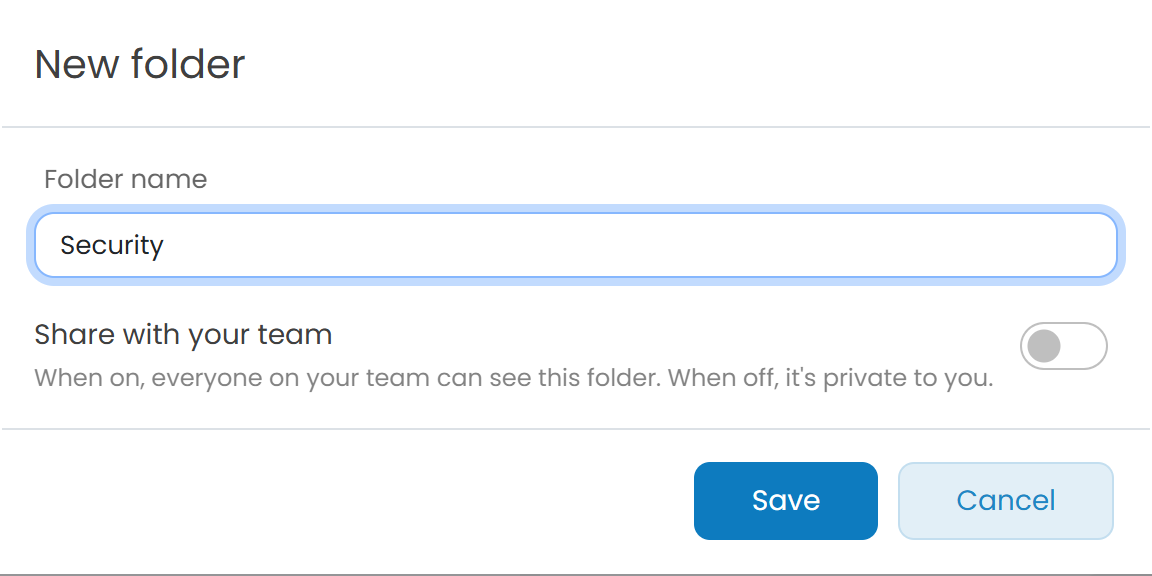
- Type a Folder name.
- Leave Share with your team off for a folder only you see, or switch it on so that everybody on your team sees it.
- Press Save.
The folder appears at the top of the Dashboards list, above the dashboards that are in no folder. A new folder is empty and says No dashboards yet when opened.
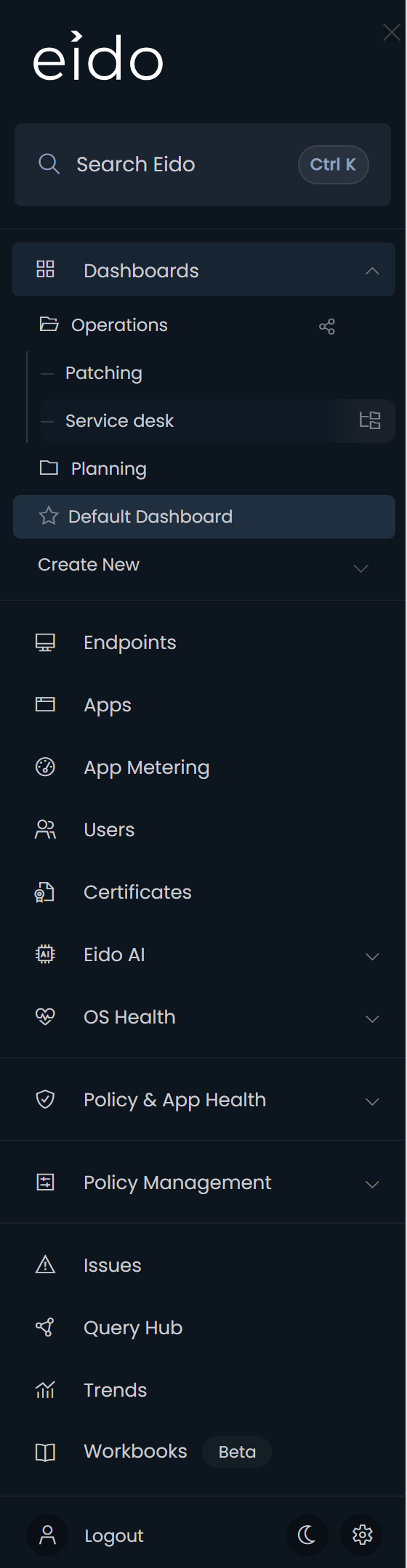
Put a dashboard in a folder#
Hover over a dashboard in the sidebar. Icons appear at the right-hand end of its row.
- Press the Move to folder icon.
- Choose the folder from the menu.
The dashboard moves out of the main list and into the folder. You can file any dashboard in your list this way, including one that somebody else shared with you.
- The menu lists only folders you own. The Move to folder icon does not appear at all until you own at least one folder.
- A dashboard sits in one of your folders at a time. Moving it to another of your folders takes it out of the first.
- To take a dashboard back out, open the same menu on the dashboard inside its folder and choose Remove from folder.
Open and close folders#
Press a folder to open or close it. Folders start closed each time you load Eido, except the folder holding the dashboard you are looking at, which opens on its own so that you can see where you are.
Share a folder#
A folder is private until you share it. Switch on Share with your team when you create it, or later from Edit folder.
| A private folder | A shared folder | |
|---|---|---|
| Who sees it | Only you | Everybody on your team |
| Marked with | Nothing | A share icon, with the tip Shared with your team |
| Who can rename it, fill it or delete it | Only you | Only you |
Sharing a folder does not share the dashboards inside it. Each person sees, inside the folder, only the dashboards they could already open. Put a private dashboard in a shared folder and your colleagues see the folder without that dashboard, so share the dashboard too if they should see it.
A dashboard can appear in a folder of yours and in a folder a colleague has shared, at the same time. Moving it in or out of your folder never changes theirs.
Rename or delete a folder#
Hover over a folder you own and press the pen icon, Edit folder. The same window opens with the name and the sharing switch, plus Delete folder.
Deleting asks you to confirm. The dashboards inside are not deleted. They go back to the main list.
There is no pen icon on a folder that somebody else shared. Only its owner can change it.
Hide a shared dashboard#
A dashboard a colleague shared appears in your list whether you use it or not. To take it out of your list:
- Hover over the dashboard in the sidebar.
- Press the Hide for me icon.
The dashboard disappears from your list, including from any folder it is in. Nothing changes for anybody else, and the dashboard itself is untouched.
Only dashboards shared with you can be hidden. Your own dashboards have no Hide for me icon. To get one of your own out of the way, put it in a folder, stop sharing it or delete it.
See hidden dashboards again#
Once you have hidden at least one dashboard, Show hidden dashboards appears near the foot of the list.
- Press it to list the hidden dashboards again, shown faded, in their usual places.
- Hover over one and press Unhide to bring it back for good.
- Press Hide hidden dashboards to put the rest out of sight again.
If you manage several customers#
Folders follow the customer picker at the top of the sidebar, in the same way dashboards do. The folders you create while a customer is selected belong to that selection, and a different selection has its own folders and its own dashboards. See Customers overview.
Common questions#
Why is there no Move to folder icon?#
You do not own a folder yet. Create one with Create New, then New folder. Folders that other people shared do not count, because only their owners can fill them.
Why can I not hide one of my dashboards?#
Hiding is for dashboards other people shared with you. You control your own: file it in a folder, switch off Share Dashboard or delete it.
A colleague cannot see a dashboard in my shared folder. Why?#
The folder is shared but the dashboard is not. Open the dashboard, press Edit, switch on Share Dashboard and save.
I deleted a folder. Where did its dashboards go?#
Back to the main Dashboards list, below the folders.
Does hiding a dashboard stop me opening it?#
No. Hiding only removes it from your list. Use Show hidden dashboards to find it again.