
A handful of preferences change how Eido looks and behaves for you alone. None of them affects your colleagues, and none needs an administrator. This article covers each one and, just as usefully, where each is remembered.
Open Settings#
Click the gear icon at the foot of the sidebar, on the right. The Settings box opens over the page.
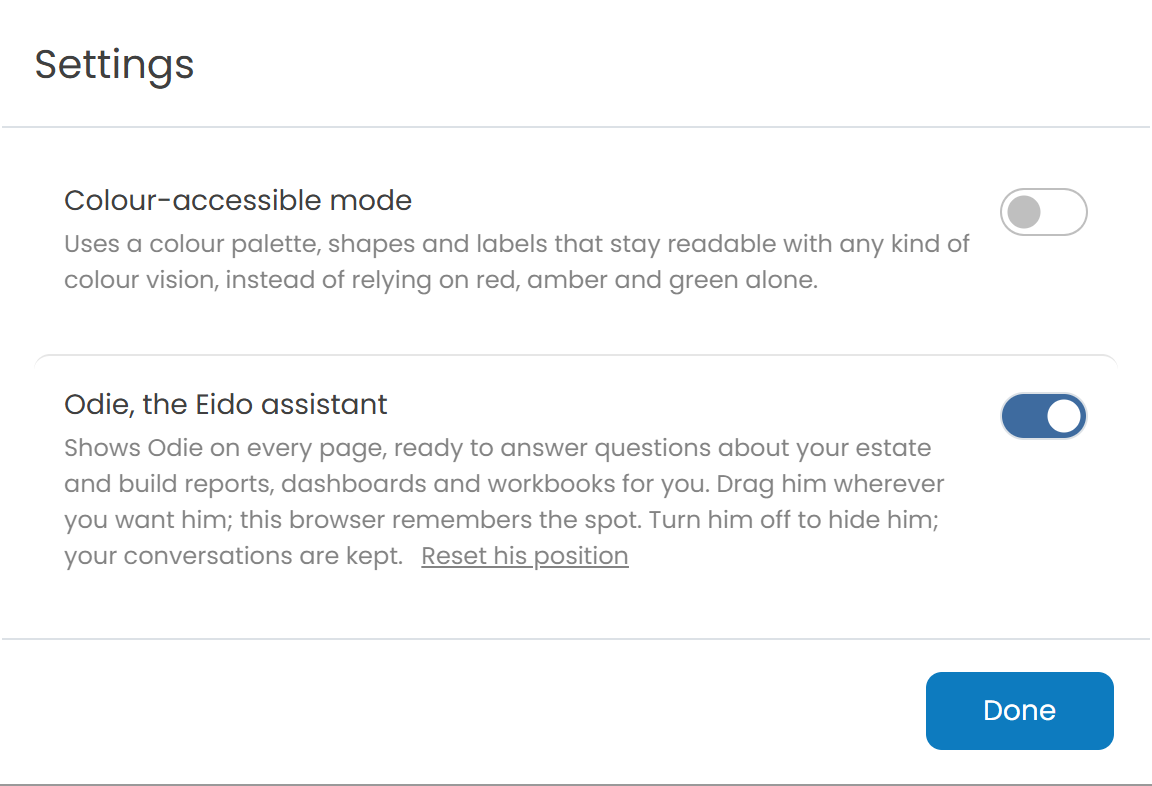
Each setting is a switch. A change takes effect the moment you flip it, so you can see the result behind the box before you close it. There is nothing to save. Click Done when you have finished.
Colour-accessible mode#
Eido relies heavily on red, amber and green. Colour-accessible mode replaces them with a palette, shapes and labels that stay readable with any kind of colour vision.
With it switched on:
| Status | Normally | In colour-accessible mode |
|---|---|---|
| Healthy | Green | Blue |
| Unhealthy - Medium | Amber | Orange on a light background, pale yellow on a dark one |
| Unhealthy - High | Red | Reddish purple on a light background, vermilion on a dark one |
| Unknown | Grey | Grey |
Colour is no longer the only signal:
- Status badges that normally show an icon alone also show a short name: Healthy, Medium, High or Unknown.
- Unhealthy - High gets its own icon, a diamond, so that it cannot be mistaken for the Medium triangle.
- Charts follow the same palette. Chart segments that are not statuses, such as operating systems or manufacturers, use a set of colours chosen to stay distinct from each other.
Colours that somebody picked by hand for a dashboard tile are left as they are.
The mode works in both dark and light, with a palette tuned for each.
Odie, the Eido assistant#
This switch shows or hides Odie, the assistant that floats over every page. It is on to begin with.
- Switch it off to hide Odie. Your conversations are kept, and they are there when you switch it back on.
- You can drag Odie anywhere on the page. If he has ended up somewhere awkward, click Reset his position to put him back in the bottom right corner.
Switching Odie off here hides it for you only. Whether Odie is available at all is decided by an administrator. See Odie.
Dark mode#
Dark mode is not in the Settings box. It has its own button next to the gear: a sun when Eido is dark, and a moon when it is light. Click it to switch. Eido starts in dark mode.
Your default dashboard#
Your default dashboard is the one Eido opens on, and the one marked with a star under Dashboards in the sidebar. Everybody starts with one of their own, called Default Dashboard. To make a different dashboard your default:
-
Open the dashboard you want
It has to be one of your own.
-
Click Edit, then Make Default
The star moves to it in the sidebar.
-
Click Save or Cancel to leave edit mode
The change of default has already been made. Save and Cancel only decide what happens to any other edits.
If you look after several customers, you have a separate default dashboard for each customer and one for All Customers. See Dashboards.
Other things Eido remembers for you#
| What | How to change it |
|---|---|
| Dashboards you have hidden | Hover over a dashboard that was shared with you and click Hide for me. See Dashboard folders. |
| Where Odie sits | Drag it. |
| Your recent search results | Open Global search and use Clear all. |
Where each setting is kept#
Some settings are kept by the browser you are using, and some by your Eido account. The difference matters when you change computer.
| Setting | Kept by | On another browser or computer |
|---|---|---|
| Dark or light | The browser | Starts dark |
| Colour-accessible mode | The browser | Starts off |
| Odie shown or hidden | The browser | Starts shown |
| Where Odie sits | The browser | Starts bottom right |
| Recent search results | The browser | Starts empty |
| Default dashboard | Your account | Follows you |
| Hidden dashboards | Your account | Follows you |
Settings kept by the browser are lost if you clear the browser’s site data, and are not shared with a private or incognito window.
What is not here#
- Your name, email address and role are managed by an administrator under Team.
- Your password and multi-factor authentication belong to your Microsoft account, because you sign in to Eido with it. See Regions and signing in.
- Settings for the whole organisation, such as which failures count as serious, are under Tenant settings.
Questions people ask#
Why did my colours reset?#
Dark mode and colour-accessible mode are remembered by the browser. A new browser, a new computer, a private window or cleared site data all start again from the defaults. Switch them back on.
Why is there no Odie switch in my Settings?#
Odie has not been switched on for your organisation. Ask an administrator. See Odie Assistant.
I switched Odie off. Have I lost my conversations?#
No. They are kept, and they come back when you switch Odie on again.
Why is there no Make Default button?#
Either you are already looking at your default dashboard, or you are not in edit mode. Make Default appears after you click Edit, which is offered only on dashboards you own.
Can an administrator set these for everybody?#
No. Each person sets their own.