
Integrations is where you connect Eido to services outside Microsoft. Today that means the warranty services of Dell, HP and Lenovo, and two connections to ServiceNow.
It is at Admin → Integrations, under Connections, and is open to administrators of the whole Eido account. An integration belongs to the account, not to one Intune tenant: once it is set up, it works for every tenant you have linked. If your organisation manages several customers, select All Customers first. The Integrations tile on the Admin page is hidden while one customer is selected.
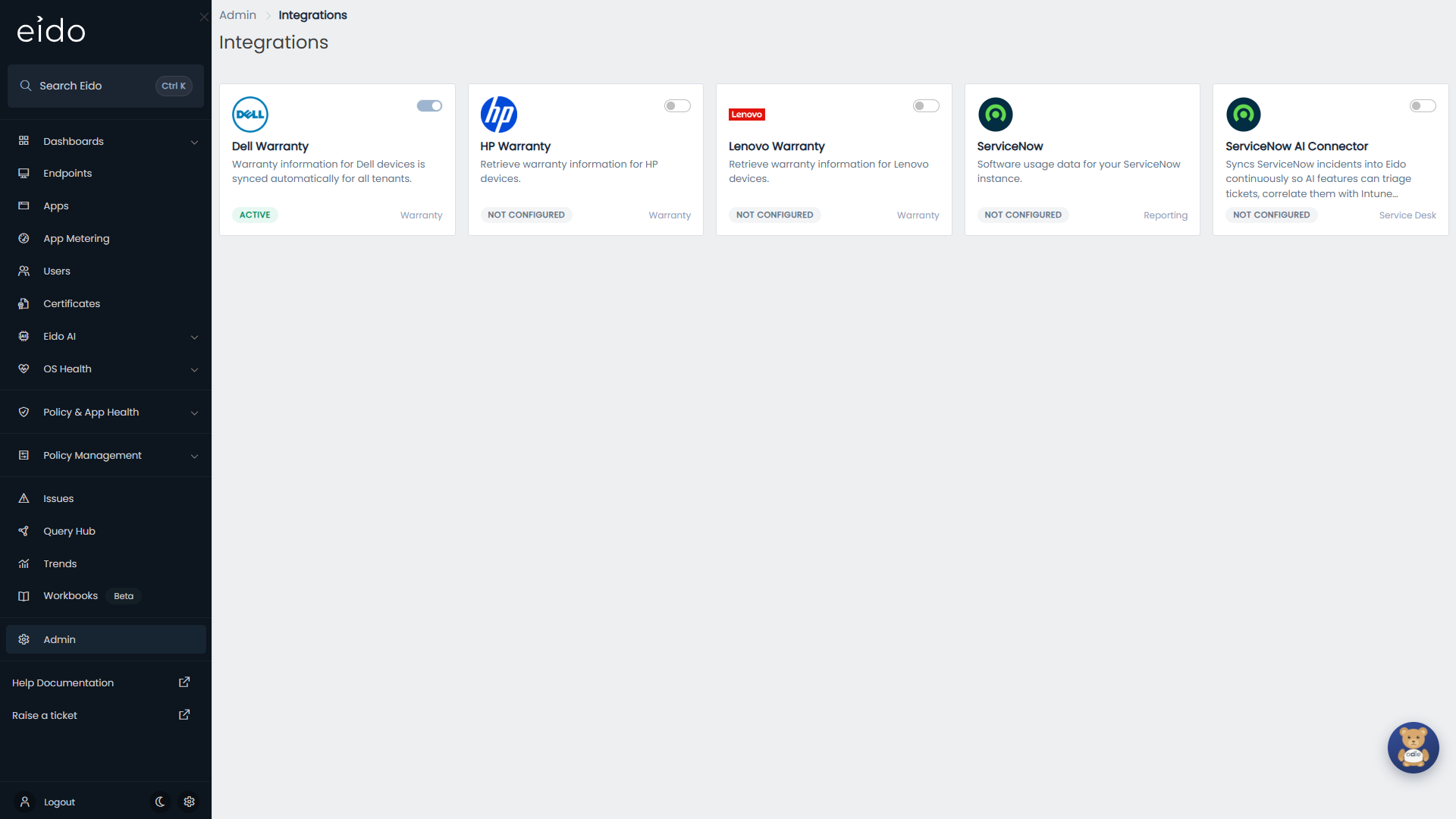
Reading the tiles#
Each tile is one integration.
| Part of the tile | What it tells you |
|---|---|
| The switch, top right | Whether the integration is running. Off pauses it without forgetting its settings. |
| The badge, bottom left | Configured, Not Configured, or Active for an integration that needs no setting up. |
| The label, bottom right | What kind of integration it is: Warranty, Reporting or Service Desk. |
Press a tile to open its settings. Pressing the switch on a tile that is Not Configured opens the settings instead, because there is nothing to switch on yet.
The integrations#
| Integration | Kind | What it does | What you enter |
|---|---|---|---|
| Dell Warranty | Warranty | Brings in warranty dates for Dell devices. | Nothing. It is always on. |
| HP Warranty | Warranty | Brings in warranty dates for HP devices. | API Key and API Secret |
| Lenovo Warranty | Warranty | Brings in warranty dates, and product details, for Lenovo devices. | Client ID |
| ServiceNow | Reporting | Lets the Eido app in your ServiceNow instance read software usage from Eido. | Nothing typed. You generate a credential for each tenant. |
| ServiceNow AI Connector | Service Desk | Brings your ServiceNow incidents into Eido for Eido AI. | Instance URL, Username and Password |
Dell Warranty#
Warranty information for Dell devices is synced automatically for every tenant. There is nothing to configure, the tile cannot be opened, and its switch is fixed on. The badge reads Active.
HP Warranty#
Eido asks HP for the warranty on each HP device, by serial number. You need an API Key and API Secret for HP’s warranty service, which you get from HP.
Lenovo Warranty#
Eido asks Lenovo for the warranty on each Lenovo device, by serial number, using a Client ID that you get from Lenovo. The same connection also brings in Lenovo’s product details for each device, which you can report on in Query Hub with the Lenovo Product Info view.
How warranty lookups work#
- HP and Lenovo lookups happen at the end of each sync of an Intune tenant, for devices of that manufacturer that have a serial number.
- Dell lookups run on their own, every few minutes, for Dell devices that have a serial number. They do not wait for a sync.
- A device is looked up when it is new to Eido, then again about once a month. A large estate fills in over several rounds.
- If the vendor has no record of a serial number, the device simply has no warranty date.
- What comes back is the warranty end date and the date the device was shipped. You see it in the Warranty section of device details, and as the Warranty Expiry and Hardware Purchase Date columns you can add to device reports in Query Hub.
ServiceNow#
This connection is for software asset management. The Eido app in your ServiceNow instance reads monthly application usage from Eido, and sends back the reclamation rules that decide what is metered. It has its own panel instead of a form, and no switch on its tile. See ServiceNow.
It needs App Metering to be switched on for the tenant.
ServiceNow AI Connector#
This connection is for the service desk. Eido reads your incidents from ServiceNow continuously, matches each one to the person who raised it, and makes them available to Eido AI for triage, for spotting tickets caused by an Intune change, and for device diagnostics. See ServiceNow.
Set up an integration#
These steps are for HP Warranty, Lenovo Warranty and ServiceNow AI Connector. The ServiceNow tile works differently, and is described in ServiceNow.
- Go to Admin → Integrations and press the tile.
- Fill in every field. The ones marked with a red asterisk are required.
- Switch on Enabled.
- For ServiceNow AI Connector, press Test connection and wait for the result.
- Press Save.
The tile’s badge changes to Configured and its switch turns on.
Test a connection#
Test connection is on the ServiceNow AI Connector panel. It signs in to your ServiceNow instance with the details in the form and tries to read one incident.
| Result | What it means |
|---|---|
| Connection successful. | The address, the account and its access to incidents are all fine. |
| Authentication failed. Check the username and password. | ServiceNow rejected the sign-in. |
| Authenticated, but the account has no read access to the incident table. | The account exists but lacks the role it needs. |
| Connection failed, followed by a reason | Eido could not reach the address. Check the Instance URL. |
On an integration that is already set up, you can test without retyping anything. With the fields left empty, the test uses the saved details.
The warranty integrations have no test button. The proof that they work is warranty dates appearing on devices after the next sync.
Change the details#
Open the tile. For security, the saved values are never shown, and the fields are empty.
- To keep the saved details, leave every field empty. You can still change Enabled and press Save.
- To replace them, fill in every field, including the ones that have not changed.
Pause or remove an integration#
To pause, switch the tile off, or open it and switch off Enabled. The details are kept. Eido stops using the integration from the next sync, and anything already brought in stays.
To remove, open the tile and press Remove. Eido asks you to confirm, then deletes the stored details. The tile goes back to Not Configured. Warranty dates that were already brought in stay on their devices.
Dell Warranty cannot be paused or removed.
Questions people ask#
I set up HP or Lenovo, but devices still have no warranty date#
Check these in turn.
- Has the tenant synced since you saved? Lookups happen at the end of a sync.
- Does the device have a serial number in Intune? Without one, it cannot be looked up.
- Is the manufacturer what you expect? Open the device and check the manufacturer Intune reports. Only devices reported as HP or Lenovo are looked up.
- Are the credentials right? There is no test button for the warranty integrations. If no device from that manufacturer gets a date after a sync, re-enter the details from the vendor.
Why do some devices have a date and others not?#
On a large estate the first lookups are spread over several syncs. After that, a device with no date is one the vendor has no record of.
Can I connect one customer’s ServiceNow and another’s separately?#
The ServiceNow tile has one credential for each Intune tenant, so each tenant can be connected to a different ServiceNow instance. The ServiceNow AI Connector is one connection for the whole Eido account.
Where do alerts that raise ServiceNow tickets get their connection?#
Not here. An alert or an automation that raises a ServiceNow incident carries its own ServiceNow address and account, entered where you build it.