
Admin, Odie Assistant has one switch. It decides whether Odie, the assistant in the corner of every page, is available to the people in your organisation.
Only an instance-level administrator can open it. The tile is in the Platform group. If you manage several customers, it is hidden until All Customers is selected.
Odie is not part of Eido AI. He has his own switch here, and you can have Odie without Eido AI, or Eido AI without Odie.
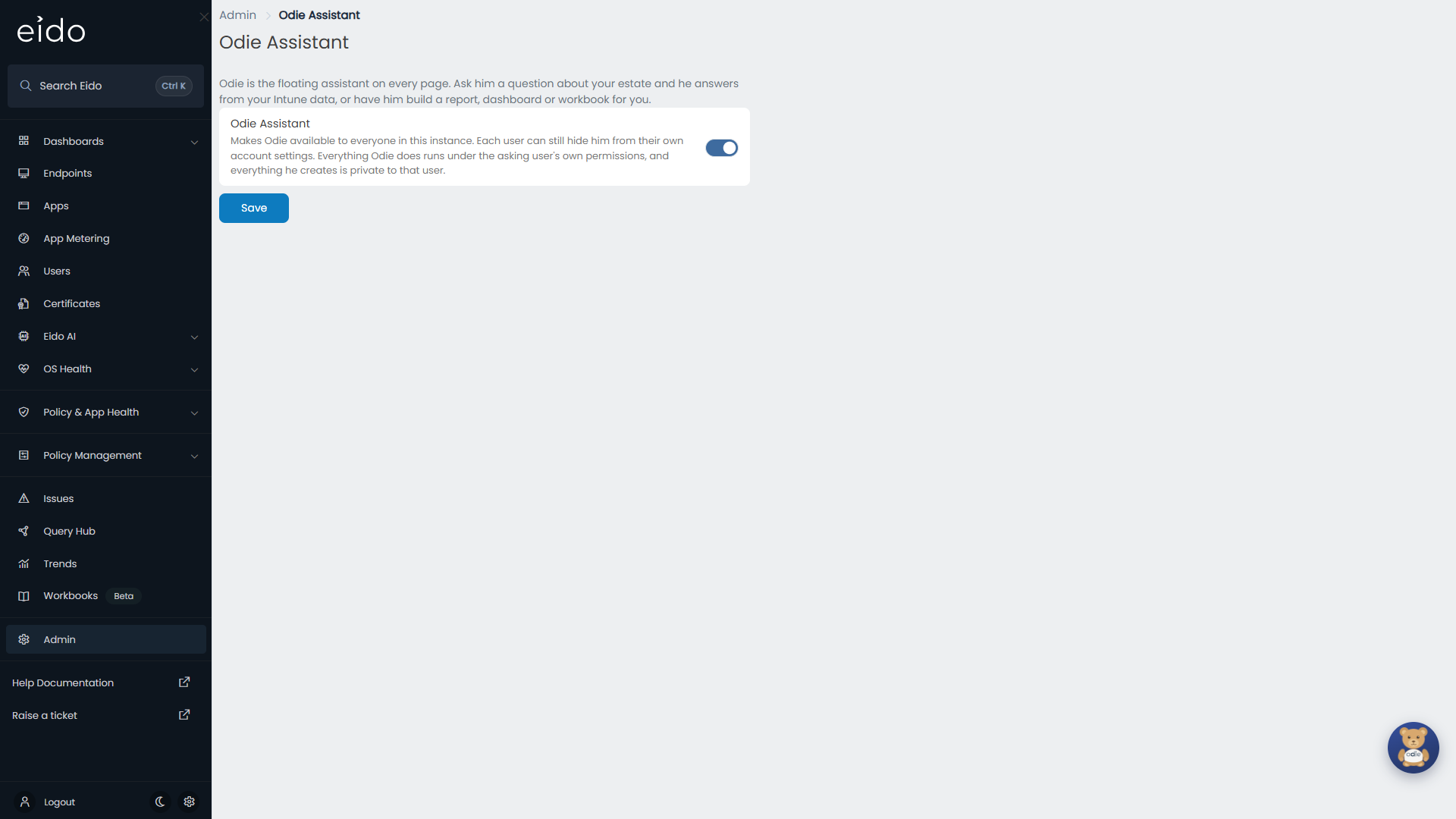
Switch Odie on or off#
- Go to Admin, then Odie Assistant.
- Turn Odie Assistant on or off.
- Press Save. Saved. appears beside the button.
For you, the bear appears or disappears straight away. Everybody else sees the change the next time they load Eido.
Depending on when your organisation joined Eido, Odie may already be on. Check the switch.
What switching him on allows#
Everybody who can sign in gets Odie. There is no list of who may use him and no separate permission.
Odie has no access of his own. Everything he does runs under the permissions of the person asking, and everything he creates is private to that person.
| Question | Answer |
|---|---|
| What data can he read? | For each person, only what that person’s role lets them see: the same tenants, customers and data as in Query Hub. |
| What can he create? | Reports, dashboards and workbooks, which that person could have made by hand. They belong to the person who asked and are not shared. |
| Can he change a device or Intune? | No. He has no way to run anything on a device or to change anything in a tenant. |
| Can he change what already exists? | Only what he made in the conversation he is in. He cannot edit anybody’s existing reports, dashboards or workbooks. |
| Can people see each other’s conversations? | No. A conversation can be opened only by the person who had it. That includes administrators of your organisation, who cannot open anybody else’s. |
What each person controls#
Somebody who does not want the bear on their screen can hide him: Settings (the gear icon), then Odie, the Eido assistant. That affects only them. They can also drag him somewhere else on the page. See Move him, or hide him.
You cannot switch Odie on for some people and off for others.
What switching him off does#
- The bear disappears for everybody, and so does the Odie, the Eido assistant row in their Settings.
- Anything he built stays. Reports, dashboards and workbooks are ordinary items owned by the people who asked for them, and schedules he set on them keep running.
- Conversations are kept. They are there again if you switch him back on.
- Somebody part-way through a conversation gets a reply saying that the assistant is switched off and that an administrator can enable it under Admin, Odie Assistant.
Usage and limits#
Odie counts towards your organisation’s monthly limit on AI use, which he shares with Eido AI. When it is reached, he tells the person asking that he has to stop until the start of next month. A request already under way is finished. There is no usage screen in Admin. Contact support to ask what your limit is or to have it raised.
Switching the assistant on or off is written to Eido’s audit log with your name.
Common questions#
Why can I not see Odie Assistant in Admin?#
You are not an instance-level administrator, or you have a single customer selected. Choose All Customers and look again.
I switched him on, but a colleague cannot see him#
Ask them to reload Eido. If he is still missing, they have hidden him in their own Settings: the Odie, the Eido assistant switch there is off.
Is there anything else to set up?#
No. Odie needs no integration, no Eido Client and no scripts. He works from the Intune data Eido already has.