
A wallboard puts dashboards on a screen that nobody is signed in to: a television in the service desk area, a monitor in an operations room, a kiosk in reception. The screen rotates through a playlist of dashboards and keeps itself connected.
A wallboard has three parts:
- A playlist of one or more dashboards, in the order they are shown.
- A rotation interval, the number of seconds each dashboard stays up.
- One or more displays, the screens paired to it. Every display on a wallboard plays the same playlist.
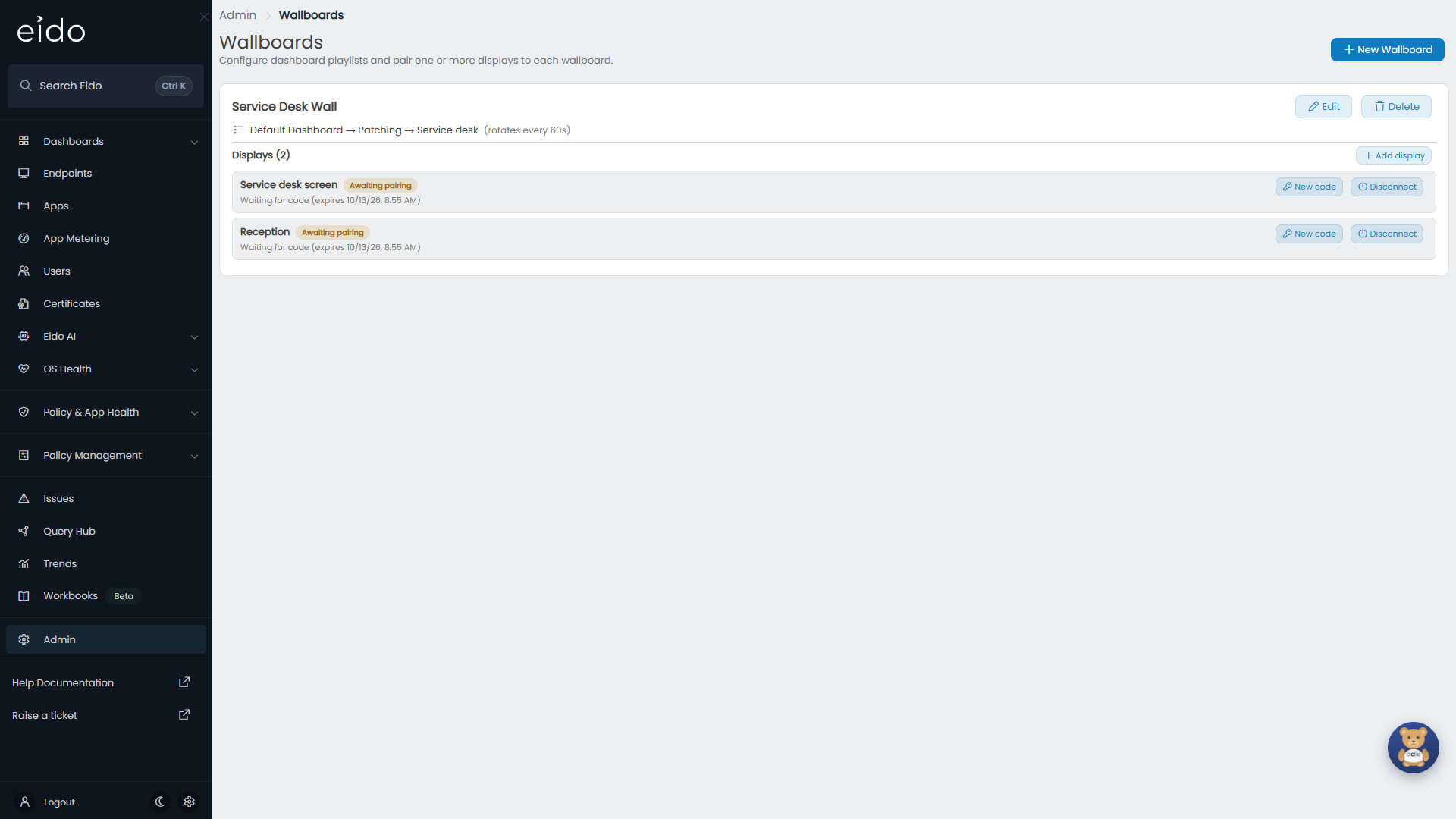
Wallboards are set up by administrators, under Admin, then Wallboards in the Platform group. An administrator who is limited to one customer manages that customer’s wallboards only.
Before you start#
Build the dashboards first, see Building a dashboard. A wallboard can play:
- Any dashboard you own, shared or not.
- Any dashboard another person has shared.
If you manage several customers, the dashboards offered are the ones for your current selection in the customer picker, and the wallboard belongs to that selection.
Create a wallboard#
-
Open the form
On the Wallboards page, press New Wallboard.
-
Name it
Fill in Wallboard name, for example the room the screen is in.
-
Set the rotation
Rotation interval (seconds) is how long each dashboard is shown before the next. It starts at 60 and cannot be less than 15. It is ignored when the playlist holds one dashboard.
-
Build the playlist
Choose a dashboard under Add a dashboard. It joins the Playlist. Repeat for each dashboard, then use the arrows to change the order, or the cross to remove one.
-
Name the first display (optional)
Type a name under Pair first display (optional) to get a pairing code as soon as the wallboard is created. Leave it empty to add displays later.
-
Create it
Press Create Wallboard.
The form will not save with an empty playlist (“Add at least one dashboard to the playlist.”) or an interval under 15 seconds (“Rotation must be at least 15 seconds.”).
Pair a display#
Pairing connects one screen to the wallboard. You need to be at the Eido admin page and able to type on the screen, or be talking to somebody who can.
-
Add the display
On the wallboard, press Add display, type a name such as “Room 1”, and press Generate code.
-
Note the code
The Pairing code window shows a six-digit code and when it expires. Copy puts it on the clipboard. A code lasts ten minutes and works once.
-
Open the pairing page on the screen
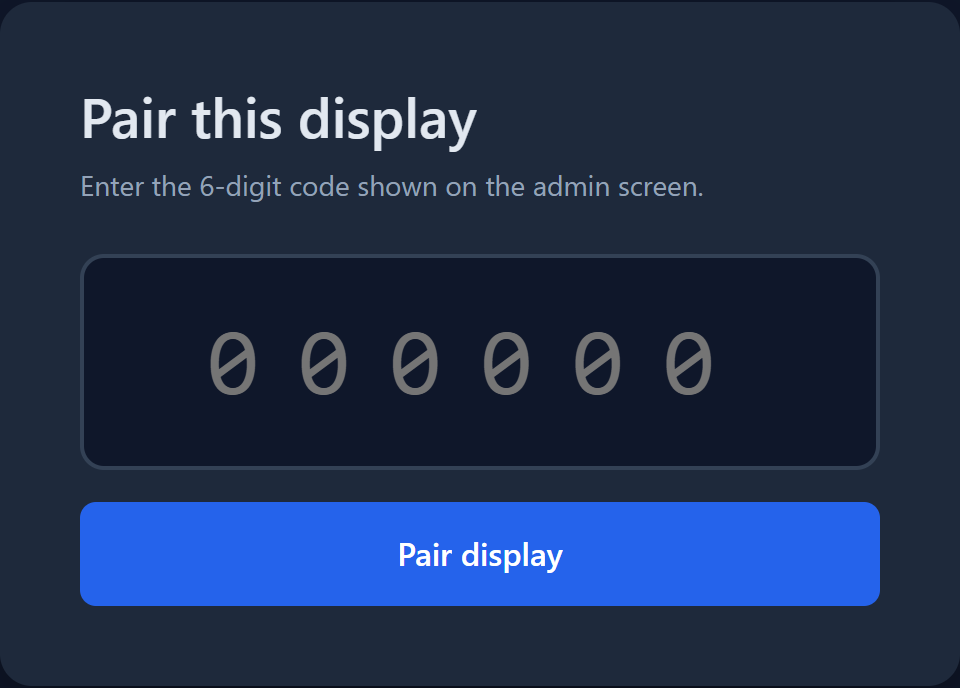
In the screen’s browser, go to your Eido address followed by
/wallboard/connect. The page is titled Pair this display. It does not ask anybody to sign in. -
Enter the code
Type the six digits and press Pair display. The first dashboard in the playlist appears.
Add as many displays to a wallboard as you need. Each one has its own code and its own connection.
What the screen shows#
- The name of the dashboard being shown.
- With more than one dashboard, its place in the playlist and the interval, for example “2 / 3 rotates every 60s”.
- The dashboard’s widgets, sized to fill the screen.
The display is read only. Nothing on it can be pressed to open a device or a report, so it is safe to leave unattended. Bear in mind that anybody who can see the screen can read what is on it, and choose the dashboards accordingly.
Three buttons sit at the top right of the display:
| Button | What it does |
|---|---|
| Unpair | Forgets the pairing in this browser and returns to Pair this display. |
| The sun or moon | Switches the display between dark and light. A display starts dark. |
| The expand button | Puts the browser in full screen, or takes it out again. |
A display checks for changes every 30 seconds. Edit the playlist or the interval and every paired screen follows within half a minute, with nothing to do at the screen. With more than one dashboard in the playlist, each dashboard loads its figures afresh every time it comes round.
Read the list of displays#
Each wallboard lists its displays under Displays.
| Status | Meaning |
|---|---|
| Awaiting pairing | A code has been generated and not used yet. The row shows when the code expires. |
| Active | The display has been paired. |
An active display also shows Last seen, the last time it reported in, and the network address it reported from. A display that is running reports in every minute, so an old Last seen time means the screen is off, asleep or showing something else.
Change a wallboard#
Press Edit on the wallboard to change its name, its interval or its playlist, then Save. Displays are managed from the list, not from this form.
Give a display a new code#
New code on a display generates a fresh pairing code for it and ends its current connection. Use it when:
- The first code expired before it was entered.
- The screen was replaced, or its browser was reset.
The display has to be paired again with the new code.
Disconnect a display#
Press Disconnect on the display and confirm. It is removed from the list and loses access the next time it refreshes. The screen returns to Pair this display.
Pressing Unpair on the screen itself is not the same thing. It only makes that browser forget its pairing, and the display stays in your list as Active. Use Disconnect to remove it properly.
Delete a wallboard#
Press Delete on the wallboard and confirm. Every display paired to it is disconnected.
Common questions#
The screen says “Invalid or expired pairing code”. What now?#
The code was mistyped, has been used already, or is more than ten minutes old. Press New code on the display in the list and enter the new one.
Why did a screen go back to the pairing page?#
One of these happened:
- The display was disconnected, or its wallboard was deleted.
- Somebody pressed New code for it, or Unpair on the screen.
- The screen was switched off for more than 30 days. A display that has not connected for that long has to be paired again.
- The browser’s stored data was cleared.
Why is a dashboard missing from “Add a dashboard”?#
It is already in the playlist, or it is somebody else’s and they have not shared it, or it belongs to a different customer selection.
A dashboard has dropped out of the rotation. Why?#
It was deleted. A display skips a deleted dashboard and carries on with the rest of the playlist.
The screen says “This dashboard has no widgets configured”.#
The dashboard in the playlist is empty. Add widgets to it, or take it out of the playlist.
Does somebody have to stay signed in on the screen?#
No. A display is paired with a code and never signs in as a person. It stays connected on its own for as long as it keeps running.