
Intune Tenants is the list of Microsoft Intune tenants your Eido organisation is connected to. From here you link a new tenant, see whether each one is syncing, open a tenant’s settings and remove a tenant you no longer want Eido to read.
Open it from Admin, under Connections.
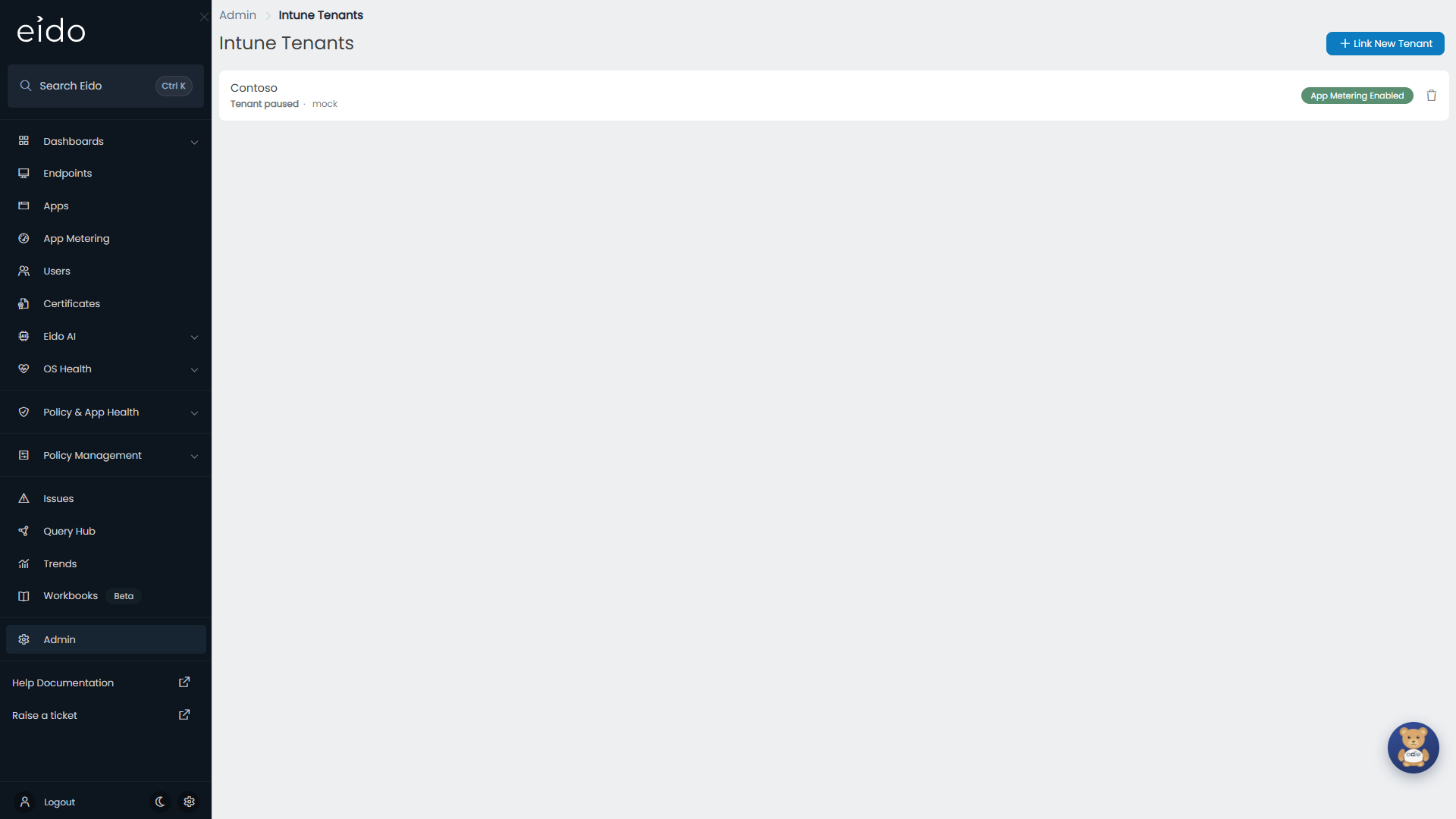
What the list shows#
Each tenant is one row. Press anywhere on a row to open its tenant settings.
| Part of the row | What it is |
|---|---|
| Name | The friendly name you gave the tenant. A tenant with no name shows Unnamed Tenant. |
| Sync status | Where the tenant is in its hourly sync. See the table below. |
| Access level | How Eido connects to this tenant: read-only, read-write or custom. A demo tenant shows mock. See Connecting Intune. |
| App Metering Enabled or App Metering Disabled | Whether App Metering is switched on for this tenant. See Setting up App Metering. |
| Bin icon | Removes the tenant. See Remove a tenant. |
If nothing is linked yet, the page says so and points you to Link New Tenant.
Sync status#
Eido reads each tenant about once an hour. The status is worked out from when the last sync finished, and updates by itself while the page is open.
| Status | Colour | Meaning |
|---|---|---|
| Sync in progress | Green | A sync is running now. |
| N mins until next sync | Green | The last sync finished less than an hour ago. The next one starts when the countdown reaches zero. |
| Pending | Amber | The next sync is due and should start within a few minutes. |
| Pending sync | Amber | The tenant has never synced, and its first sync has not started yet. Normal for the first minute after linking. |
| Pending completion | Amber | A sync has been asked for and has not finished. You see this briefly after pressing Sync Now. |
| Overdue by … | Red | More than five minutes have passed since the next sync was due and it has not started. A few minutes overdue is usually a busy period. Hours overdue means something is wrong. See When a sync fails. |
| Tenant paused | Grey | Syncing is switched off for this tenant. Demo tenants are always paused, because there is nothing behind them to read. For a real tenant, contact Eido support. |
Link another tenant#
You can link as many tenants as you look after. Each needs a Microsoft Entra administrator of that tenant to grant consent.
-
Press Link New Tenant
Link a new Intune Tenant opens and asks you to Choose your access level.
-
Pick an access level
Read-Only Access or Read-Write Access. Connecting Intune explains the difference, and the other choices in this dialog.
-
Sign in to Microsoft as an administrator of the tenant you are linking
Microsoft shows what Eido is asking for. Press Accept. Sign in with an account from the tenant you want to add, which is not necessarily the account you use for Eido.
-
Name the tenant
You are returned to Eido, which shows Intune Authorization Successful. Enter a friendly name: the name the tenant goes by everywhere in Eido. If you manage several customers, link the tenant to its customer afterwards, from the tenant’s settings. See Customers.
-
Press Confirm
The tenant appears in the list as Pending sync, and its first sync starts within a minute.
If consent is refused or cancelled on Microsoft’s screen, nothing is linked. Start again with an account that is allowed to grant consent. See Connecting Intune.
Linking a tenant that is already in the list does not add it twice. See Change a tenant’s access level.
Rename a tenant#
The friendly name is what appears wherever Eido names a tenant: filters, reports, and this list.
- Press the tenant’s row.
- Under Tenant Settings, change Name.
- Press Save.
Renaming changes nothing else and does not start a sync.
Link a tenant to a customer#
This applies if your organisation manages several customers. A tenant linked to a customer has its devices, people and policies counted under that customer, and people who are limited to that customer see only those.
- Press the tenant’s row.
- Under Tenant Settings, choose the customer in Link to Customer.
- Press Save.
Choose Select a customer to leave a tenant unlinked. Customers themselves are created and renamed under Customers.
Change a tenant’s access level#
To move a tenant from read-only to read-write, or back:
- Press Link New Tenant.
- Pick the access level you want the tenant to have.
- Sign in to Microsoft as an administrator of that same tenant and accept.
Eido recognises the tenant and changes its access level. It does not add a second copy, it does not ask for a name, and nothing already collected is lost.
A tenant connected with your own app registration (custom) is changed differently. Edit its client ID, secret and expiry in tenant settings, and change what the app is allowed to do in Entra itself.
Sync a tenant now#
You do not normally need to. If you have just changed something in Intune and want it in Eido sooner, open the tenant, and under Actions press Sync Now. What Eido syncs explains the choice it then offers.
Remove a tenant#
Removing a tenant stops Eido reading it and deletes what Eido holds about it.
- Press the bin icon on the tenant’s row.
- Eido asks Are you sure? Press Confirm.
What removing a tenant does not do:
- It changes nothing in Intune or Entra. Your devices, policies and users are untouched.
- It does not withdraw the consent you granted. The Eido application stays in your Entra tenant, unused, until you delete it from Enterprise applications in the Microsoft Entra admin centre. Do that if you want Eido’s access formally revoked.
- It does not uninstall anything from devices. If you deployed the Eido Client or the App Metering scripts, remove those from Intune yourself. See Eido Client and Setting up App Metering.
The demo tenant#
Link New Tenant also offers Create Demo Data. It adds a made-up tenant with sample devices, policies, apps and usage data, so you can explore Eido or show it to colleagues before connecting anything real. Nothing is read from Microsoft and no consent is needed.
- It appears in the list named Demo Tenant followed by the date and time it was created, with a customer called Demo Customer.
- It shows Tenant paused, because it never syncs.
- Choosing Create Demo Data again adds another demo tenant rather than replacing the first.
- Remove it like any other tenant when you are finished. Its sample devices otherwise sit alongside your real ones in every list and count.
Questions people ask#
Why can I not see Intune Tenants under Admin?#
You are either not an administrator, an administrator limited to one customer, or you have a customer selected at the top of the menu. See the note at the top of this page.
The status has said “Sync in progress” for a long time#
The first sync of a tenant is the longest, and can take up to 30 minutes. If the status has not changed after several hours, see When a sync fails.
I linked the wrong tenant#
Remove it with the bin icon, then link the right one. Make sure you sign in to Microsoft with an account from the tenant you mean to add. If your browser is already signed in to another tenant, Microsoft may pick that account without asking, so use a private window.
Does the person who linked the tenant need to stay an administrator?#
No. Consent is granted to the application for the whole tenant. It carries on working after that person changes role or leaves.