
Eido runs separately in three regions, and everybody signs in with their Microsoft work account. This page covers which address to use, what happens when you sign in, when Eido asks you to sign in or confirm who you are again, and what to do about each sign-in error.
Regions#
Each region is a separate Eido service with its own accounts. Your organisation’s account lives in one of them, and its people sign in at that region’s address.
| Region | Address |
|---|---|
| Europe | https://eu.eido.io |
| United Kingdom | https://uk.eido.io |
| United States | https://us.eido.io |
The regions do not share accounts. An account in the United Kingdom region does not exist in the other two, so signing in at the wrong address is refused even though your Microsoft sign-in succeeded.
Some organisations have an Eido service of their own, at an address such as https://yourcompany.eido.io. If yours does, that is where you sign in, and these Help Documentation pages are there too, at https://yourcompany.eido.io/help.
Finding your region#
- The Login to Eido button in your welcome email opens the right region.
- If you do not know which region your organisation uses, open the region picker at
/select-regionon any of the three addresses (for examplehttps://eu.eido.io/select-region). It shows Select your region with the three regions and their addresses. Pick one to go to its sign-in page. - A colleague who already uses Eido can read the region from their browser’s address bar.
- In the Help Documentation, Sign in to Eido asks which region your account is in, then opens the same article in that region. You see it on an article for customers only, and under Subscribe to updates if you are not signed in.
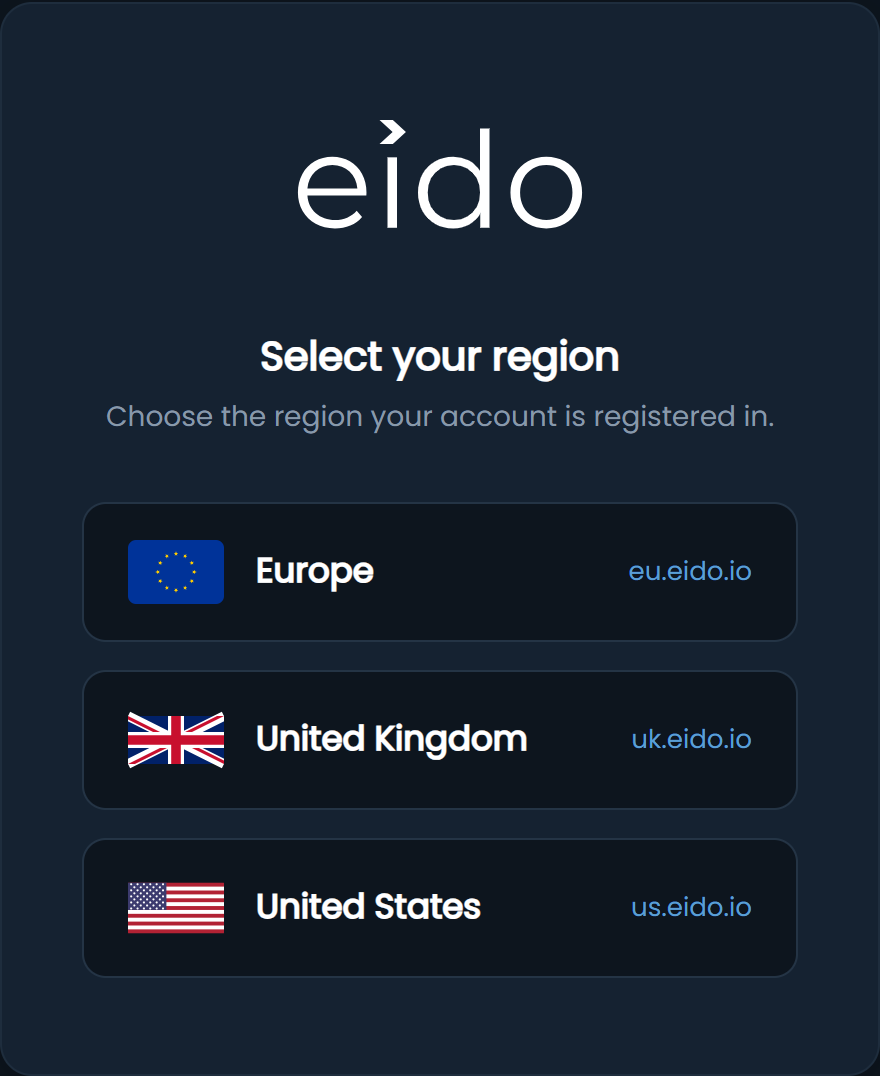
Bookmark your region’s address once you know it. Links that people share from inside Eido, to a device or a report for example, already contain it.
Signing in#
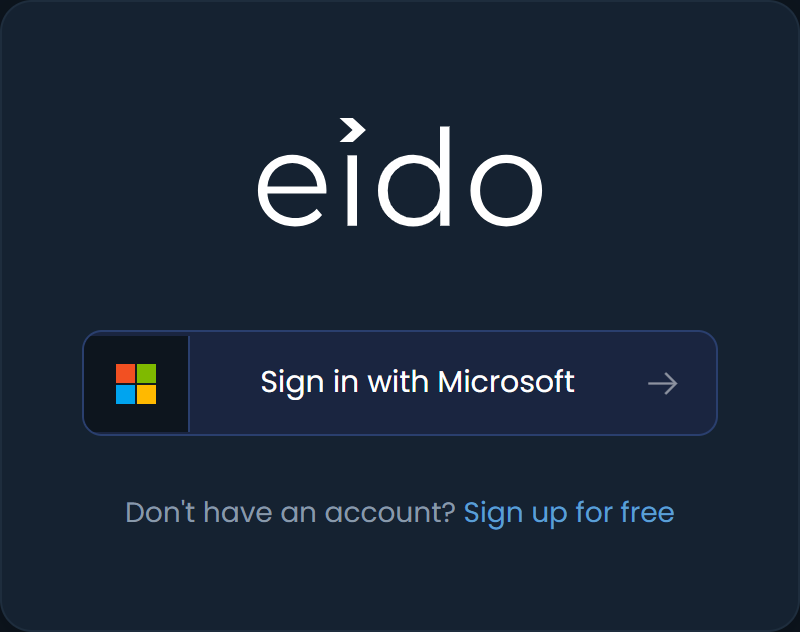
The sign-in page has one button, Sign in with Microsoft. There is no Eido username or password, and nothing to reset.
-
Press Sign in with Microsoft
You are sent to Microsoft’s sign-in page.
-
Sign in with your work account
Whatever your organisation requires applies here: multi-factor authentication, Conditional Access, a compliant device. Eido never sees your password or your second factor.
-
You are returned to Eido
If you opened a link to a particular page before signing in, Eido takes you to that page.
What Eido gets from Microsoft when you sign in#
From the sign-in, Eido uses your sign-in name (user principal name) and your display name. It does not read your mailbox, files or anything else in your account. If your administrators have linked roles to Entra groups, Eido also receives the identifiers of the security groups you are in, and uses them to decide your role.
This is separate from the access an administrator grants for Eido to read Intune. See Permissions Eido needs.
Who can sign in#
Being in your organisation’s Entra tenant is not enough. You also need a user in Eido whose email address is exactly your Microsoft sign-in name. There are two ways to get one.
- An administrator adds you under Team.
- Your administrators have linked a role to an Entra group and allowed that role to create users. The first time a member of the group signs in, Eido creates their account with that role. See Linking roles to Entra groups.
Staying signed in#
Once you have signed in, Eido keeps you signed in on that browser. Closing the tab or the browser does not sign you out, and your session is renewed quietly while you work.
Eido asks you to sign in again when any of these happens.
| What happened | Why |
|---|---|
| Your sign-in has reached its maximum age | A sign-in lasts for a limited time, after which a fresh Microsoft sign-in is needed however active you have been. |
| You pressed Logout | This ends your session on that browser. Logout is at the bottom of the menu. |
| An administrator changed your role or the customer you are limited to | Your existing sessions are ended so that the new permissions apply from your next sign-in. |
| Your account was removed | Every session for the account is ended. |
| Your browser changed | A session belongs to the browser it was started in. After a browser update, or if the browser starts identifying itself differently, Eido ends the session and asks for a new sign-in. |
| You cleared your browser’s site data | The session is stored in the browser, so clearing it signs you out. |
When this happens in the middle of something, Eido sends you to the sign-in page and brings you back to the page you were on afterwards. Anything you had typed and not saved is lost, so save before leaving a long form untouched.
Signing in on a second browser or device does not sign you out of the first.
Confirming it is you before a sensitive action#
Some actions change something outside Eido: a device, or your Intune tenant. Before the first of these, Eido asks you to prove you are still the person who signed in. This protects you if somebody else gets hold of an unlocked browser.
You are asked before actions such as:
- running a tool action that changes a device, from the device’s Tools tab
- approving a remediation script proposed by Eido AI
- deploying a policy template to Intune
- restoring a policy from a backup
-
Eido explains what is about to happen
A dialog names the action and says it changes the device, for example, so please confirm it is really you. It also says a small Microsoft sign-in window will open and that you will stay on the page.
-
Press Confirm
A small Microsoft window opens. Sign in again with the same account, including multi-factor authentication if your organisation requires it.
-
The window closes by itself
Eido shows Identity confirmed. and carries on with what you asked for. You stay on the same page with your selection intact.
You are not asked every time. After you have confirmed, further sensitive actions go straight through for a short while, then Eido asks again. A fresh sign-in counts as a confirmation, so you are not usually asked straight after signing in. If you have moved to a different network since you last confirmed, expect to be asked again.
When the confirmation does not work#
| Message | What to do |
|---|---|
| Pop-up blocked: Allow pop-ups for this site, then try again. | Your browser stopped the Microsoft window from opening. Allow pop-ups for your Eido address, then press the action again. |
| Step-up failed: Microsoft sign-in was not completed. | You closed the Microsoft window or the sign-in was refused. Press the action again and finish the sign-in. |
| Step-up failed: Could not confirm your identity. Please try again. | The sign-in in the Microsoft window could not be accepted. Make sure you use the same account you are signed in to Eido with, and enter your credentials when Microsoft asks. If you are returned to the sign-in page, sign in and press the action again. |
| Confirm your identity: Your identity confirmation expired. Try that action again to confirm it. | The confirmation ran out between you pressing the button and Eido carrying out the action. Press it again. |
Pressing Cancel on the dialog, or closing the Microsoft window, simply means the action does not happen. Nothing is changed.
Sign-in errors#
Sign-in errors appear in red on the sign-in page, above the Sign in with Microsoft button.
| Message | What it means | What to do |
|---|---|---|
| This user account does not exist on Eido. Please contact [email protected] if you feel this is an error. | Microsoft signed you in, but this region has no Eido user with your sign-in name. | Check you are on the right region. If you are, ask an Eido administrator in your organisation to add you under Team, using the exact address you sign in to Microsoft with. If you signed up yourself, see the note below. |
| This account has been removed. Please contact your administrator if you believe this is an error. | You had an Eido account and an administrator removed it. | Ask an Eido administrator in your organisation. |
| Your access has been removed. Your role in Eido comes from an Entra group you are no longer a member of. | Your role is linked to an Entra group, and you are not in any group linked to a role. | Ask to be put back in the group. Your role returns the next time you sign in, with nothing to set up again. |
| We could not read your group membership from Microsoft, and your role in Eido comes from it. Please try again, or contact your administrator. | Your role is linked to an Entra group, and Microsoft did not send your groups with the sign-in. | Try again. If it keeps happening, tell your Eido administrator, who should check Linking roles to Entra groups. |
| Azure AD OAuth2 login failed - Please try again or contact support [email protected] if the problem persists | The sign-in could not be completed. Either the Microsoft sign-in did not finish (you cancelled it, or approval for the Eido sign-in application was refused), or your Eido account has been suspended. | Try again. If it still fails, raise a ticket with Eido support. |
A message on Microsoft’s page, not Eido’s#
If the error is on a Microsoft page (usually with a code beginning AADSTS), the sign-in was stopped by your own Entra tenant before it reached Eido. Common causes are a Conditional Access policy, or your tenant requiring an administrator to approve applications before people can use them. Your Entra administrator can see the reason in the Entra sign-in logs.
Questions people ask#
Can we use usernames and passwords instead of Microsoft?#
No. Microsoft single sign-on is the only way in. It means your own multi-factor and Conditional Access rules protect Eido, and that disabling somebody in Entra stops them signing in to Eido.
Somebody has left. How do I stop them signing in?#
Disabling their Entra account stops any new sign-in. To end sessions that are already open, also remove them under Team.
Why was I asked to sign in again after only a day?#
The most likely reasons are a browser update, cleared site data, or an administrator changing your role. See Staying signed in.