
Users lists the people Eido has synced from Entra ID, with the devices each one is the primary user of and how healthy those devices are. Use it when a question starts with a person and not a device: “Which of Aisha’s devices is non-compliant?” or “Who in Finance has an unpatched laptop?”.
Everybody who can sign in to Eido can open it from the sidebar. You see the people in the Intune tenants and customers your role gives you access to.
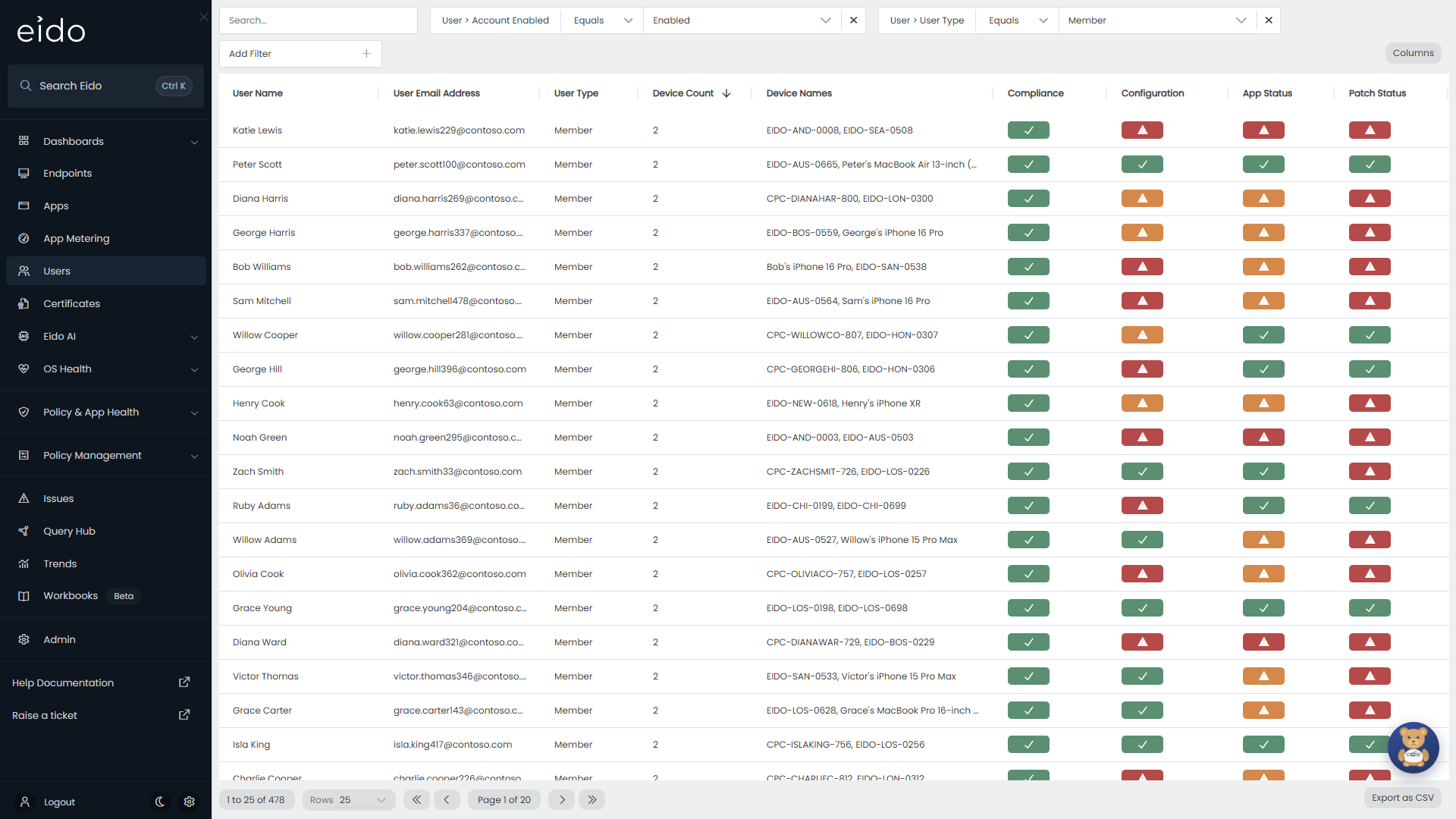
The columns#
| Column | What it shows |
|---|---|
| User Name | The person’s display name in Entra ID. |
| User Email Address | Their email address. |
| User Type | The account type in Entra ID, such as Member or Guest. |
| Device Count | How many devices in Eido have this person as their primary user. |
| Device Names | The names of those devices, up to ten. |
| Compliance | The worst compliance grade across their devices. |
| Configuration | The worst configuration policy grade across their devices. |
| App Status | The worst managed app grade across their devices. |
| Patch Status | The worst patch grade across their devices. |
Account Enabled is a further column, hidden until you switch it on with Columns. It reads Enabled or Disabled.
The four status columns use the same badges as the Endpoints list: a green tick for Healthy, an amber triangle for Unhealthy - Medium, a red triangle for Unhealthy - High and a grey question mark for Unknown. Because each is the worst across all of a person’s devices, one unhealthy device is enough to turn a column amber or red. See What the status columns mean.
A person with no devices has a Device Count of 0 and reads Unknown in all four status columns.
Who is listed to begin with#
The list opens with two filters already applied:
- User > Account Enabled is Enabled, so disabled accounts are hidden.
- User > User Type is Member, so guests are hidden.
Both are ordinary filters. Change their values, or remove them with the cross on the chip, to bring those accounts back.
Search and filter#
The Search… box searches the User Name, and matches any part of it.
Choose a field from Add Filter to narrow the list by something else. You can combine several filters, and a person has to match all of them.
| Filter | Notes |
|---|---|
| User > Name | Pick specific people. |
| User > Office, User > City, User > State, User > Country | Where the person is based, from their Entra ID profile. |
| User > Company, User > Department | Where they sit in the organisation. |
| User > Account Enabled | Enabled or Disabled. |
| User > User Type | The account type, such as Member or Guest. |
| Extended Property 0 to Extended Property 15 | Extension attributes synced from Entra ID, if your organisation uses them. |
A filter starts as Equals, with a list of the values in your data. Change the operator on the chip to Not Equals, Contains, Not Contains, Starts With or Ends With if you need to.
Sort, choose columns and export#
These work as they do on Endpoints.
- The list opens with the people who have the most devices first. Click a column heading to sort by it, and again to reverse the order.
- Columns opens Select Columns, where you show, hide and reorder columns. Reset to Defaults undoes your changes. Your layout is yours alone.
- Rows sets how many people are on a page.
- Export as CSV downloads everybody who matches your search and filters, with the columns you have chosen to show.
See a person’s devices#
Click a row. Eido opens Endpoints, filtered to the devices that have that person as their Primary User. From there, click a device to open its details.
The filter matches on the person’s display name. If two people share exactly the same name, the devices of both are listed.
Common questions#
Why is somebody missing?#
Check the two filters the list opens with. A disabled account or a guest is hidden until you change or remove them. A person who joined very recently appears after the next sync. See What Eido syncs.
Why does somebody have no devices?#
Device Count only counts devices where the person is the primary user in Intune. Somebody who signs in to a shared device, or to a device whose primary user is a colleague, is not counted for it.
Why is a person red when most of their devices are fine?#
Each status column shows the worst grade across all of the person’s devices. Click the row to see which device is responsible.
Why are only some of a person’s devices named?#
Device Names shows up to ten names. Device Count is always the full number. Click the row to see every device.