
An export job copies Eido’s data out to storage you own, on a schedule. Each run writes one file per view you have chosen. It is how you feed Eido’s data into a data warehouse, a reporting tool such as Power BI, or anything else that can read a file.
Export jobs are different from a scheduled report. A scheduled report emails one filtered table to people. An export job writes complete views to storage for systems to read. For the first, see Saving and exporting reports.
Export Jobs is under Admin, in the Data & Automation group. It is for instance administrators.
What a job needs#
| Setting | What it is |
|---|---|
| A destination | An Azure Storage account, given as a connection string. Azure Blob Storage is the only kind of destination. |
| One or more views | The Query Hub views to export. See Building a query for what each holds. |
| A schedule | How many hours between runs, from 1 to 24. |
| A format | CSV or JSON. |
Create an export job#
-
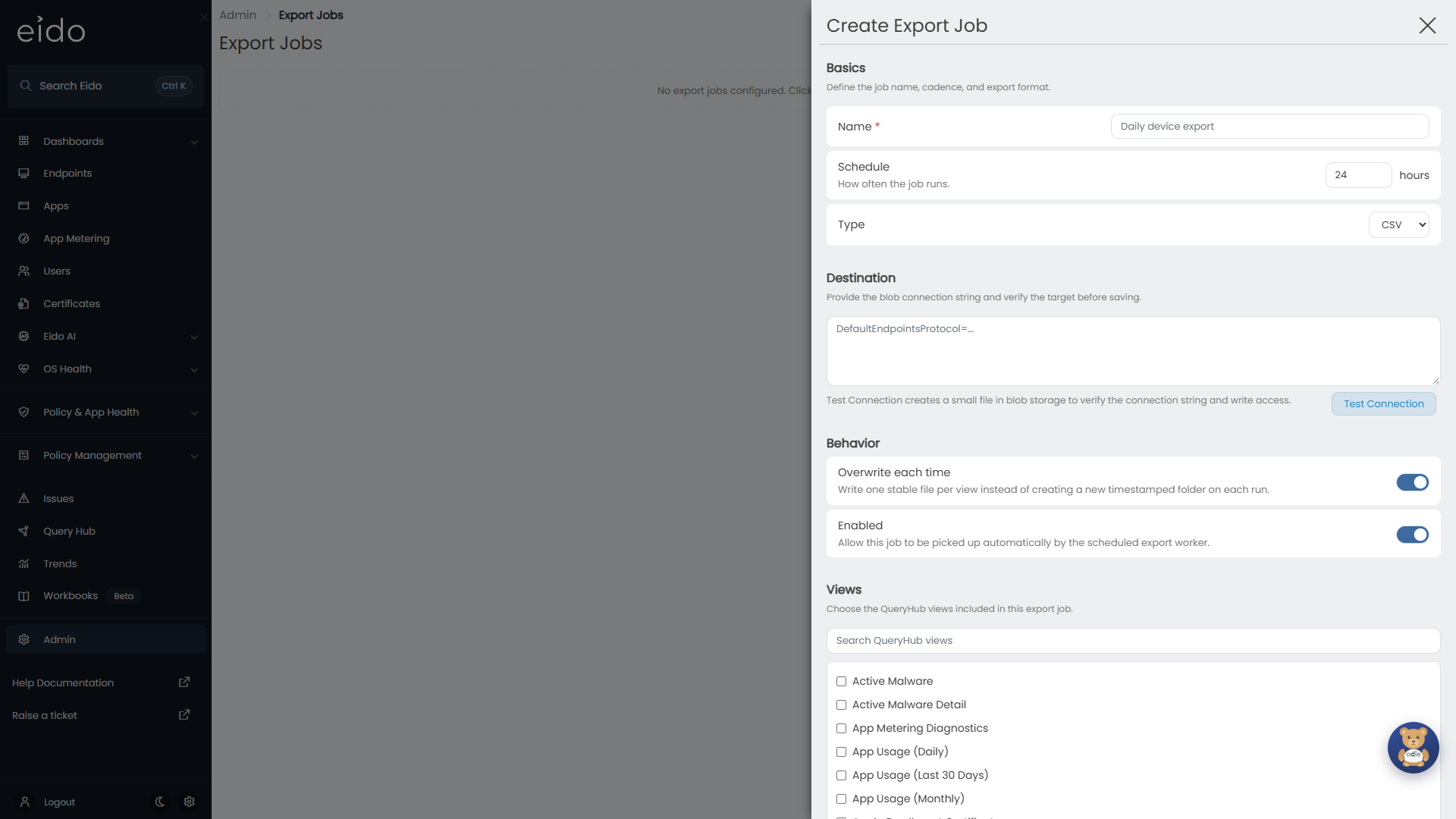
Press New Export Job
The Create Export Job panel opens.
-
Fill in Basics
Give the job a Name. Set the Schedule in hours: 24 for once a day, 1 for every hour. Choose the Type: CSV or JSON.
-
Give the Destination
Paste the connection string for your storage account. The connection has to be allowed to create a container and to write blobs.
-
Press Test Connection
Eido writes a small text file to the storage account to prove that the connection string works and that it can write. A message confirms where the file was created. Do this before saving: it is much quicker than waiting for a failed run.
-
Set the Behavior
Overwrite each time and Enabled are both on to begin with. See below.
-
Tick the Views
Tick each view to include, using the search box to find them. At least one is needed.
-
Press Create Job
A new, enabled job is due straight away, so its first run starts within a minute or two. After that it runs each time its number of hours has passed.
Overwrite each time#
| Setting | Each run writes | Use it when |
|---|---|---|
| On | The same file for each view, replacing the last one. | Something downstream always reads the latest file from a fixed path. |
| Off | A new folder named with the date and time of the run, in UTC. | You want to keep every export as a snapshot. |
With it off, Eido never deletes the older folders. Manage how long they are kept in Azure.
Enabled#
A job that is not enabled is not run on its schedule. Its settings are kept. Use the switch at the right of a job’s row to turn it off and on without opening it.
Where the files go#
Everything is written to a container called queryhub-exports in your storage account. Eido creates it if it is not there.
| Overwrite each time | Path of a file |
|---|---|
| On | queryhub-exports/<job name>/<view>.csv |
| Off | queryhub-exports/<job name>/<date and time>/<view>.csv |
- The folder is named after the job. Characters that cannot be used in a file name are replaced with hyphens.
- The file is named after the view’s short name, in lower case with hyphens, such as
devices.csvordevice-issues.csv. A JSON job writes.jsonfiles. - The date and time folder looks like
2026-10-13_06_00_00.
Renaming a job changes its folder. Files already written under the old name stay where they are.
The file Test Connection writes goes into a tests folder in the same container. Those files are not used again and can be deleted.
What is in a file#
- Every row of the view. An export job has no filters.
- The view’s standard columns. Columns that are off by default in the Columns panel may not be included, and computed columns are not included.
- Only what the job’s creator may see. The job runs as the administrator who created it, so a file holds the rows their role allows.
| CSV | JSON | |
|---|---|---|
| Shape | One line per row, with a heading line first. | One array, with an object per row. |
| Column names | The headings you see in Eido, such as “Device Name”. | The internal field names, such as deviceName. These are steadier if something reads the file automatically. |
| Dates and times | In UTC, written as year, month, day, hour and minute. | In UTC. |
| Empty values | Left blank. | null. |
Reading a job’s row#
| On the row | Meaning |
|---|---|
| The first line under the name | The format, how often it runs, and the views it exports. |
| Last run | When the last run finished, and how it went. |
| Next run | How long until the next scheduled run. |
| Red text | The error from the last run, if it failed. |
| A path | Where the last successful export was written. |
The status after Last run is one of these:
| Status | Meaning |
|---|---|
| Never run | The job has not run yet. |
| Queued | A run has been asked for and is waiting to start. |
| Running | A run is in progress. |
| Success | The last run finished without an error. |
| Failed | The last run stopped with an error. |
Next run reads Due now when the job is about to be picked up, Running now or Queued while a run is under way, and Disabled when the job is switched off. Otherwise it counts down, as in “In 3h 20m”.
The schedule is measured from the end of the last run, not from the clock. A job set to 24 hours whose run finished at 06:10 next runs at about 06:10 the following day.
Eido shows the latest run only. For a record of every export, switch Overwrite each time off and look in the storage account.
Run a job now#
Force Export queues a run straight away, without waiting for the schedule. It works on a disabled job too.
After a run has been forced, the button shows when it can be used again, such as “Available In 42m”. A job can be forced once an hour.
When a run fails#
The row shows Failed with the error in red, and a Try Again button appears. Try Again queues another run immediately, and is not subject to the once-an-hour limit. The job also runs again on its normal schedule.
| The error | Cause | What to do |
|---|---|---|
| Says the job was skipped because its owner is deleted, suspended or missing | The administrator who created the job no longer has an active account. | Delete the job and create it again as a current administrator. |
| Says the job does not have any selected views | No view is ticked. | Open the job and tick at least one view. |
| Comes from the storage account | The connection string no longer works, or the storage account is refusing the connection. | Open the job and press Test Connection. If that fails too, paste a current connection string, test again and save. If it still fails, check the storage account in Azure. |
If a job reports Success but a file is missing, the view is no longer available to the job’s creator, for example because the feature it belongs to has been switched off. Views that are not available are left out of the run without failing it.
If the error does not explain itself, send it to Eido support with the name of the job.
Change or delete a job#
Press a job’s row to open Edit Export Job.
The connection string is never shown again once saved. The panel says that one is stored and for which storage account. Leave the box empty to keep it, or paste a new one to replace it. Test Connection with the box empty tests the stored one.
Press the bin on a row to delete a job, and confirm. Files it has already written are not touched.
Limits#
- Azure Blob Storage is the only destination.
- A job runs at most once an hour and at least once every 24 hours.
- A job exports whole views. It cannot filter rows or choose columns. For a filtered table, use a scheduled report.
- The container name is fixed.
- A job’s name can be up to 200 characters.
Questions#
Why is Export Jobs missing from Admin?#
It is for instance administrators. Administrators of a single customer do not have it.
Why did the job run as soon as I created it?#
A job that has never run is due immediately.
Why is Force Export greyed out?#
The job is queued or running, or it was forced within the last hour. The button says when it will be available.
Can two jobs write to the same storage account?#
Yes. Each job has its own folder, so give them different names.
Is the connection string safe?#
It is stored by Eido so that the job can run, and it is never sent back to your browser. Give the job a connection with only the access it needs, and replace it if an administrator who knew it leaves.