
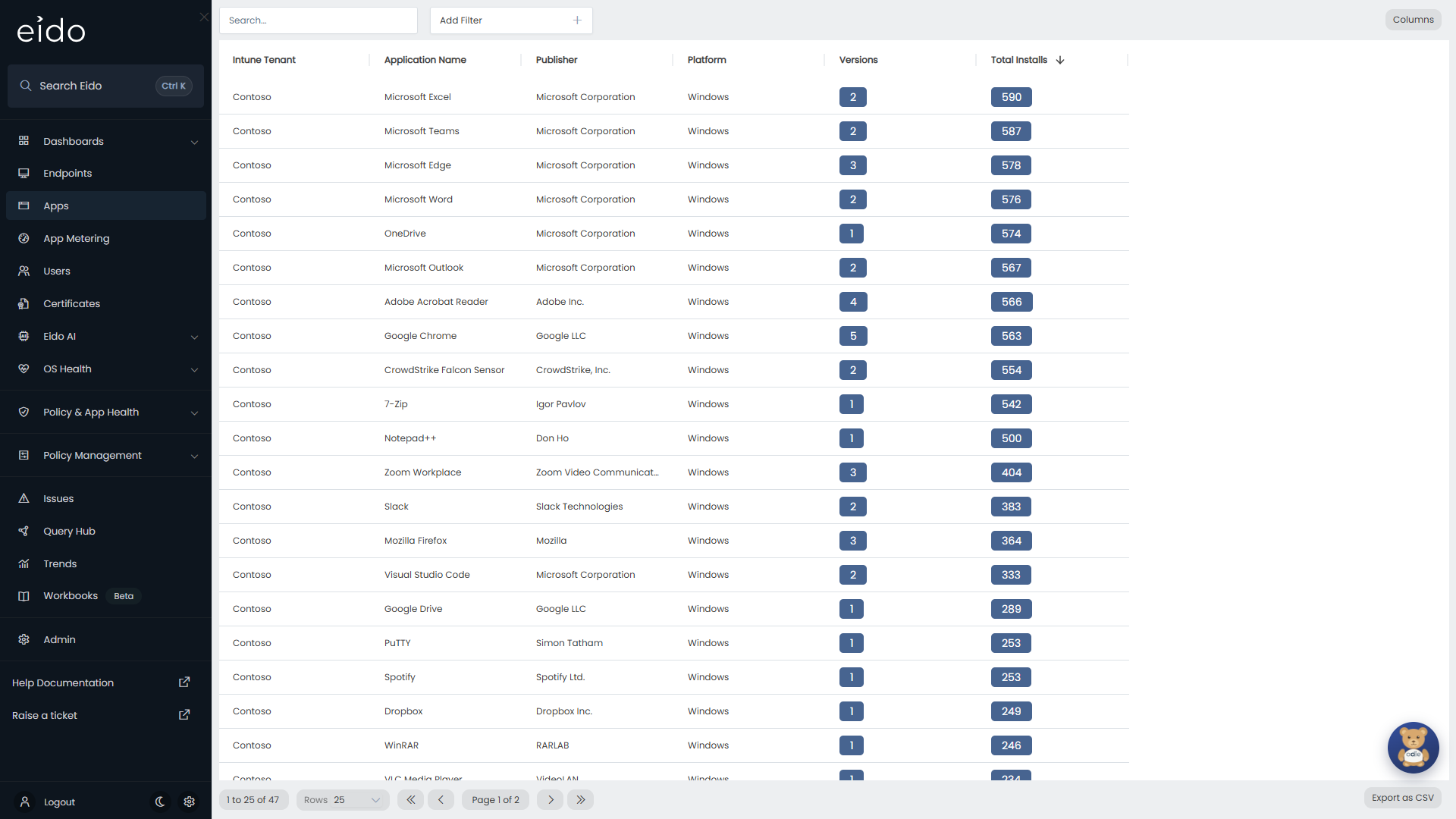
Apps is the inventory of software Intune has discovered on your devices, whether or not Intune put it there. Use it to answer “who has this installed?”, “how many versions of it are we running?” and “which devices are still on the old one?”.
Everybody who can sign in to Eido can open it from the sidebar. You see the applications found in the Intune tenants and customers your role gives you access to.
It is one of three places Eido deals with applications, and each answers a different question.
| Page | Question it answers |
|---|---|
| Apps (this page) | What is installed, and where? |
| Managed apps | Did the apps we deploy through Intune install successfully? |
| App Metering | Is the software actually being used? |
The columns#
Each row is one application in one Intune tenant. Two rows with the same name are different applications if their publisher or platform differs.
| Column | What it shows |
|---|---|
| Customer | The customer the tenant belongs to. Only shown when your organisation manages several customers and All Customers is selected. |
| Intune Tenant | The tenant the application was found in. |
| Application Name | The name the application reports. |
| Publisher | The publisher it reports. Empty when the application does not declare one. |
| Platform | The kind of device it was found on. |
| Versions | How many different versions of it are installed across the tenant. |
| Total Installs | How many installations there are. If one device has two versions of the same application, that counts as two. |
A high number in Versions is the quickest sign of an application nobody is keeping up to date.
Search and filter#
The Search… box searches the Application Name, and matches any part of it.
Choose a field from Add Filter to narrow the list further.
| Filter | Notes |
|---|---|
| Application Name | Pick specific applications. |
| Publisher | Everything from one publisher. |
| Platform | One kind of device. |
| Customer, Intune Tenant | Where the application was found. |
A filter starts as Equals, with a list of the values in your data. Change the operator on the chip to Contains, Starts With and so on when the names you want vary. Searching for part of a name is usually the fastest way to gather the differently named editions of one product.
Sort, choose columns and export#
These work as they do on Endpoints.
- The list opens with the most installed applications first. Click a column heading to sort by it, and again to reverse the order.
- Columns opens Select Columns, where you show, hide and reorder columns.
- Rows sets how many applications are on a page.
- Export as CSV downloads every application that matches your search and filters.
See who has an application#
Click a row. A panel slides in from the right, headed with the application’s name and the tenant it belongs to. It lists every installation.
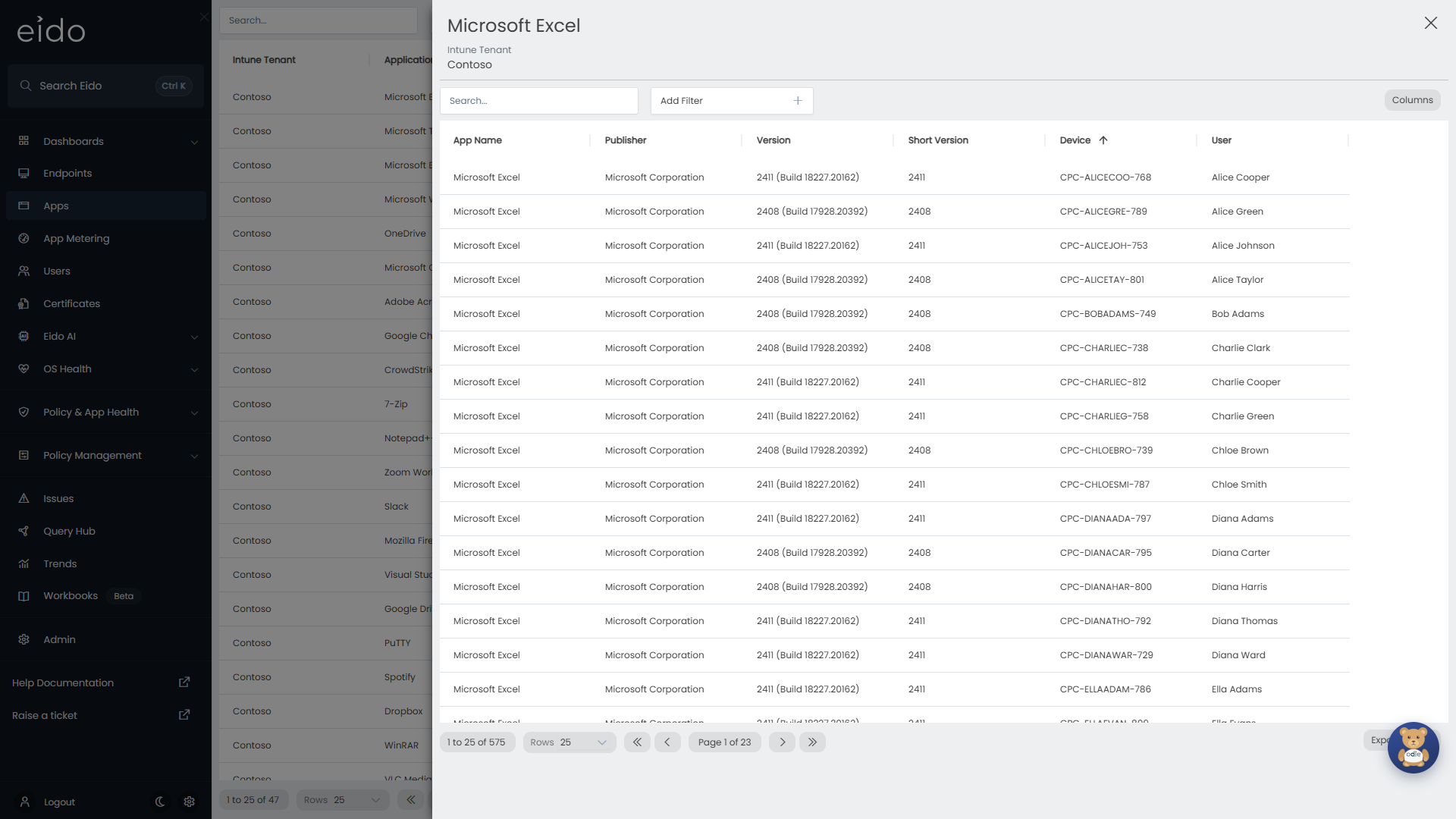
| Column | What it shows |
|---|---|
| App Name | The application. |
| Publisher | Its publisher. |
| Version | The full version installed on that device. |
| Short Version | The shorter version number, where the application reports one. |
| Device | The device it is installed on. |
| User | The device’s user. |
The panel has its own Search… box, which searches the Device name, and its own filters.
| Filter | Notes |
|---|---|
| Version, Short Version | Each value in the list shows how many installations have it. This is the quick way to size an upgrade. |
| Publisher | The publisher. |
| Device, User | Specific devices or people. |
| Customer, Intune Tenant | Where the installation is. |
Export as CSV downloads the installations that match, which is a ready made list of devices to target.
Click an installation to open that device’s details. Its All Apps section lists everything else discovered on it.
Find the devices on an old version#
-
Find the application
Type part of its name into Search… and click its row.
-
Filter to the versions you want to retire
Choose Version from Add Filter and select the old versions. The number beside each one is how many installations have it.
-
Export the list
Press Export as CSV.
Where the list comes from#
Eido reads Intune’s own discovered apps inventory at each sync. It reflects what each device last reported to Intune, so a newly installed or removed application takes time to show: first the device has to report to Intune, then Eido has to sync.
An administrator can switch this inventory off for a tenant with Sync Discovered Apps in Tenant settings. While it is off, the tenant’s applications are not collected.
Common questions#
Why is the same product listed several times?#
Each row is a distinct combination of name, publisher and platform. Products that include their version in their name, or whose publisher changed between releases, therefore appear as separate rows.
Why is Total Installs higher than the number of devices?#
It counts installations, not devices. A device with two versions of the same application installed side by side is counted twice.
Why is an application I just deployed missing?#
The device has to report the installation to Intune, and Eido has to sync, before it appears. To check whether a deployment succeeded, use Managed apps, which shows the install state of each assignment.
Why is the list empty for one tenant?#
Sync Discovered Apps may be switched off for it. Ask an administrator to check Tenant settings.
Can I see whether the software is being used?#
Not here. This page shows what is installed. App Metering shows what is run, by whom and for how long.