
Odie is the bear in the corner of every page. Ask him a question about your estate and he answers it from your own Intune data. Ask him for a report, a dashboard or a workbook and he builds it, one piece at a time, in front of you.
Everybody who can sign in can use him. He works with your permissions: he sees the tenants, customers and data you can see, and nothing else. Everything he builds is private to you until you choose to share it. For a long list of example requests, grouped by what you get back, see Things to ask Odie.
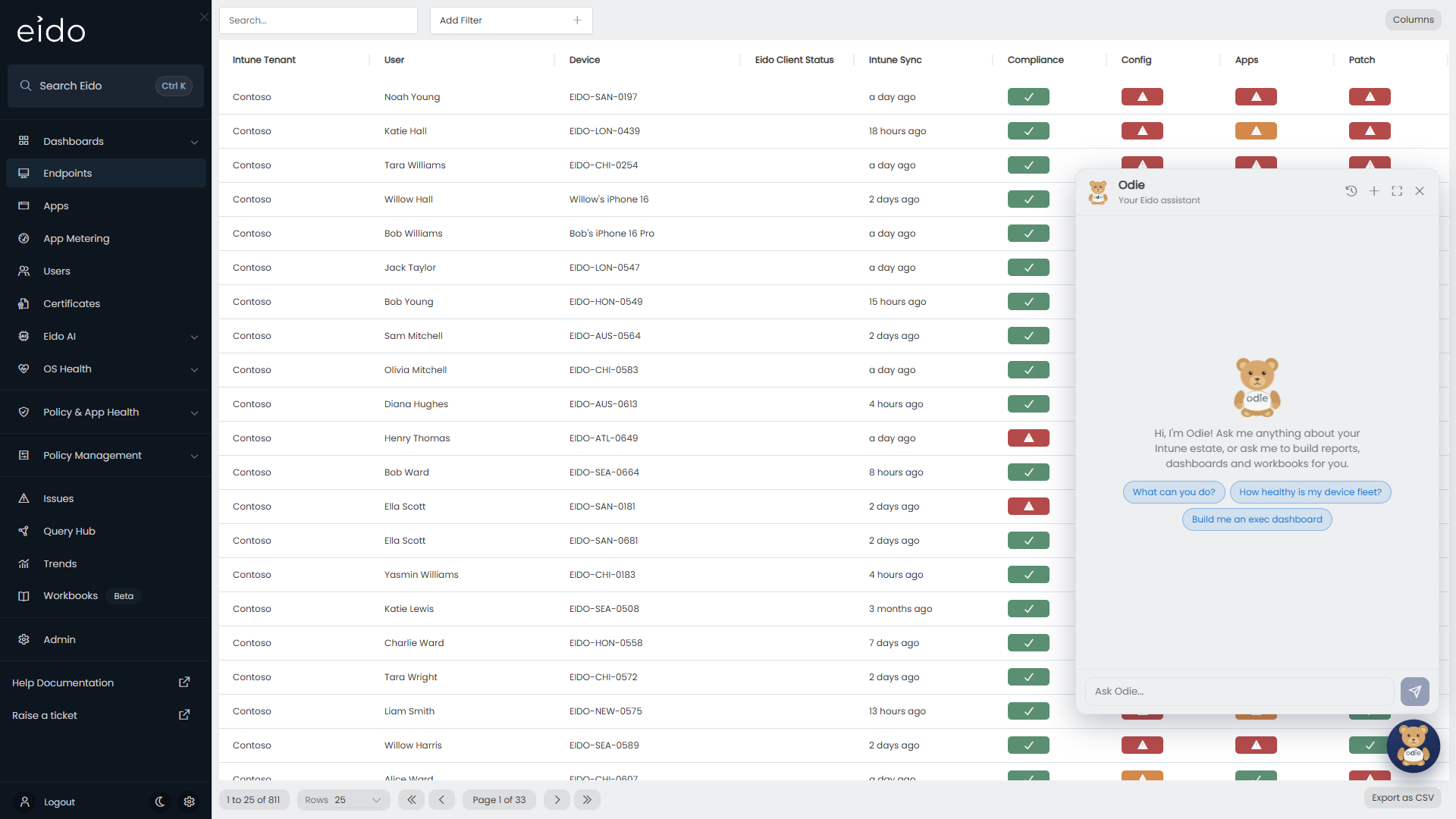
Open Odie#
Press the bear, at the bottom right of the page. A chat panel opens above him. Press him again, or the cross in the panel, to close it.
The buttons along the top of the panel are:
| Button | What it does |
|---|---|
| Conversations | Lists your recent conversations. |
| New conversation | Starts afresh. The one you were in is kept. |
| Expand / Shrink | Makes the panel larger or smaller. |
| Close | Closes the panel. |
The panel stays open as you move between pages, and the conversation is still there after you refresh the browser.
The first time, Odie greets you and offers three things to try: What can you do?, How healthy is my device fleet? and Build me an exec dashboard.
Ask a question#
Type in the box that says Ask Odie… and press Enter. Shift and Enter starts a new line. A message can be up to 4,000 characters.
Ask the way you would ask a colleague:
- “How many devices are not compliant in Sales?”
- “Which Windows devices have not synced for a month?”
- “List the iPhones on an iOS version below 18 whose user is in New York.”
Odie does not answer from memory. He works out which of Eido’s data holds the answer, queries it, and replies with what he found. These are the same views and columns you use in Query Hub, read with your permissions.
While he works, the panel says thinking, and each step appears as a small chip:
| Chip | What he did |
|---|---|
| Browsed the view catalog | Looked at which sets of data exist. |
| Studied the … schema | Read the columns of one of them. |
| Queried … or Queried … grouped by … | Ran a query. |
| Searched Entra groups for … | Looked up a group by name. |
| Reviewed the work so far | Read back what he has built, to check it. |
Press a chip to see the Arguments (exactly what he asked for) and the Result (exactly what came back). If an answer surprises you, this is where to check it.
His reply often ends with up to three suggestions, such as “Break it down by office”. Press one to send it as your next message.
To stop him part-way, press the Stop button where the send button was. He stops at the end of the step he is on.
When the answer is a list#
If you ask for a list of devices, users or apps, Odie saves it as a report and opens it, instead of typing rows into the chat. The chat keeps the count and the finding. That way the list is complete, and you can sort, filter and export it.
When he asks you something#
If your request could mean more than one thing, Odie asks before he builds. The question appears as a card with buttons. Press the answer you want, or Other… to type your own. Where more than one answer is allowed, choose them and press Confirm selection.
The message box is unavailable until you answer. If the panel is closed, the bear shows a ? to say he is waiting for you.
Where he can, he looks before he asks. If you say “the executives”, he checks which departments actually exist in your data and offers those, with how many devices each has.
One question you will meet: when you ask for something built on compliance, configuration policy or managed app status, and your estate includes devices managed by Configuration Manager, he asks whether to leave them out. Those devices do not report these to Intune, so they would otherwise all show as unknown.
Ask how Eido works#
Odie has read this support centre. Ask him how to do something in Eido, where something is, or what a status, column or setting means, and he looks it up here before he answers:
- “How do I link a role to an Entra group?”
- “What does Unhealthy - Medium mean on the Patch column?”
- “Where do I change how many days a patch can be overdue?”
- “How do I put a dashboard on the screen in the office?”
He gives you the short version, in steps, and a link to the article he took it from, which opens in a new tab. The chip in the conversation shows what he searched for.
Two things to know:
- He answers from the articles, not from memory. If he cannot find something here he says so and suggests support, instead of guessing how a screen works.
- You can mix the two kinds of question. “What counts as overdue, and how many of my devices are?” gets the rule from the support centre and the number from your data.
Have him build something#
| Ask for | What you get |
|---|---|
| A report | A saved report, as in Saving and exporting reports. It opens in a panel over the page. |
| A dashboard | A new dashboard, with tiles and charts added one at a time. |
| A workbook, or “a PDF of this” | A new workbook, built section by section, which you can download as a PDF. |
For example: “Build me a security posture dashboard for the IT team”, or “Make a workbook on patching I can send to a customer”.
Watch him build#
When Odie starts a dashboard or a workbook, Eido takes you to it. A banner at the top says Odie is building this dashboard. New widgets appear as he places them. (or the same for a workbook and its sections), and each piece arrives as he adds it. You cannot edit it while he is working.
When he has finished, the banner changes to Built by Odie. It is all yours now. Press Start editing to change anything, exactly as you would a dashboard you made yourself.
You are taken to each new item once. If you go to another page while he is still building, he carries on and does not pull you back. The bear shows a small dot while he is working with the panel closed.
The cards in the chat#
Everything he makes also appears as a card in the conversation, at the point he made it, and as a row of shortcuts at the top of the panel.
| Button | What it does |
|---|---|
| Watch | Goes to the dashboard or workbook while he is still adding to it. |
| Open | Opens it. |
| On a finished workbook, downloads it as a PDF. |
Having it emailed#
After he saves a report, Odie offers to email it to you on a schedule: daily, weekly or monthly, or as a PDF workbook. A scheduled report arrives as a CSV file and a scheduled workbook as a PDF. You can add other recipients when he asks. If you say no, he does not ask again in that conversation.
Dashboards cannot be emailed. Ask for a workbook instead.
Who can see what he builds#
Only you. Reports, dashboards and workbooks made by Odie are yours and are not shared. Share them afterwards in the usual way if you want others to have them.
What Odie cannot do#
- Touch a device. He reads Eido’s data. He cannot run anything on a device, restart one, or change it in any way.
- Change Intune. He cannot edit a policy, an assignment or anything else in your tenant.
- Change something he did not make in this conversation. He can add to a dashboard or workbook he created in the conversation you are in. He cannot edit your existing ones, or ones from an earlier conversation.
- Share, or send a one-off email. He can set a schedule on a report or workbook he made, as above. He cannot share anything with a colleague or send something now.
- See more than you can. If your role does not include a set of data, Odie does not know it exists. Data collected by the Eido Client is available to him only where the client is switched on.
- Investigate a ticket on a device. That is AI Diagnostics, a separate feature.
Ask him something that has nothing to do with your estate and you are more likely to get a joke than an answer.
Your conversations#
Press Conversations to see Recent conversations: your 20 most recent, each named after what it was about, with how long ago it was last used. Press one to go back into it, with everything he built still listed. Press the bin beside one to delete it.
Conversations are private to you. Nobody else in your organisation can open them. Deleting a conversation does not delete the reports, dashboards or workbooks made in it.
Move him, or hide him#
Odie sits a little above the bottom right corner by default. If he is in the way, drag him anywhere on the page. The panel opens next to him, wherever he is. Your browser remembers the spot. A different browser or computer starts him in the corner again.
To hide him altogether, open Settings (the gear icon in the sidebar) and switch off Odie, the Eido assistant. This affects only you, and your conversations are kept for when you switch him back on. Reset his position in the same place puts him back in the corner. See Your settings.
What Odie sends to the AI model#
To answer you, Eido sends the AI model your messages, your name, the page you were on when you started the conversation, and the results of the queries he runs for you. When you ask how Eido works, it also sends the sections of this support centre that matched, which are public. Those results are your Intune data, limited to what you are allowed to see. They are what the chips in the conversation show, and you can open any of them to read exactly what was returned.
Common questions#
Why can I not see Odie?#
Either an administrator has not switched him on for your organisation, or you have hidden him in your own Settings. If the Odie, the Eido assistant row is missing from Settings, he is not switched on.
Why can he not answer a question about something?#
He answers from the data behind Query Hub, and only from the parts your role includes. If a set of data is not available to you there, it is not available to him.
Why did he say the organisation has reached its Eido AI spend limit?#
Your organisation has a monthly limit on AI use, and it covers Odie and Eido AI together. Once it is reached, Odie declines new requests until the start of next month. A request he had already started is finished. Contact support if you need the limit raised.
What do I do when it says something went wrong?#
Press Retry. The conversation is intact and he runs the last request again.
Why did he build a report when I asked for a tile?#
A tile or chart can only live on a dashboard. Ask him to “put this on a new dashboard” and he will create one and add it.
Is a number he quoted right?#
Open the chips above his reply and read the Result of the query. For anything you will act on or send to somebody, open the report or dashboard he built and check it there: what he built is the record, and the sentence in the chat is his summary of it.