
App Metering measures how much the applications you choose are really used. Setting it up takes four things: switch it on for an Intune tenant, say which applications to meter, get the collector onto your Windows devices, and make sure Windows is recording when programs start and stop. This article covers all four, and how to automate them.
It is done in Admin → Intune Tenants, which is open to administrators of the whole Eido account. An administrator who is limited to one customer cannot reach it. What everybody else sees once data arrives is described in App Metering.
How it fits together#
- You keep a list of applications for each Intune tenant. Each application has one or more rules that say which programs count as that application.
- A collector on each Windows device fetches that list and reports only the matching programs: when each one started and stopped, under which account, and its file version.
- Eido totals the usage per person, per device and per day.
Nothing is reported about a program that is not on the list.
There are two collectors, and you can use either:
| Collector | How it gets onto devices | Checks for activity |
|---|---|---|
| Remediation scripts | Two Intune Remediations that you create from scripts Eido gives you | Once an hour |
| The Eido Client | Eido’s device agent, installed as an Intune app | Every five minutes, uploading once an hour |
Before you start#
- Windows 10 or Windows 11 devices, enrolled in Intune, in a tenant that is linked to Eido.
- For the remediation scripts: an Intune licence that includes Remediations. In Microsoft’s words these are Windows 10 or later Enterprise E3 or E5, Microsoft 365 F3, E3 or E5, Windows 10 or later Education A3 or A5, Microsoft 365 A3 or A5, or Windows Virtual Desktop Access E3 or E5.
- The ability to switch on two Windows audit policies on those devices, by Group Policy or Intune. See Turn on process auditing.
Switch it on for a tenant#
- Go to Admin → Intune Tenants.
- Press the tenant. Intune Tenant Settings opens on Tenant Settings.
- Under Features, switch on App Metering.
- Press Save.
As soon as the switch is on, App Metering appears in the panel’s left-hand menu under Features. That is where the list of applications lives.
Back on the Intune Tenants list, each tenant carries a badge reading App Metering Enabled or App Metering Disabled.
Choose which apps to meter#
Open the tenant, then App Metering in the left-hand menu.
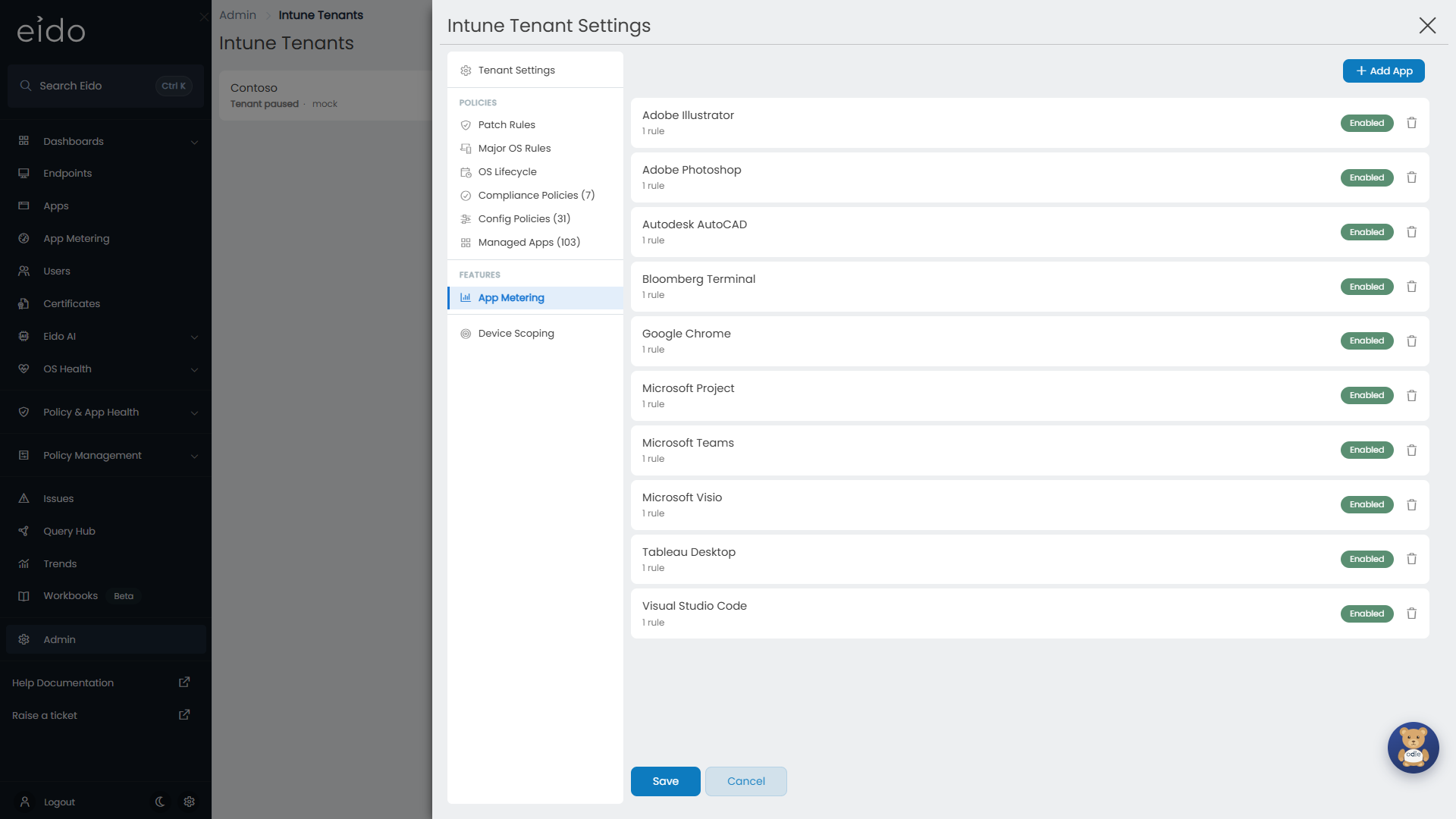
Each row is one application, with its number of rules and an Enabled or Disabled badge. Press Add App, and choose between the two ways of adding one.
Nothing is stored until you press Save at the bottom of the panel.
Browse Gallery#
Browse Gallery opens Add from Gallery: a catalogue of commonly metered applications with their rules already filled in.
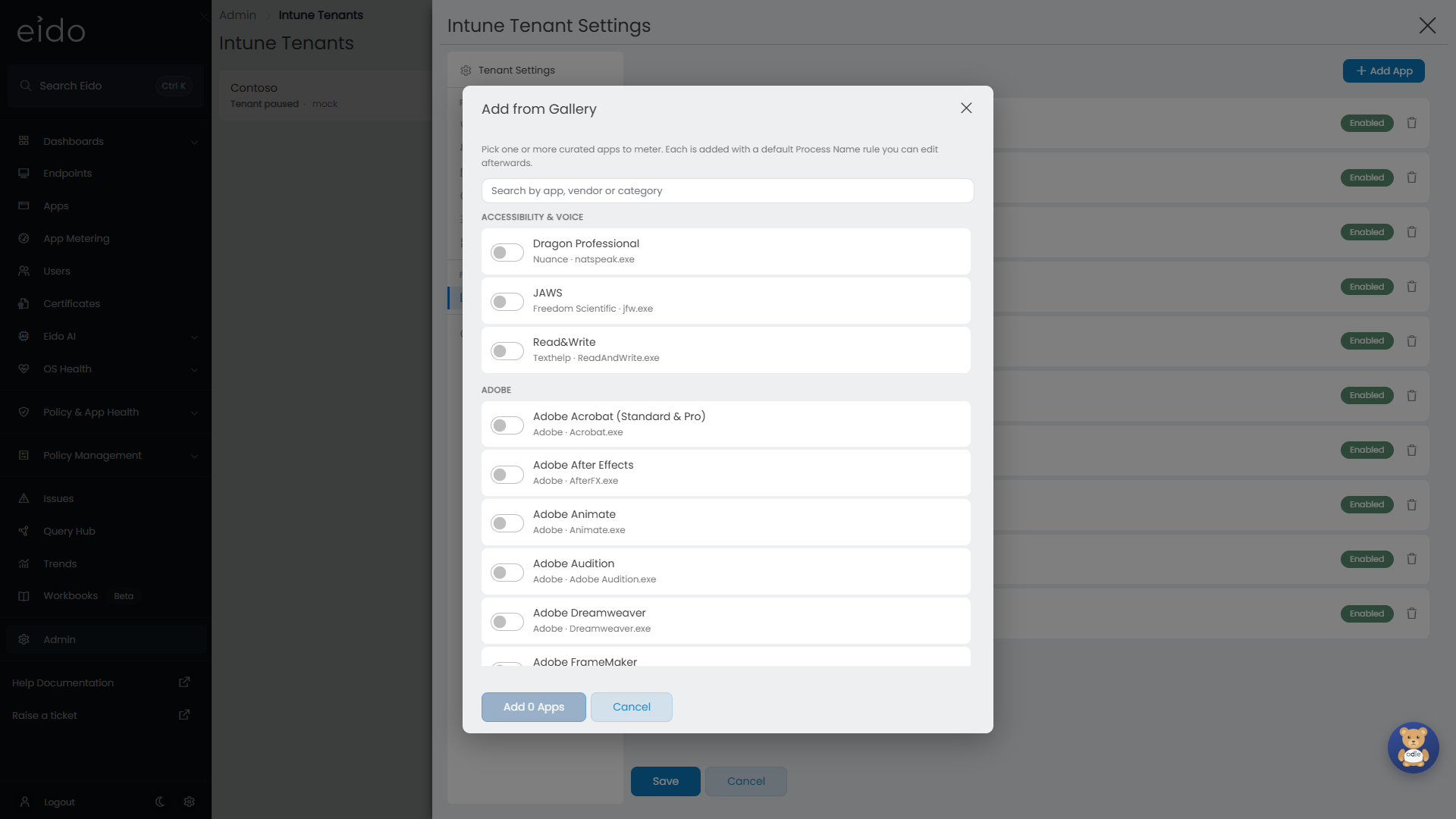
- The catalogue is grouped by category: Adobe, Autodesk, Microsoft 365 core, Microsoft add-ons, Engineering & CAD, Data & analytics, Developer tools, GIS, Remote access & comms, Content & utilities, Accessibility & voice, Finance & industry, Media production and AI assistants.
- Search by application, vendor or category.
- Switch on every application you want, then press Add N Apps.
- An application that is already on your list is marked Already added and cannot be picked again.
Each one lands on your list enabled, with a Process Name rule for each of its usual program names (Microsoft Outlook, for example, gets both OUTLOOK.EXE and olk.exe). You can open it afterwards and change anything.
Add Custom App#
Add Custom App opens an empty form.
| Field | What it does |
|---|---|
| App Name | The name shown on the App Metering page and in reports. It must be unique within the tenant. |
| Enabled | Off keeps the application and its rules, but devices stop recording its use within about an hour, and it is hidden. The history from before is kept and comes back when you switch it on again. Nothing is recorded for the time it was off, so that time shows as no use. |
| Exclude System Accounts | Leaves out activity from system and service accounts (SYSTEM, Local Service, Network Service, service accounts). Use it when an application has a background service or updater that would otherwise look like all-day use. |
| Exclude Local Users | Leaves out activity from local Windows accounts that do not match an Entra ID user. |
| Detection Rules | Which programs count as this application. Press Add Rule for each one. |
Press Done to put the application on the list, then Save.
Rule types#
A program counts as the application if any one of its rules matches. Matching ignores upper and lower case.
| Rule type | Matches | Example |
|---|---|---|
| Process Name | The file name of the program only, wherever it is installed. | chrome.exe |
| Exact Path | The full path of the program on disk. | C:\Program Files\Google\Chrome\Application\chrome.exe |
| Regex | The full path, tested against a regular expression. | (?i)\\chrome\.exe$ |
Use Process Name unless you have a reason not to. It is the simplest, and it survives the application being installed somewhere unexpected. Reach for Exact Path or Regex when two different products share a file name, or when you only want to count one install location.
A Regex rule is checked when you save. One that is empty, or is not a valid regular expression, is refused with a message that names the application and the rule, and nothing is saved until it is put right.
Change, disable or delete#
- Press a row to edit it.
- Switch Enabled off to stop metering an application without losing its history.
- The bin icon deletes it, after a confirmation. Deleting an application also deletes its usage history, so disable it instead if you may want the figures later.
Changes to rules reach devices within about an hour. Switching Exclude System Accounts or Exclude Local Users on or off recalculates roughly the last six days; older days keep the figures they had.
Get the collector onto devices#
With remediation scripts#
Next to the App Metering switch on Tenant Settings is a Setup Instructions link. It opens the App Metering Setup Guide, which has the same steps as below and the Download Remediation Scripts button.
-
Download the scripts
Press Download Remediation Scripts. The zip holds four PowerShell scripts, already set to report to your Eido address.
File Purpose Detect-Certificate.ps1Checks whether the device already has its Eido certificate. Remediate-Certificate.ps1Creates the certificate if it is missing. Detect-SwmEvents.ps1Collects the usage and sends it to Eido. Remediate-SwmEvents.ps1Does nothing. Intune needs a remediation script, and all the work is in the detection script. -
Create the certificate remediation
In the Intune admin center, go to Devices → Remediations and create a script package named exactly
Eido-SWM-Certificate. UploadDetect-Certificate.ps1as the detection script andRemediate-Certificate.ps1as the remediation script.Setting Value Run this script using the logged-on credentials No Enforce script signature check No Run script in 64-bit PowerShell Yes Schedule Every 12 hours Assign it to the group of devices you want to meter.
-
Create the collector remediation
Create a second script package named exactly
Eido-SWM-Collector. UploadDetect-SwmEvents.ps1as the detection script andRemediate-SwmEvents.ps1as the remediation script. Use the same settings, with the schedule set to Hourly, and assign it to the same group.
The first remediation gives each device its own certificate, with a private key that never leaves the device. Eido learns the public half through Intune on its next sync of the tenant. The second uses that certificate to sign everything it sends, so Eido can tell which device a report came from and that it has not been altered.
With the Eido Client#
If the Eido Client is installed on a device, it can do the collecting instead. No certificate or collector remediation is needed for those devices.
Both of these must be on:
- App Metering under Features on the tenant’s Tenant Settings.
- App Metering under Eido Client → General in the same panel.
The list of applications and the audit policies are the same whichever collector you use. Once a device is reporting through the Eido Client, take it out of the group the two remediations are assigned to. Eido uses the Eido Client’s figures for that device from then on.
Turn on process auditing#
Both collectors read the Windows Security event log, where Windows records a program starting (event 4688) and stopping (event 4689). Windows only writes those events if two audit policies are on, and on most devices they are off.
Switch them on by Group Policy or an Intune policy:
| Policy path | Setting |
|---|---|
| Computer Configuration → Windows Settings → Security Settings → Advanced Audit Policy Configuration → Detailed Tracking | Audit Process Creation: Success |
| The same path | Audit Process Termination: Success |
Without Audit Process Creation, a device reports nothing. Without Audit Process Termination, Windows does not record applications closing, and the durations Eido shows are less accurate.
What devices need to reach#
The remediation scripts make outbound HTTPS connections on port 443 to your Eido address, the one you sign in at. Nothing connects in to your network, and no extra Microsoft Graph permissions are needed.
| Path on your Eido address | Used for |
|---|---|
/device-gateway/v2/swm-rules | Fetching the tenant’s list of applications, once an hour. |
/device-gateway/v2/ingest | Sending usage, and a status report from each run. |
If your devices reach the internet through a filtering proxy or firewall, allow those two paths. The Eido Client’s requirements are different: see What devices need to reach.
How long before data appears#
Several things have to happen in turn, each on its own schedule:
- Intune runs the certificate remediation on the device.
- Eido syncs the tenant and picks up the device’s certificate.
- The collector runs, hourly, and sends what it has seen since its last run.
- Eido totals each calendar day (UTC) after the day has ended.
So the first figures appear on the App Metering page the day after the first devices start reporting. Allow a day or two from assigning the remediations before deciding something is wrong. The collector only reports from the moment it is installed: it does not bring in usage from before.
Check that devices are reporting#
Query Hub has a view for exactly this, App Metering Diagnostics, with one row per device that has registered for metering.
| Column | What it tells you |
|---|---|
| Registered | When Eido picked up the device’s certificate. No row for a device means the certificate remediation has not run there, or Eido has not synced since. |
| Cert Expiry | When the device’s certificate expires. The certificate remediation renews it. |
| Script Version | The version of the collector script the device last ran. |
| Last Heartbeat | The last time the collector ran and reached Eido. If this is old, the collector remediation is not running on the device. |
| Last Successful | The last time a run sent everything it had. A recent heartbeat with an old value here means the collector runs but its uploads are failing. |
| Audit 4688 | Whether Windows is recording programs starting. If not, switch on Audit Process Creation. |
| Audit 4689 | Whether Windows is recording programs stopping. If not, switch on Audit Process Termination. |
| Output | What the collector printed on its last run, including any error. |
Pressing a row opens the device. These columns describe the remediation scripts. A device that reports through the Eido Client is checked from its Eido Client status instead: see Is a device reporting?.
Apps managed by ServiceNow#
If the tenant is connected to ServiceNow for software asset management, ServiceNow can decide what is metered. Its reclamation rules become applications on this list, each marked Managed by ServiceNow.
- A managed application opens as App Details and cannot be edited or deleted here. Change the rule or its product processes in ServiceNow, and the list follows.
- While ServiceNow is managing metering, Add App is unavailable and the applications you added yourself are paused. A note at the top of the section says so.
- Revoking the tenant’s ServiceNow credential hands the list back to you. The managed applications stay, as ordinary editable ones. The applications that were paused stay disabled until you enable them again.
Automating it with the API#
Everything above except creating the Intune remediations can be done through Eido’s API, for partners and administrators who set up many tenants. Requests go to your Eido address and are authenticated as an administrator of the whole Eido account, in the same way the portal’s own requests are.
| To | Method | Path |
|---|---|---|
Read a tenant, including swmEnabled | GET | /api/admin/intune-tenants/{tenantId} |
| Switch App Metering on or off | PUT | /api/admin/intune-tenants/{tenantId} |
| List the metered applications | GET | /api/admin/intune-tenants/{tenantId}/swm-apps |
| Replace the metered applications | PUT | /api/admin/intune-tenants/{tenantId}/swm-apps |
| Download the remediation scripts | GET | /api/admin/quip/swm-scripts |
Switching it on#
PUT replaces the whole tenant record. Always GET the tenant first, change swmEnabled to true in what came back, and PUT the whole thing. Sending only the field you care about would clear the tenant’s other settings. A successful PUT returns 204 No Content.
The list of applications#
GET returns an array:
[
  {
    "swmAppId": 12,
    "name": "Google Chrome",
    "isEnabled": true,
    "excludeSystemAccounts": false,
    "excludeLocalUsers": false,
    "isManagedByServiceNow": false,
    "rules": [
      { "swmAppRuleId": 34, "ruleType": "name", "pattern": "chrome.exe" }
    ]
  }
]| Field | Notes |
|---|---|
swmAppId | Given by Eido. Leave it out for a new application. |
name | Required. |
isEnabled | false keeps the application but stops metering it. |
excludeSystemAccounts, excludeLocalUsers | Optional, false if left out. |
isManagedByServiceNow | Read only. true for applications that come from ServiceNow. |
rules[].swmAppRuleId | Given by Eido. Leave it out for a new rule. |
rules[].ruleType | name, exact or regex, the three rule types. Saved in lower case whatever case you send. |
rules[].pattern | What the rule matches. A regex pattern must be a valid .NET regular expression and must not be empty. |
PUT takes the same array and treats it as the complete list you want:
- An application with a
swmAppIdEido knows is updated. - An application without one is added.
- An application that is stored but missing from your array is deleted, along with its history.
- Rules inside each application follow the same logic, by
swmAppRuleId. - An empty array removes every application.
So the safe pattern is always: GET the list, change it in memory keeping every identifier and every field you are not changing, and PUT all of it back. A boolean you leave out is reset to its default.
Applications managed by ServiceNow are never created, changed or deleted by this PUT, whether or not they are in your array. A new application with the same name as a managed one is skipped without an error.
If any regex rule in the array is empty or does not compile, the whole PUT is refused with 400 Bad Request and a sentence naming the application and the rule. Nothing is changed.
The scripts#
GET /api/admin/quip/swm-scripts returns the same zip as Download Remediation Scripts, as application/zip, with the file name in the x-filename response header. The four files inside always have the names listed in With remediation scripts.
Troubleshooting#
App Metering is on but the page is empty#
Work down this list.
- Is there at least one enabled application on the tenant’s list? With an empty list, devices report nothing.
- Does App Metering Diagnostics list your devices? If not, the certificate remediation has not run, is not named
Eido-SWM-Certificate, or Eido has not synced the tenant since. You can start a sync with Sync Now on the tenant’s Tenant Settings. - Are Audit 4688 and Audit 4689 true? If not, the audit policies are not applied.
- Is Last Heartbeat recent? If not, the collector remediation is not running on the device.
- Was the first usage today? It appears tomorrow.
One application shows nothing but others work#
Its rules do not match what is really running. Start with a Process Name rule and the exact file name of the program, which you can read from Task Manager’s Details tab on a device where the application is open.
An application I added keeps switching itself off#
ServiceNow is managing metering for the tenant, and pauses applications that are not its own. See Apps managed by ServiceNow.
Usage is far higher than it should be#
A background service or updater belonging to the application is running under a system account all day. Switch on Exclude System Accounts for that application.
I need help#
Send the tenant’s name and an example device to Eido support. The Output column of App Metering Diagnostics for that device is the most useful thing to include.