
Managed Apps lists every app in your Intune tenants, with how many devices and users it is deployed to and what share of those installs are healthy. When an install fails, Eido keeps Intune’s reason and error code for it, so you can go from “this app is failing” to “it is failing on these twelve devices, all with the same error” without opening Intune.
It is under Policy & App Health in the sidebar. Everyone who signs in can open it. An administrator can block or filter the data behind it for a role.
These are the apps you deploy. For what is actually installed on devices, whoever put it there, see Discovered apps.
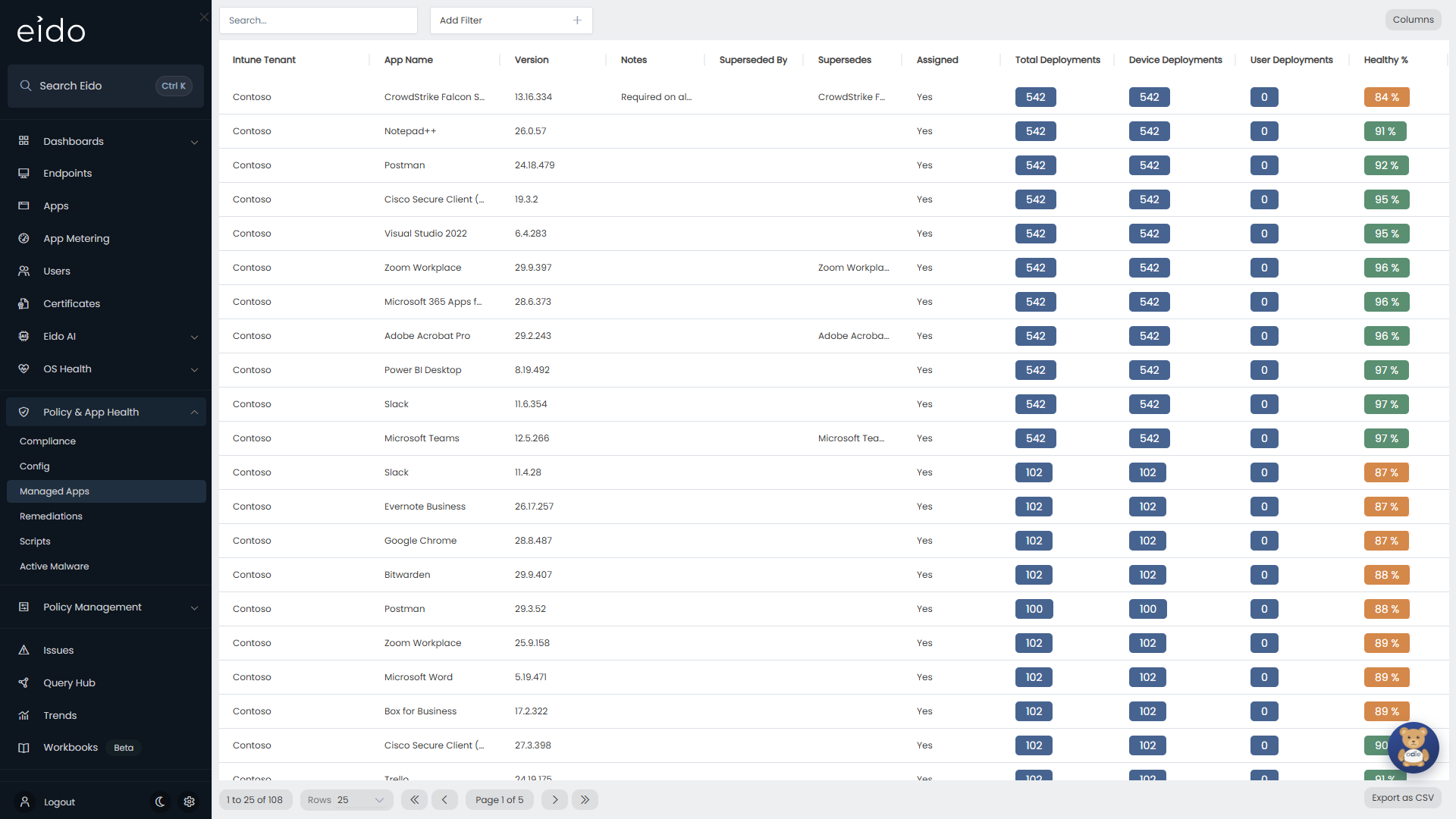
What the list shows#
There is one row for each app in each Intune tenant, whether or not it is assigned to anyone. The list opens with the apps that have the most unhealthy deployments.
| Column | What it means |
|---|---|
| Customer | The customer the tenant belongs to. Only shown when you look after several customers and have not picked one. |
| Intune Tenant | The tenant the app lives in. |
| App Name | The app’s name in Intune. |
| Version | The app’s version, where Intune publishes one. |
| Notes | The notes written on the app in Intune. |
| Superseded By | Newer apps that Intune is set to replace this one with. |
| Supersedes | Older apps that this one replaces. |
| Assigned | Yes when at least one device or user is reporting an install state for the app, otherwise No. |
| Total Deployments | How many install states Intune has reported. An app can report for the device and again for each user, so this can be more than your device count. |
| Device Deployments | The deployments reported for the device itself. |
| User Deployments | The deployments reported for a user on a device. |
| Healthy % | Healthy deployments as a share of Total Deployments, rounded to a whole number. Blank when there are no deployments. |
Healthy % is green at 90 or more, amber from 75 to 89, and red below 75.
What counts as healthy#
Eido turns the install state Intune reports for each deployment into a status.
| Status | Icon | When |
|---|---|---|
| Healthy | Green tick | Intune reports installed, install pending, not installed or not applicable. |
| Medium | Amber triangle | Intune reports anything else, most often failed, and the app’s severity is Medium. |
| High | Red triangle | The same, and the app’s severity is High. |
| Unknown | Grey question mark | Intune sent no install state for that deployment. |
Not installed counts as healthy, which suits apps that are offered to people rather than required.
Changing how an app is judged#
A newly discovered app starts at Medium. An administrator changes that for each app in the tenant’s settings, under Managed Apps. Each app is listed there with its platform, type and version, and whether it is assigned.
- Ignore treats every install state as healthy. Use it for apps whose failures you do not act on.
- Medium or High decides how serious a failed install is.
- Advanced replaces the table above with your own rules for that app. You choose a severity for each install state (Installed, Failed, NotInstalled, Install Pending, Uninstall Pending, Not Applicable, Unknown, or one you type), and a default for any state you have not listed. For example, to be told when an app that should have been removed is still present, set Installed to High.
See Tenant settings.
A device’s Apps status is the worst status of any managed app on it. A device that is Medium or High on an app gets an issue for it.
Find an app#
- Search… matches any part of the app name.
- Add Filter narrows the list by Customer, Intune Tenant, Policy Name (the app’s name), Assigned, Version, App Type, Publisher, Developer, Owner, Publishing State, Featured, Notes, Superseded By or Supersedes.
- Press a column heading to sort.
- Columns opens Select Columns to show, hide and reorder columns. Reset to Defaults puts them back. Your layout is remembered.
- Export as CSV downloads every matching row with the columns you have showing.
See where an app failed, and why#
Press an app to open its devices in a panel on the right.
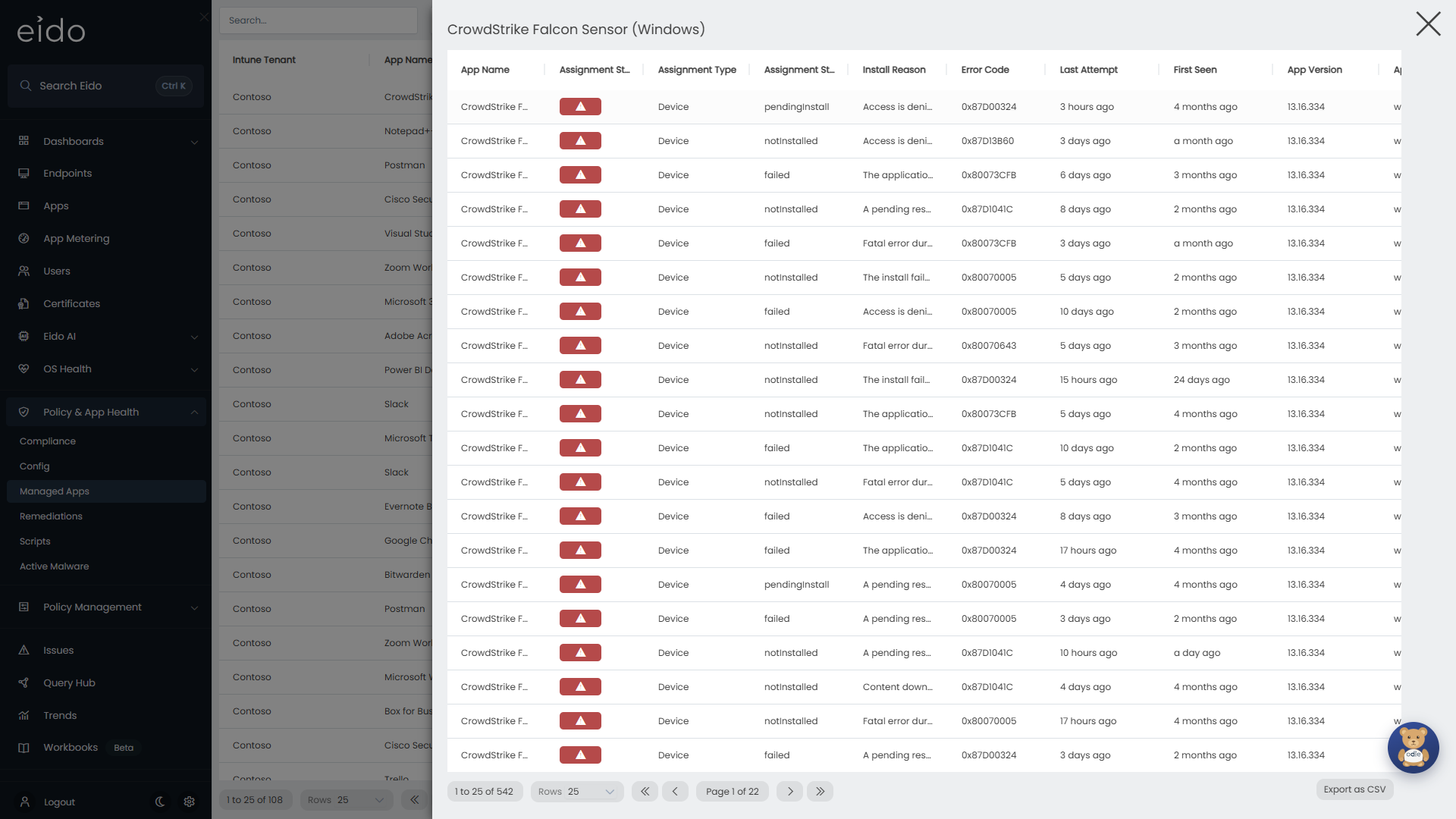
There is one row for each deployment, with High first, then Medium, Healthy and Unknown.
| Column | What it means |
|---|---|
| App Name | The app you opened. |
| Device | The device’s name. |
| User | The device’s primary user. |
| App Type | The kind of app, as Intune describes it. |
| App Version | The version of the app in Intune. |
| Assignment Status | The Eido status, as an icon. |
| Assignment Type | Device or User, depending on who the install state was reported for. |
| Assignment State | The install state exactly as Intune reported it. |
| Install Reason | Intune’s own explanation of the install state. On a failure, this is the sentence that says what went wrong. |
| Error Code | The error code Intune recorded, in the form you would search for, for example 0x87D1041C. Blank when there is no error. |
| Last Attempt | When Intune last updated the install state for this device. |
| First Seen | When Eido first saw this app on this device. |
Press the Error Code heading to sort by it. Installs that failed for the same reason group together, which usually tells you whether you have one problem or several. Export as CSV takes the whole list.
Press a row to open the device in Device details. Its Managed Apps section lists every app on that device with the same Install Reason, Error Code and Last Attempt.
The same data elsewhere#
In Query Hub:
- Managed Apps is this list with more to choose from, including Healthy, Unhealthy and Unknown counts, Platform, Publisher, Description, Dependencies and when the app was created and last modified in Intune.
- Managed App Detail is one row for each device and app, with every device column available. Use it to ask questions across apps, such as every failed install with a particular error code.
- Device Issues can show Install Reason, Error Code and Last Attempt as extra columns for app issues.
Managed App Summary and Managed App Detail are also ready-made reports under App Deployment.
Why does it show that?#
Version is blank#
Intune only publishes a version for some kinds of app, such as Win32 and line-of-business apps. Store apps, Microsoft 365 Apps, volume-purchased apps and web links have none, in Intune as well.
An app shows Assigned as No and no Healthy %#
No device or user is reporting an install state for it. The app exists in Intune and is either not assigned or has not reported yet.
Install Reason and Error Code are empty on a failed install#
Intune did not give a reason or a code for that deployment. Eido shows what Intune reports and does not fill the gap.
Last Attempt looks older than Intune’s#
Eido updates it when the install state, the reason or the error code changes. If only the time has changed, it is updated once it has moved on by more than an hour.
An app is installed and still shows as unhealthy#
An Advanced rule on that app is treating installed as a problem. Check the tenant’s Managed Apps settings.
The numbers look out of date#
Eido reads install states from Intune as part of syncing the tenant, about once an hour, and Intune’s reports can themselves lag the device. See What Eido syncs.