
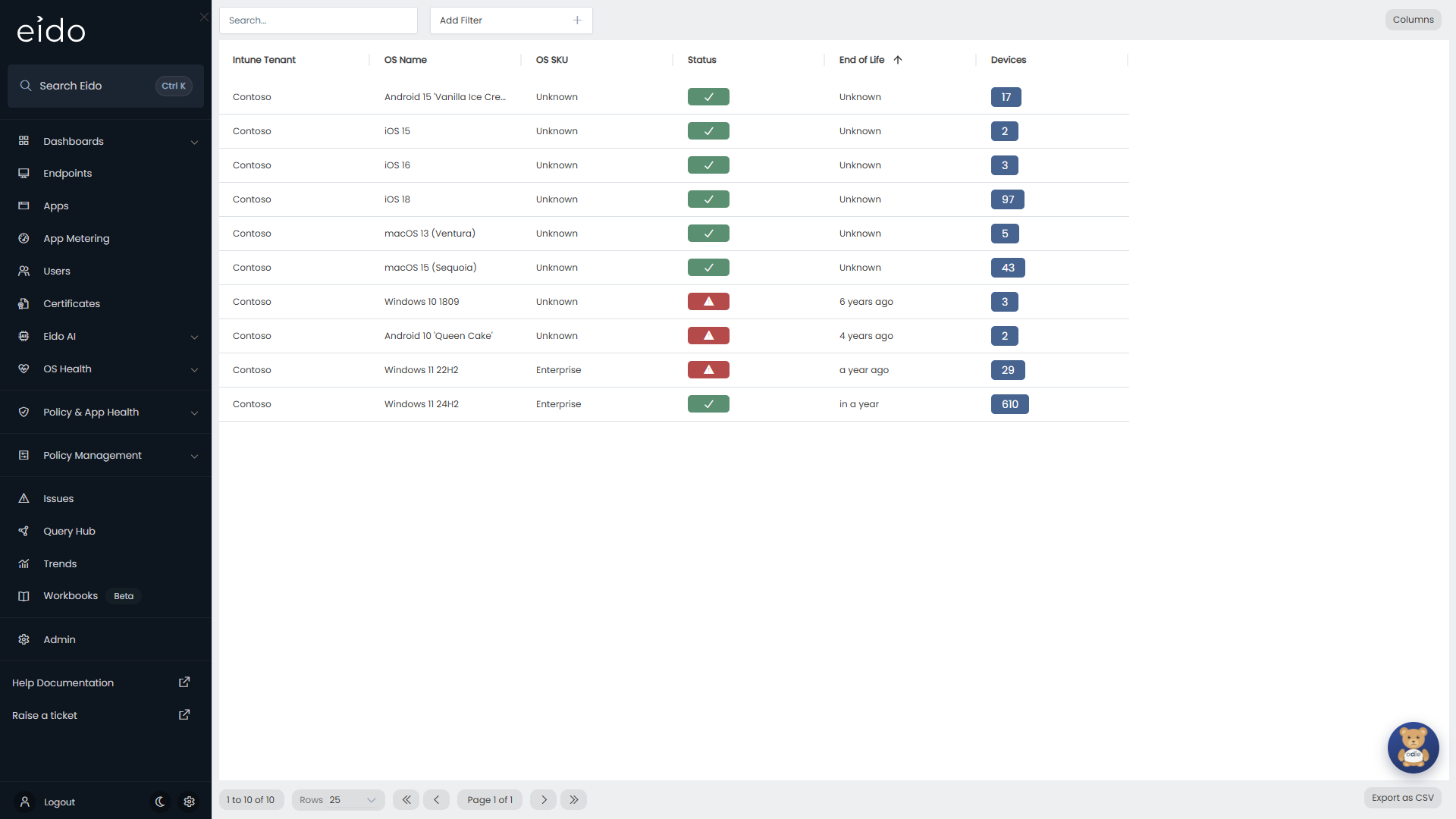
OS Compliance lists every operating system version found on your devices, with the date its vendor stops supporting it and the number of devices running it. Use it to plan upgrades before a version runs out of security updates, and to show how much of the estate is on a supported version.
Open it from OS Health in the sidebar, then OS Compliance. Everybody who can sign in to Eido can see it, for the Intune tenants and customers their role covers.
The columns#
Each row is one operating system version, in one edition, in one Intune tenant.
| Column | What it shows |
|---|---|
| Customer | The customer the tenant belongs to. Only shown when your organisation manages several customers and All Customers is selected. |
| Intune Tenant | The tenant the devices are in. |
| OS Name | The named version, for example a Windows feature update or an iOS release. |
| OS SKU | The edition, where the operating system has editions. Otherwise Unknown. |
| Status | How close the version is to the end of support. See below. |
| End of Life | How far away the end of support date is, for example “in 5 months”, or how long ago it passed. Unknown when Eido holds no date. |
| Devices | How many devices are on this version and edition. |
The list opens ordered by End of Life, soonest first.
The same version can have a different end of support date for each edition, which is why each edition has a row of its own.
What the statuses mean#
| Badge | Status | When |
|---|---|---|
| Green tick | Active Support | The end of support date is more than three months away, or the version has no end date. |
| Amber warning triangle | Expiring Soon | The end of support date is less than three months away. |
| Red warning triangle | No Support | The end of support date has passed. |
| Grey question mark | Unknown | Eido does not recognise the operating system build these devices report. |
The Status column shows the badge alone. To filter by it, add the Supported filter, which lists the four statuses by name.
How this relates to a device’s Patch grade#
This page gives you three months of warning, because replacing an operating system across an estate takes time. A device’s own Patch grade is stricter about when it changes.
| Time to the end of support | This page | The device’s Patch grade |
|---|---|---|
| More than three months | Active Support | Not affected |
| Between three months and 30 days | Expiring Soon | Not affected |
| 30 days or less | Expiring Soon | At least amber |
| 7 days or less, or already passed | Expiring Soon, then No Support once the date has passed | Red |
From 30 days before the date, the device also reads No Support on Patch Compliance, and Support Ending Soon and then Not Supported under Vendor OS Support in Device details.
Search, filter and export#
The Search… box searches the OS Name. Add Filter offers:
| Filter | Notes |
|---|---|
| Supported | Active Support, Expiring Soon, No Support or Unknown. |
| OS Name | One or more named versions. |
| OS SKU | One or more editions. |
| Customer, Intune Tenant | Where the devices are. |
Sorting, Columns, Rows and Export as CSV work as they do on Endpoints.
See the devices on a version#
Click a row. Eido opens Patch Compliance filtered to that operating system version, edition and tenant, which lists the devices themselves. From there, click a device to open its details.
Where the dates come from#
Eido maintains the end of support date for each operating system version it recognises. A version that Eido holds no end date for counts as Active Support, and its End of Life reads Unknown.
Use your own date for a Windows version#
Sometimes the published date is not the one that applies to you, for example because your organisation has an arrangement that extends support for a version, or because you want to retire a version sooner than the vendor does. An administrator can set a custom end date for a Windows version, for one Intune tenant at a time.
It is under OS Lifecycle in the tenant’s settings. For each Windows version and edition, the table shows the number of devices, the Eido default date and the End of life used here. Set custom date replaces the default for that tenant, and Revert to default removes it again. A custom date is marked Custom, or Earlier than default when it brings the date forward, with who set it and when.
A custom date is used everywhere Eido uses an end of support date for that tenant: on this page, in each device’s Patch grade and in device details. Saving the change starts a sync of the tenant, so statuses catch up shortly afterwards.
The steps are in Tenant settings.
Major OS rules are a separate check#
This page is about whether the vendor still supports a version. Your organisation may also want devices to be on a recent major version even while an older one is still supported. That is a different check, called major OS rules, which an administrator switches on in Tenant settings. A device that fails it reads Outdated Major OS on Patch Compliance. It does not change anything on this page.
Common questions#
Why is there a row called Unknown?#
Those devices report an operating system build that Eido does not have in its catalogue, so it cannot name the version or give it a date. Click the row to see which devices they are. If a released build stays unknown, tell us at Eido support.
Why is a version Active Support when its End of Life reads Unknown?#
Eido holds no end of support date for that version, so it is treated as supported.
Why does the same version appear on several rows?#
There is a row for each edition, and for each Intune tenant. Add the OS Name filter to bring them together, or export the list and total the Devices column.
Why does a device read No Support on Patch Compliance while its version is only Expiring Soon here?#
The two pages use the name differently. Here, No Support means the date has passed. On Patch Compliance it appears from 30 days before the date, as a prompt to act on the individual device.
We set a custom date. Why has nothing changed?#
The change takes effect once the tenant has synced. Saving the settings starts that sync, so look again when it has finished.
Can I set a custom date for macOS, iOS or Android?#
No. Custom dates are available for Windows versions.