
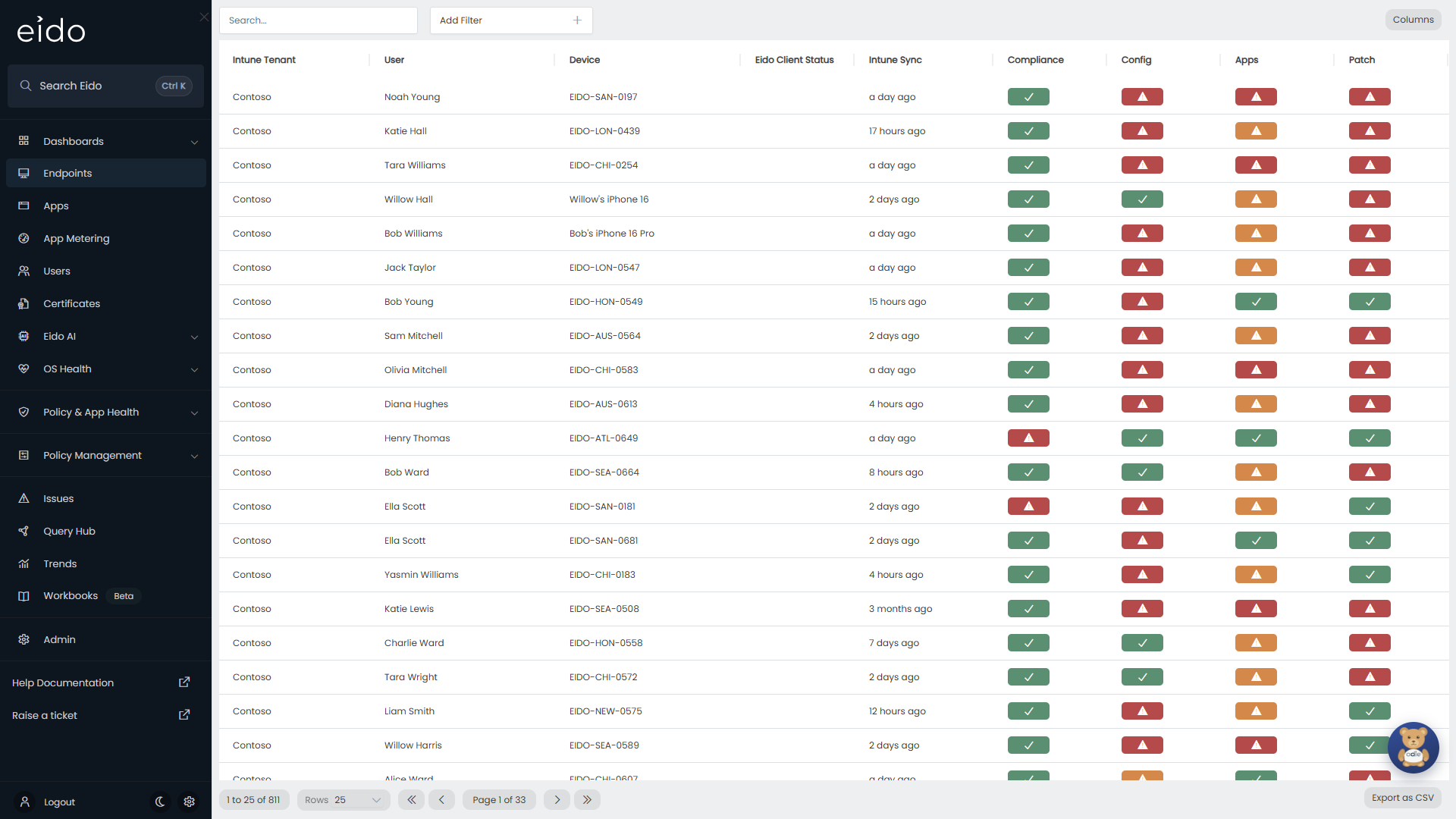
Endpoints is the list of every device Eido has synced from your Intune tenants. Each row is one device, with its primary user, when it last checked in with Intune, and four health statuses. It is the place to start when somebody asks “what is wrong with this laptop?” or “which devices need attention today?”.
Everybody who can sign in to Eido can open it from the sidebar. You see the devices of the Intune tenants and customers your role gives you access to. If your organisation manages several customers, the customer selector at the top of the sidebar narrows the list to one of them.
The columns#
| Column | What it shows |
|---|---|
| Customer | The customer the device belongs to. Only shown when your organisation manages several customers and All Customers is selected. |
| Intune Tenant | The friendly name of the Intune tenant the device was synced from. |
| User | The display name of the device’s primary user. |
| Device | The device name. |
| Eido Client Status | Online or Offline, for devices that run the Eido Client. Blank for every other device. |
| Intune Sync | How long ago the device last checked in with Intune, for example “3 hours ago”. |
| Compliance | The worst result across the compliance policies assigned to the device. |
| Config | The worst result across the configuration policies assigned to the device. |
| Apps | The worst result across the managed apps assigned to the device. |
| Patch | Whether the operating system is supported and up to date with security patches. |
Two more columns are hidden until you switch them on: Intune Device ID and Entra Device ID. See Choose your columns.
What the status columns mean#
Compliance, Config, Apps and Patch each show a small badge. The same four grades are used everywhere in Eido.
| Badge | Grade | Meaning |
|---|---|---|
| Green tick | Healthy | Nothing assigned to the device is failing. |
| Amber warning triangle | Unhealthy - Medium | Something is failing, at medium severity. |
| Red warning triangle | Unhealthy - High | Something is failing, at high severity. |
| Grey question mark | Unknown | Eido has nothing to grade the device on. |
A column always shows the worst grade it found. One failing configuration policy at high severity makes Config red, however many others succeeded.
If you find red, amber and green hard to tell apart, switch on Colour-accessible mode in your settings. The badges then use a different palette and carry a short label: Healthy, Medium, High or Unknown.
Compliance, Config and Apps#
These three columns are built from what Intune reports for each policy or app assigned to the device.
| Column | Counted as healthy | Anything else |
|---|---|---|
| Compliance | Compliant, remediated, in grace period, not applicable, or unknown for that one policy | Unhealthy |
| Config | Succeeded or not applicable | Unhealthy |
| Apps | Installed, install pending, not installed, or not applicable | Unhealthy |
Whether an unhealthy result is amber or red is decided policy by policy. Each compliance policy, configuration policy and managed app has a severity in the tenant’s settings: Ignore, Medium or High. A new compliance policy starts at High; a new configuration policy or managed app starts at Medium. Ignore means a failure of that policy never makes a device unhealthy. An administrator can also write rules of their own for which Intune states count as medium or high. All of this is in Tenant settings.
A device with no compliance policy reporting against it reads Unknown in Compliance, and so does a device whose overall compliance state in Intune is unknown. Assignments that Intune reports as not applicable to a device are ignored altogether.
Patch#
Patch is the worst of up to three checks:
- Security patches. How long the device has gone without a patch that has been released for its operating system.
- Operating system support. Whether the vendor still supports the installed version.
- Major version. Whether the device is on a major operating system version your organisation accepts. This check only runs if an administrator has switched on major OS rules for the tenant.
The thresholds and rules behind each of these are explained in Patch Compliance and OS Compliance.
Search and filter#
The Search… box at the top left searches the Device name, and matches any part of it.
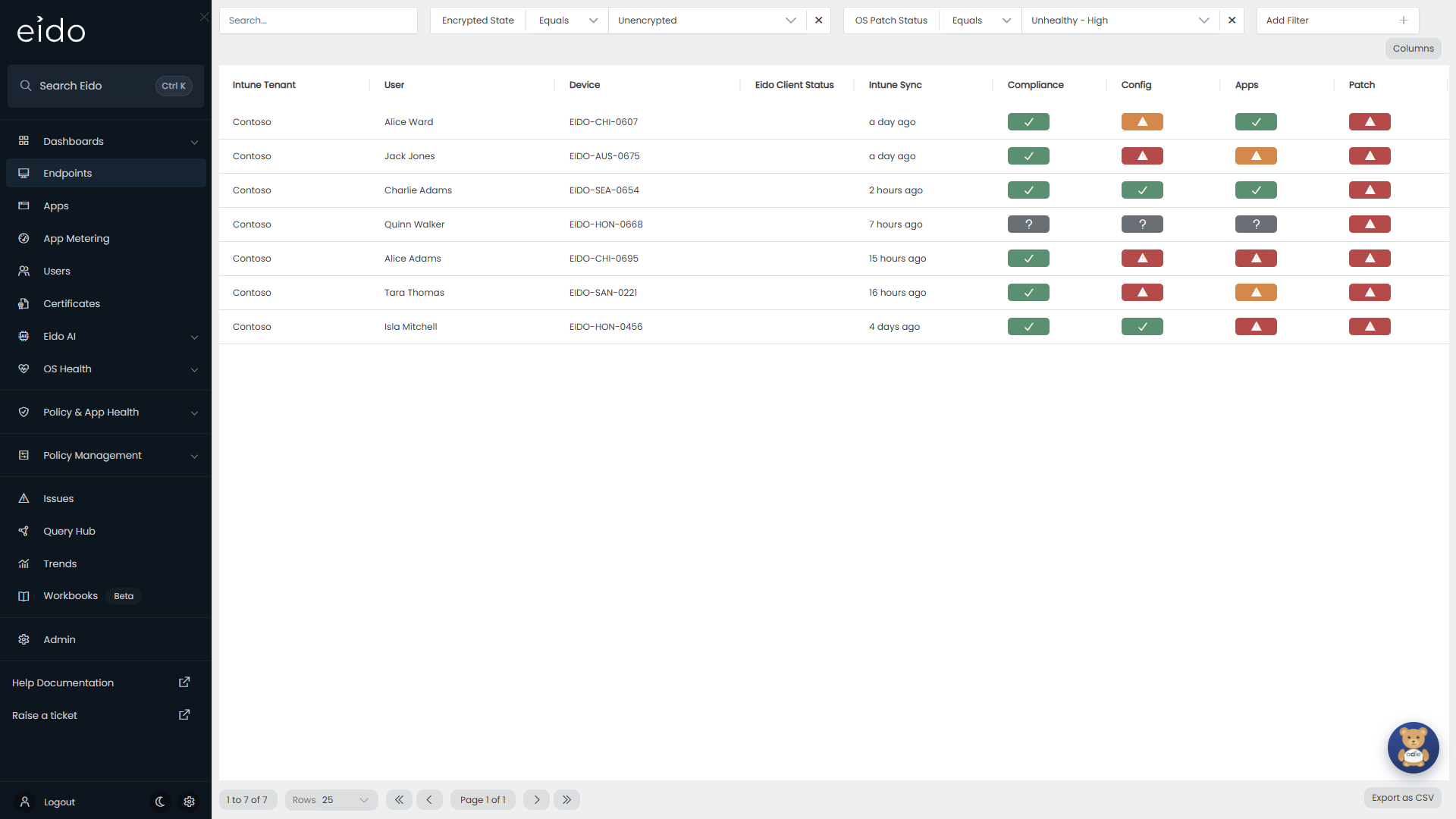
To narrow the list by anything else, choose a field from Add Filter. A chip appears for it in the bar. Pick one or more values, and the list updates. You can add as many filters as you need. A device has to match all of them. Remove a filter with the cross on its chip.
| Filter | Notes |
|---|---|
| Device Name, Intune Device ID, Entra Device ID | Find specific devices. |
| Device Status | The device’s overall grade: the worst of its four status columns. |
| Compliance Status, Config Status, App Status, OS Patch Status | One status column at a time. The values are Healthy, Unhealthy - Medium, Unhealthy - High and Unknown. |
| Eido Client Status | Online or Offline. Devices without the Eido Client match neither. |
| Customer, Intune Tenant | Where the device comes from. |
| Ownership, Device Category | As recorded in Intune. |
| Major OS, OS Version | The operating system family, and the named version. |
| OS Build Number | Compares build numbers: Greater Than or Equal or Less Than or Equal. |
| Device Manufacturer, Device Model | The hardware. |
| Encrypted State | Encrypted or Unencrypted. |
| Inactive | Inactive (>30d) for devices that have not checked in with Intune for more than 30 days, otherwise Active. |
| Lost Mode | The lost mode state Intune reports. |
| Primary User, User > Office, User > City, User > Company Name, User > Country, User > Department, User > State | Details of the primary user, from Entra ID. |
| Extended Property 0 to Extended Property 15 | Extension attributes synced from Entra ID, if your organisation uses them. |
A text filter starts as Equals, with a list of the values that exist in your data. Change the operator on the chip to Not Equals, Contains, Not Contains, Starts With or Ends With when a list is not what you need.
Sort the list#
The list opens with the least healthy devices first, ordered by overall device status. Click a column heading to sort by that column, and click it again to reverse the order. Eido remembers your choice the next time you open the page.
Choose your columns#
Press Columns at the top right to open Select Columns.
- Use the switch next to a column to show or hide it.
- Drag a column by its handle to change the order.
- Reset to Defaults puts everything back as it was.
You can also drag a column heading sideways in the list itself to move it, or drag its edge to resize it. The layout is saved for you alone, so it does not change what your colleagues see.
Page through and export#
The bar under the list shows which rows you are looking at and how many there are in total. Rows sets how many appear on a page: 25, 50, 100 or 250. The arrows move to the first, previous, next and last page.
Export as CSV downloads a file of every device that matches your current search and filters, not only the page on screen. It contains the columns you have chosen to show.
Open a device#
Click any row to open Device details. The device slides in from the right, over the list. Close it with the cross, or by clicking the dimmed list behind it, and you are back where you were with your filters intact.
Devices managed by Configuration Manager#
Intune can list devices that it does not fully manage.
- A device managed only by Configuration Manager does not run Intune’s compliance, configuration or app workloads, so Intune has no results for it. Its Compliance, Config and Apps columns read Unknown. That is not a fault: there is nothing for Eido to grade. Its Patch status is still real, because Eido works that out from the operating system build the device reports.
- A co-managed device is enrolled in Intune as well as Configuration Manager, so its statuses are real results.
If these devices get in the way, an administrator can leave them out of Eido altogether. The Device Scoping section of Tenant settings can exclude ConfigMgr devices, Co-managed devices, or both.
Deleted devices#
When a device is deleted from Intune, it leaves the Endpoints list at the next sync. Eido keeps its last known details. You can still find it in the Deleted Devices view in Query Hub, and open it from there.
Common questions#
Why does a device show Unknown?#
For Compliance, the usual reasons are that no compliance policy has reported for the device yet, that Intune itself reports the device’s compliance as unknown, or that the device is managed only by Configuration Manager. A newly enrolled device often reads Unknown until Intune has evaluated it.
For Patch, Unknown means Eido has no patch grade for the device yet. If Eido does not recognise the operating system build a device reports, Patch Compliance lists the device with the status Unknown.
Why is Eido Client Status blank?#
The column only has a value for devices that have the Eido Client installed, in a tenant where it is switched on. Online means the client has checked in within the last 15 minutes. See The Eido Client.
Why can I not find a device by its user’s name?#
Search… looks at the device name only. Add the Primary User filter and choose the person. You can also start from Users: clicking a person there opens Endpoints filtered to their devices.
Why is a device missing?#
It may have been deleted from Intune, it may belong to a customer or tenant your role does not cover, or an administrator may have excluded it with device scoping. A device enrolled a few minutes ago appears after the next sync. See What Eido syncs.
Why did the list change order?#
Eido remembers the last column you sorted by, and opens the list that way next time. Click the heading of the column you want to sort by instead.