
Team is the list of people who can sign in to your Eido. You add a person here, choose their role, and Eido emails them a link. Nobody has an Eido password: everybody signs in with their Microsoft work account.
Open it from Admin, then Team. Any administrator can open it. An administrator who is restricted to one customer sees and manages only the people in that customer. Roles explains the two kinds of administrator.
How people sign in#
The sign-in page has one button, Sign in with Microsoft. The person signs in to Microsoft Entra as they do for anything else at work, and Eido then looks for a user with the same email address.
Two things follow from that:
- The address must be the one they sign in to Microsoft with. Eido matches on the Microsoft sign-in name (the user principal name), not on a mailbox alias. If somebody signs in as
[email protected]but receives mail as[email protected], add them as[email protected]. Capital letters do not matter. - Being in your Entra tenant is not enough. Somebody with no user in Team is turned away at the sign-in page with a message that their account does not exist on Eido.
The one exception is a role that is filled from an Entra group and is allowed to create users. See Linking roles to Entra groups.
Eido runs in more than one region, each with its own sign-in address. Regions and signing in has the addresses.
Reading the list#
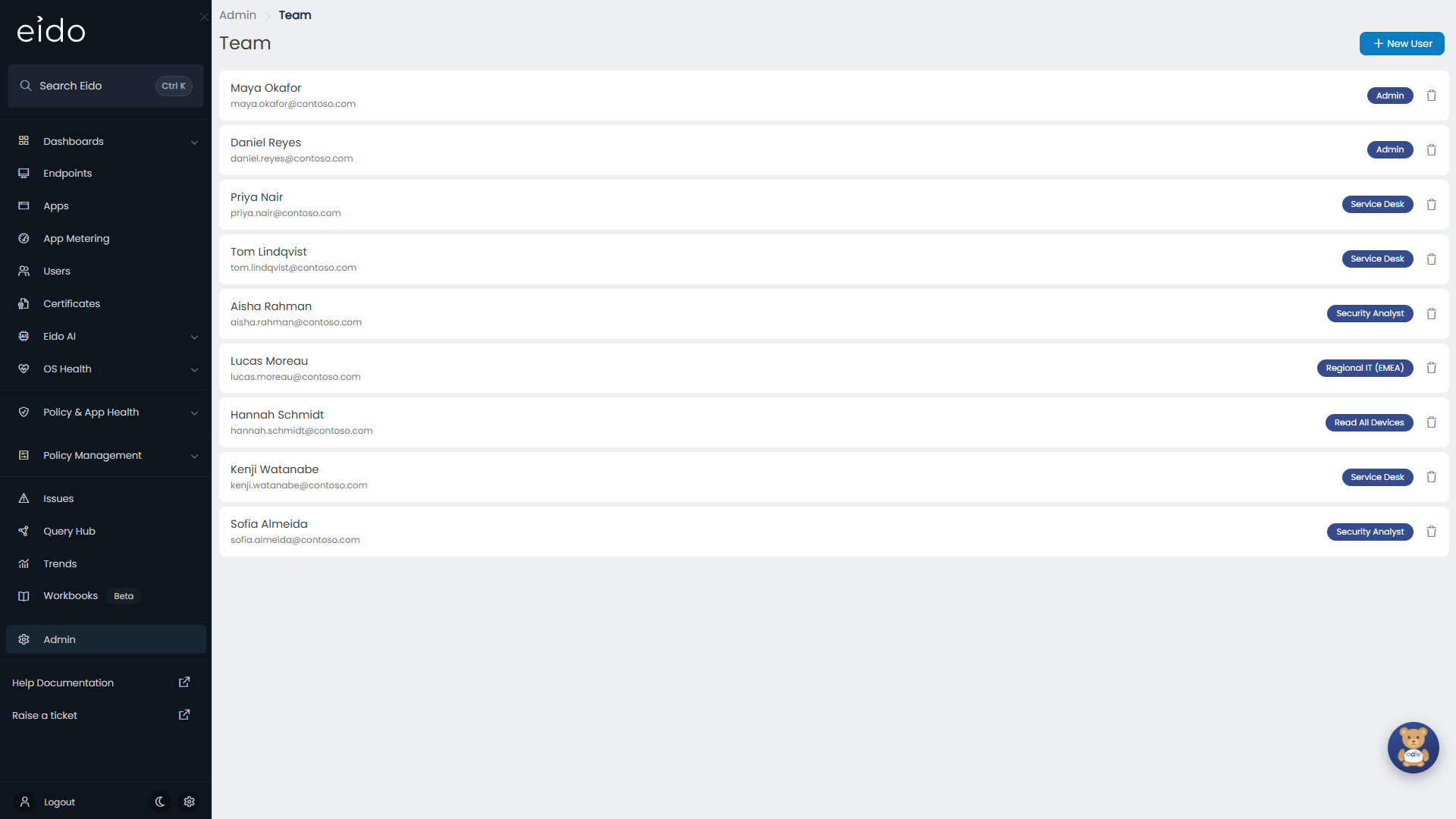
Each row is one person.
| Part of the row | What it shows |
|---|---|
| Name | The name you gave them. |
| Never logged in | Shown beside the name until the person has used Eido for the first time. |
| The address they sign in with. | |
| Role badge | The role they hold. |
| Bin icon | Removes the person. |
Press a row to open Edit User.
If your organisation manages several customers, three tabs appear above the list.
| Tab | Shows |
|---|---|
| All Users | Everybody. |
| Tenant Users | People with access to all customers. This is normally your own team. |
| Customer Users | People restricted to one customer. |
While a customer is selected in the customer switcher at the top of the sidebar, the list shows only that customer’s people and the tabs are hidden. Choose All Customers to see everybody again.
Invite somebody#
-
Open the form
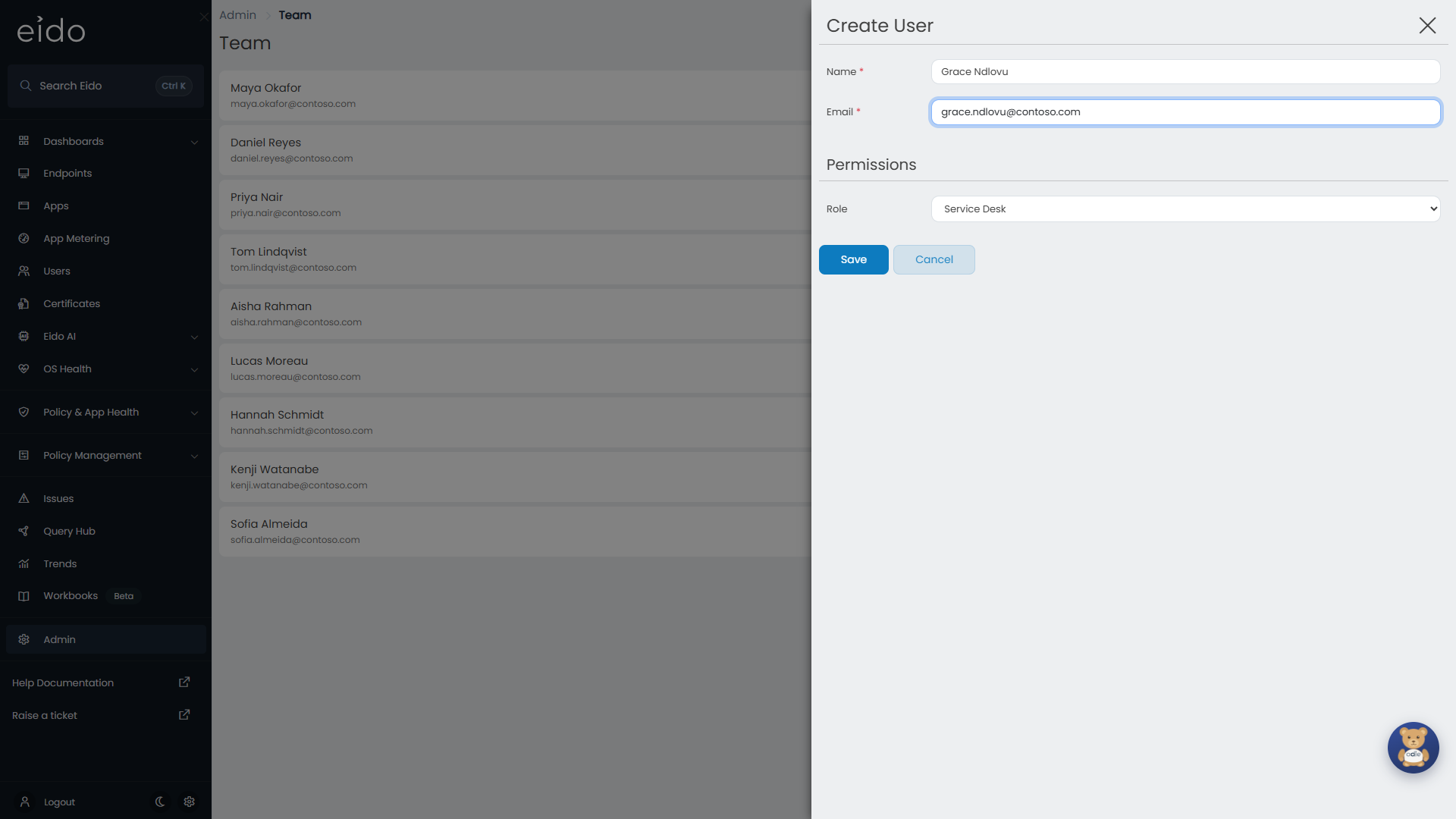
Go to Admin, then Team, and press New User. The Create User panel slides in.
-
Name and Email
Both are required. Email is the address the person signs in to Microsoft with. It cannot be changed after you save.
-
Customer
This box only appears if your organisation manages several customers. Leave it on All Customers for a member of your own team, or pick one customer to restrict the person to it. While it is on All Customers, a red warning reminds you that the person will see every customer. If a customer is selected in the customer switcher, the box is not shown and the new person is placed in that customer.
-
Role
Pick a role under Permissions. A role is required.
-
Save
The person is added to the list and Eido sends them a welcome email.
What the invited person receives#
An email with the subject “Welcome to eido”. It says an account has been created for them, and has a Login to Eido button and the support address.
The button opens your Eido sign-in page, where they press Sign in with Microsoft. There is no password to set and nothing to activate. The link is only the sign-in page, so it does not expire, and a person who has lost the email can go straight to the sign-in page instead.
Choosing a role#
The Role list offers the two built-in roles, Admin and Read All Devices, and any custom roles your organisation has made.
| If you want the person to | Give them |
|---|---|
| Manage Eido: people, alerts, tenants and the rest of Admin | Admin |
| See everything but change no settings | Read All Devices |
| See only part of your data | A custom role. See Roles. |
Two kinds of role are missing from the list on purpose:
- Roles filled from Entra groups. Nobody assigns these by hand. If a person already holds one, the Role box is greyed out, with a note that the role comes from Entra group membership. Change it by changing who is in the linked group.
- Custom roles, for a customer-level administrator. An administrator who is restricted to one customer can hand out only the two built-in roles.
Restricting somebody to a customer#
Set Customer to one customer and the person sees only the Intune tenants linked to that customer: its devices, users, apps, policies and issues, and nothing of anybody else’s. Customers explains how tenants are linked.
Give that person the Admin role as well and they become a customer-level administrator. They can open Team, Alerts and Wallboards for their own customer, and nothing else in Admin.
Everybody a customer-level administrator adds is placed in their own customer. They cannot move a person out of it.
Changing somebody#
Press their row, change the Name, Customer or Role, and press Save.
Saving signs the person out everywhere. They sign in again and get their new access straight away, so there is no waiting for a change of role to take effect.
The email address cannot be edited. If somebody’s Microsoft sign-in name changes, add them again under the new address. That is a new user: dashboards and reports the person owned stay with the old one.
Removing somebody#
Press the bin icon on their row and confirm.
- They are signed out at once.
- If they try to sign in again, they are told the account has been removed.
- Scheduled reports, scheduled workbooks and export jobs that they own are switched off, so nothing keeps being sent on their behalf.
You cannot remove your own account.
Stopping access for a while#
Team has no separate switch for suspending a person. To stop somebody’s access for a time, remove them. To bring them back, press New User and add them with the same email address. Eido restores the same account, with the name, role and customer you choose, and sends the welcome email again.
Their schedules stay switched off until somebody switches them back on.
Questions#
Why does somebody still show Never logged in?#
The badge stays until the person has opened Eido once. If they say they cannot get in, check the email address on their row against the name they sign in to Microsoft with.
They did not get the welcome email#
They do not need it. Send them your Eido sign-in address and ask them to press Sign in with Microsoft. The email contains nothing else.
They are told their account does not exist#
Eido found no user with the address Microsoft gave it. The usual cause is a sign-in name that differs from the mail address you typed. Remove the user and add them again with the sign-in name.
Why is a role missing from the list?#
Either it is filled from Entra groups, or you are a customer-level administrator, who can assign only Admin and Read All Devices.
Eido says a user with this email already exists#
The person is already in the list. Look on the other tabs, and check that a customer is not selected in the customer switcher, which hides everybody outside that customer.
Somebody was removed by mistake#
Add them again with the same email address. The account is restored, not created afresh.