
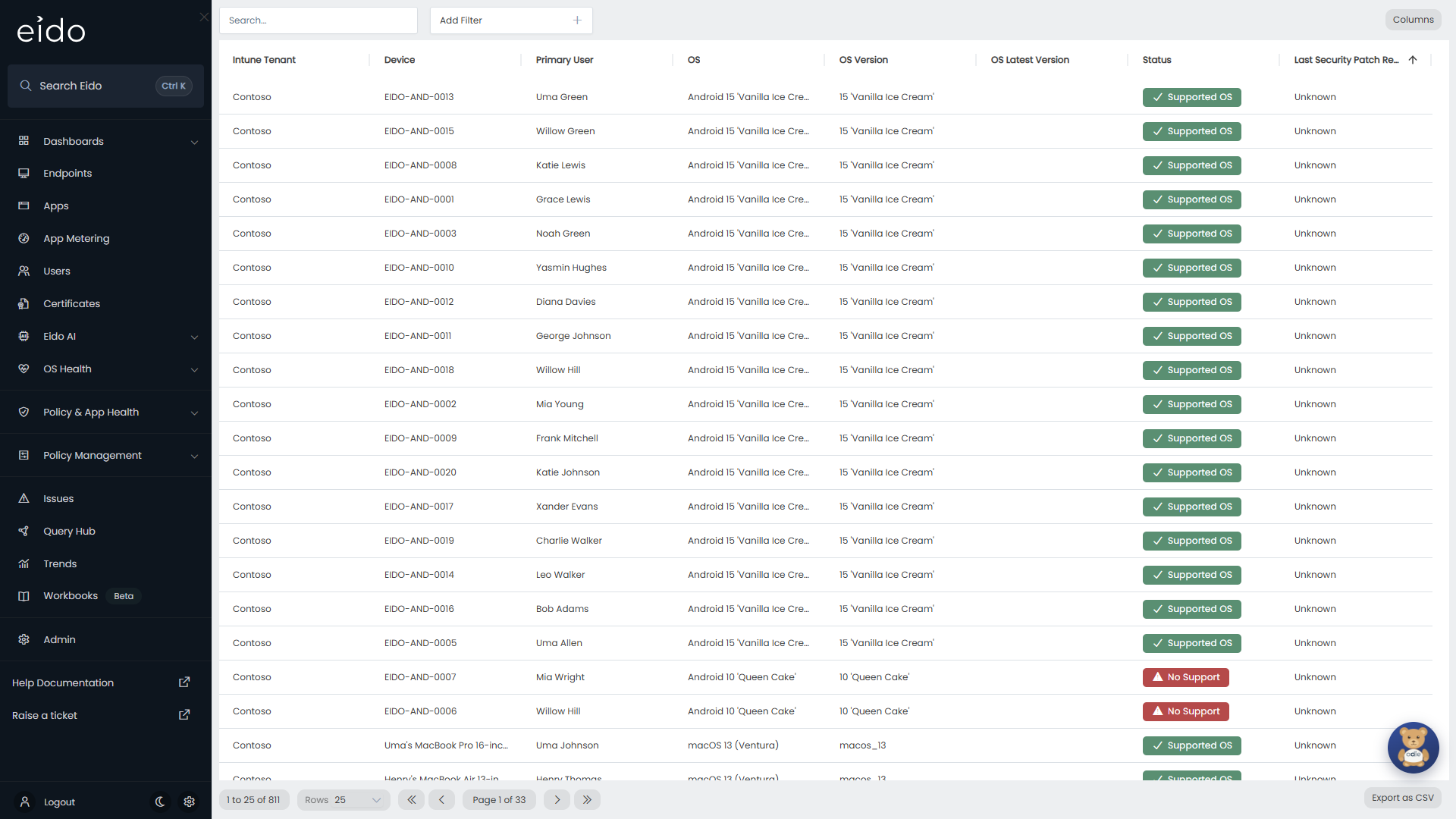
Patch Compliance lists every device with the operating system build it is on, the newest build available for it, and a patch status. It answers “which devices are missing security patches, and for how long?”.
Open it from OS Health in the sidebar, then Patch Compliance. Everybody who can sign in to Eido can see it, for the Intune tenants and customers their role covers.
Eido grades patching from the operating system build each device reports, not from anything Intune evaluates. That is why a device has a real patch status even when Intune has no compliance or configuration results for it. Patching is graded for Windows, Windows 365, macOS, iOS, iPadOS and Android devices.
The columns#
| Column | What it shows |
|---|---|
| Customer | The customer the device belongs to. Only shown when your organisation manages several customers and All Customers is selected. |
| Intune Tenant | The tenant the device was synced from. |
| Device | The device name. |
| Primary User | The device’s primary user. |
| OS | The named operating system version, for example a Windows feature update. |
| OS Version | The exact build number the device reports. |
| OS Latest Version | The build number of the newest patch released for that operating system version. |
| Status | The device’s patch status. See below. |
| Last Security Patch Release Date | How long ago the patch the device is currently on was released. |
The list opens ordered by Last Security Patch Release Date, oldest first, so the devices that have gone longest without a patch are at the top.
What the statuses mean#
The Status column carries a label and a colour. The colour is the device’s Patch grade, the same one shown on Endpoints.
| Status | Meaning |
|---|---|
| Up to Date | The device is on the newest patch for its operating system version. Green. |
| Pending | A newer patch exists and is not installed yet, but the device is still inside the time your organisation allows. Green, with a clock. |
| Overdue (Medium) | The device has been missing a patch for longer than the medium threshold. Amber. |
| Overdue (High) | The device has been missing a patch for longer than the high threshold. Red. |
| No Support | The operating system version has reached the end of vendor support, or is within 30 days of it. Amber or red, and always red from 7 days before the date. This takes priority over the patch level, because patches for that version are about to stop or already have. |
| Outdated Major OS | The device is on a major operating system version older than your organisation’s rules allow. Only used when an administrator has switched on major OS rules. |
| Supported OS | Eido recognises the operating system version and it is supported, but cannot tell which patch the device is on. |
| Unknown | Eido does not recognise the build the device reports, so it cannot grade it. |
When more than one applies, the first match in this order is shown: Unknown, No Support, Outdated Major OS, then the patch level.
How Eido decides a device is overdue#
Eido keeps a catalogue of the security patches released for each operating system version. For every device it works out three things: the patch the device is on, the next patch it is missing, and the newest patch available.
- If there is no newer patch, the device is Up to Date.
- Otherwise a clock starts on the day the next missing patch was released. The longer the device goes without it, the worse its status.
Two numbers, set for each Intune tenant, decide when that matters.
| Setting | Meaning | Unless it has been changed |
|---|---|---|
| Days until Medium | Days after the patch was released before the device becomes Overdue (Medium). | 7 |
| Days until High | Days after the patch was released before the device becomes Overdue (High). | 14 |
Until the first threshold is reached, the device is Pending.
For example, with the thresholds at 7 and 14: a patch is released on the 1st of the month. A device that has not installed it is Pending until the 8th, Overdue (Medium) from the 8th, and Overdue (High) from the 15th. Once it has installed the patch and synced, it is Up to Date again, or the clock restarts from the release date of the next patch it is missing.
An administrator changes these under Patch Rules in Tenant settings.
Rules for different kinds of device#
One pair of thresholds does not suit every device. In Advanced mode, an administrator can write an ordered list of rules. Each rule can apply to one Device Category, one Device Type (Major OS), or both, and has its own Days until Medium and Days until High.
A rule can also allow devices to be a number of patches behind, with Allow Patches Behind Latest. Latest only (N) allows none. N-1 allows a device to be one patch behind the newest, N-2 two, and so on up to N-10.
- A device inside that allowance is healthy, and reads Pending if it is not on the newest patch.
- A device that falls outside it starts a clock. The clock runs from the release date of the oldest patch that would still have been acceptable, and the rule’s thresholds apply to it.
Rules are read from the top, and the first one that matches a device is used. A device that matches no rule uses the tenant’s default thresholds.
Apple devices#
An iPhone or iPad is only graded against the releases Apple shipped for its model. An older model is not marked overdue for a release it cannot install.
Update rings#
A Windows Update for Business update ring can hold a security update back for a number of days after release. Eido takes that into account, so a device is not marked overdue for a patch it has not been offered.
- Eido reads each tenant’s update rings and works out which ring each device is in.
- For a device in a ring, the overdue clock starts at the patch’s release date plus the ring’s quality update deferral. With a 7 day deferral and thresholds of 7 and 14, a device becomes Overdue (Medium) 14 days after release, not 7.
- Until the ring has offered the patch, the patch reads Deferred until with the expected date in Device details, and the device stays green.
- If a device is covered by more than one ring, Eido uses the longest deferral.
- A device that is in no ring is graded from the release date.
Paused rings#
When a ring’s quality updates are paused, the device’s update ring panel shows Quality updates paused as Yes, with the date the pause ends. A pause does not move the overdue clock. A device in a paused ring is still graded from the release date plus the deferral, so it can become overdue while the pause lasts.
Where to see a device’s ring#
Open the device and choose Patches. The Update Ring chip above the patch table names the ring and its deferral. Press it for the deferral, install deadline, restart grace period and pause state. See The update ring.
Search, filter and export#
The Search… box searches the Device name. Add Filter offers:
| Filter | Notes |
|---|---|
| Patch Status | One or more of the statuses above. |
| OS | The named operating system version. |
| OS SKU | The edition of the operating system. |
| Device Name | Specific devices. |
| Customer, Intune Tenant | Where the device comes from. |
Sorting, Columns, Rows and Export as CSV work as they do on Endpoints. The export contains every device that matches your filters.
You will often arrive here already filtered. Clicking a slice of the OS PATCH STATUS chart on a dashboard opens this page filtered to that status, and clicking a row in OS Compliance opens it filtered to that operating system version.
See which patches a device is missing#
Click a row to open Device details, then choose Patches, or press the Patch chip in the header. The Patch Status table lists every patch for the device’s operating system with one of Installed, Pending, Deferred until, Overdue (Medium) or Overdue (High) against it.
Common questions#
Why is a device overdue when Windows Update says it is up to date?#
Check OS Version against OS Latest Version. If they differ, a newer patch has been released than the one installed. Eido grades from the release date, plus the deferral on the device’s update ring. A service that rolls a patch out gradually can offer it to a device later than that, so the device may read overdue for a few days before the patch reaches it.
Why is a device Pending and not red, when it is several patches behind?#
Either the next patch it is missing was released more recently than Days until Medium, or a rule allows devices of its kind to be that many patches behind.
Why does a device say No Support when it is fully patched?#
Its operating system version is at, or within 30 days of, the end of vendor support. Installing patches will not fix that. The device needs a newer operating system version. See OS Compliance.
Why does a device say Unknown?#
It reports a build Eido does not have in its catalogue. If a released build stays Unknown, tell us at Eido support.
We changed the thresholds. Why have the statuses not changed?#
Statuses are worked out again when the tenant next syncs. An administrator can start that with Sync Now in Tenant settings.
Why is a device red here when its patches are all installed?#
The colour is the device’s whole Patch grade, which also covers operating system support and, if your organisation uses them, major OS rules. The label tells you which one is responsible: No Support or Outdated Major OS.