
Each Intune tenant has its own settings. They decide which of its devices Eido brings in, how strictly patching, operating system versions, certificates and policies are graded, and which optional features run for that tenant. Two tenants in the same Eido organisation can be set up quite differently.
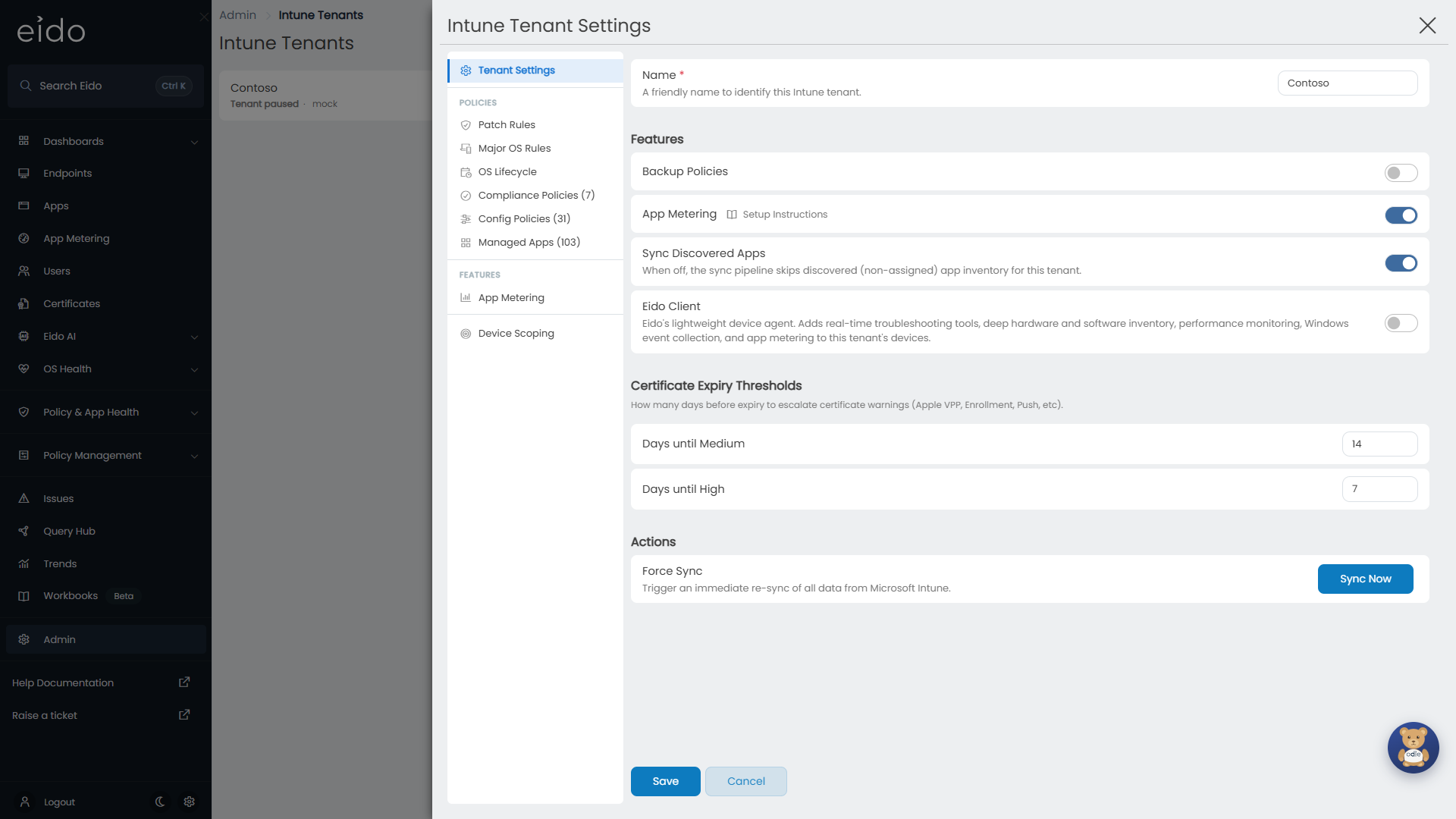
To open them, go to Admin, then Intune Tenants, and press a tenant’s row. Intune Tenant Settings slides in from the right. Only administrators who can see Intune Tenants can open it.
How the panel works#
The sections are listed down the left.
| Group | Sections |
|---|---|
| (top) | Tenant Settings |
| Policies | Patch Rules, Major OS Rules, OS Lifecycle, Compliance Policies, Config Policies, Managed Apps |
| Features | App Metering and Eido Client, each shown only while that feature is switched on for the tenant |
| (bottom) | Device Scoping |
Nothing is saved until you press Save at the bottom. You can move between sections and change several things, then save once. Cancel, or the cross at the top, discards everything since the last save.
If a number is missing or out of range when you press Save, Eido opens the section that holds it, shows a message beside the field and saves nothing until it is corrected.
Tenant Settings#
Name and customer#
| Setting | What it does |
|---|---|
| Name | The friendly name shown for this tenant throughout Eido. Required. |
| Link to Customer | Shown only if your organisation manages several customers. The customer this tenant belongs to. See Intune tenants. |
Features#
| Switch | What it does |
|---|---|
| Backup Policies | When on, each sync reads the full definition of every policy in the tenant (compliance and configuration policies, scripts, remediations, update profiles, app configuration and app protection policies, and Conditional Access policies) and keeps a copy whenever one changes. This is what fills the policy screens with settings and history, and what makes restoring a policy possible. On for every newly linked tenant. When off, Eido still reports which devices pass or fail each policy, but holds no copy of the policies themselves. |
| App Metering | Switches App Metering on for this tenant and adds an App Metering section to this panel. There is more to set up than the switch. Follow Setting up App Metering. |
| Sync Discovered Apps | When on, each sync reads the apps Intune has discovered on each device. Turn it off if you do not use Discovered apps and want faster syncs on a large tenant. On by default. |
| Eido Client | Shown only if the Eido Client is available to your organisation. Switches Eido’s device agent on for this tenant, after you accept an acknowledgement, and adds an Eido Client section to this panel. See Eido Client. |
The App Metering and Eido Client sections that appear under Features are covered in their own articles. Settings there that relate to Eido AI are covered in Eido AI.
Custom App Registration#
Shown only for a tenant connected with your own Entra app registration. See Connecting Intune.
| Setting | What it does |
|---|---|
| Client ID | The application (client) ID of your app registration. |
| Client Secret | Leave blank to keep the secret Eido already has. Enter a new value to replace it. The current secret is never shown. |
| Secret Expiry | The date the secret expires. Keep it accurate, so you know when a new one is due. |
| Azure Cloud Type | Azure Global (Public), Azure US Government or Azure China. |
When a secret is about to expire, create a new one in Entra, paste it into Client Secret, update Secret Expiry and press Save. If a secret expires before you do this, syncs fail until it is replaced.
Certificate Expiry Thresholds#
How close to expiry a tenant-level certificate or token must be before Eido raises it. This covers the connectors Intune depends on, such as the Apple push certificate, Apple VPP tokens and enrolment tokens. See Certificates.
| Setting | Default | Meaning |
|---|---|---|
| Days until Medium | 14 | With this many days or fewer left, the certificate is graded Medium. |
| Days until High | 7 | With this many days or fewer left, the certificate is graded High. |
Both are whole numbers from 0 to 3650. Days until High should be the smaller of the two.
Actions#
Sync Now starts a sync of this tenant without waiting for the next hourly one. See What Eido syncs.
Patch Rules#
Patch Rules decide how long a device may go without a released update before Eido grades it Medium, then High. The grade appears on the device and in Patch compliance.
The clock for a missing update starts on the day it was released. If a Windows device is in an update ring that defers quality updates, the deferral is added first, so a device is never marked overdue for an update its ring has not yet offered.
Simple and Advanced#
Patch Status Mode has two settings.
| Mode | Behaviour |
|---|---|
| Simple | The Default Thresholds apply to every device in the tenant. |
| Advanced | You add rules for particular kinds of device. The first rule that matches a device is used. A device that matches no rule uses the Default Thresholds. |
Default Thresholds#
| Setting | Default | Meaning |
|---|---|---|
| Days until Medium | 7 | A device missing an update for this many days is graded Medium. |
| Days until High | 14 | A device missing an update for this many days is graded High. |
Rules (Advanced mode)#
Press Add Rule, or press a rule to edit it.
| Field | What it does |
|---|---|
| Device Category | Match only devices in this Intune device category. The list contains the categories found on this tenant’s devices. Any matches every category. |
| Device Type (Major OS) | Match only this operating system family: Windows, Windows 365, iOS/iPadOS, macOS or Android. Any matches all of them. |
| Allow Patches Behind Latest | How far behind the newest update a device may be and still count as healthy, from Latest only (N) to N-10. With N-1, a device on the newest update or the one before it is healthy. When a device falls further behind than that, the days below are counted from the release date of the oldest update that would still have been acceptable. |
| Days until Medium | At least 1. |
| Days until High | At least 1, and not less than Days until Medium. |
Each rule is listed with its position, what it matches, and a summary such as “Allow N-1 | Medium 14d | High 30d”. Use the up and down arrows to reorder and the bin to delete. Order matters: rules are tried from the top and the first match wins, so put the most specific rules first and a broad catch-all last.
A common setup is a strict rule for one device category at the top, a more relaxed rule for Windows 365 below it, and the defaults for everything else.
Major OS Rules#
Major OS Rules flag devices that are on an older major version of their operating system than they could be running, for example a device on iOS 17 that supports iOS 18. This is in addition to the check for whether the installed version is still supported by its vendor: a device on a version that is supported but not current can be flagged here without changing its support status.
Enable Major OS Rules switches the whole check on or off. When it is off, no device is affected.
Managed Apple Rules#
For iPhone and iPad, Eido keeps a list of the newest major version each model can run. “Latest” is therefore worked out per model, not per platform. An old iPhone that has reached the end of its updates is compared with the last version it can run, so it is not flagged unfairly. A model Eido does not recognise shows as Unknown.
| Setting | What it does |
|---|---|
| Managed iOS rules | Applies Eido’s list to every iPhone and iPad in the tenant. |
| iOS global tolerance | How many major versions behind its own latest a device may be, from Latest only (N) to N-10. |
| Tenant Minimum iOS Version | Optional. A device below this version is unhealthy even if it is within the tolerance. Leave as Not set (use tolerance only) to rely on the tolerance alone. |
| Days until Medium | Days a device may stay below the required version before it is graded Medium, counted from that version’s release date. Leave blank for no grace period, in which case it is graded High immediately. |
| Days until High | Days before the grade rises to High. Must not be less than Days until Medium. |
| Configure per-model overrides | Opens iOS Per-Model Overrides, where any model can be given its own tolerance. Inherit uses the global tolerance. The badge on the link counts the models you have overridden. |
Manual Rules#
For Windows, macOS and Android, you set the minimum yourself. Press Add Rule.
| Field | What it does |
|---|---|
| Device Type | Windows, macOS or Android. Required. |
| Device Category | Optional. Match only this Intune device category. |
| Device Model | Optional. Free text that must match the device’s reported model exactly, for example “Surface Pro 11”. |
| Minimum Major OS | The oldest version you accept. Anything newer passes. Required. |
| Days until Medium and Days until High | The grace period, counted from the minimum version’s release date. Leave both blank to grade a device High as soon as it is below the minimum. |
As with patch rules, manual rules are tried from the top and the first match wins. Reorder with the arrows.
OS Lifecycle#
Eido keeps the end of support date for every Windows version and edition, and uses it to decide whether a device’s operating system is supported. OS Lifecycle lets you replace any of those dates for this tenant only. For example, you may have an extended support arrangement that keeps a version supported for you after its public end date, or your own policy may retire a version earlier than Microsoft does.
A custom date applies everywhere Eido uses an end of support date for this tenant: OS compliance, the device’s health grade and its device details.
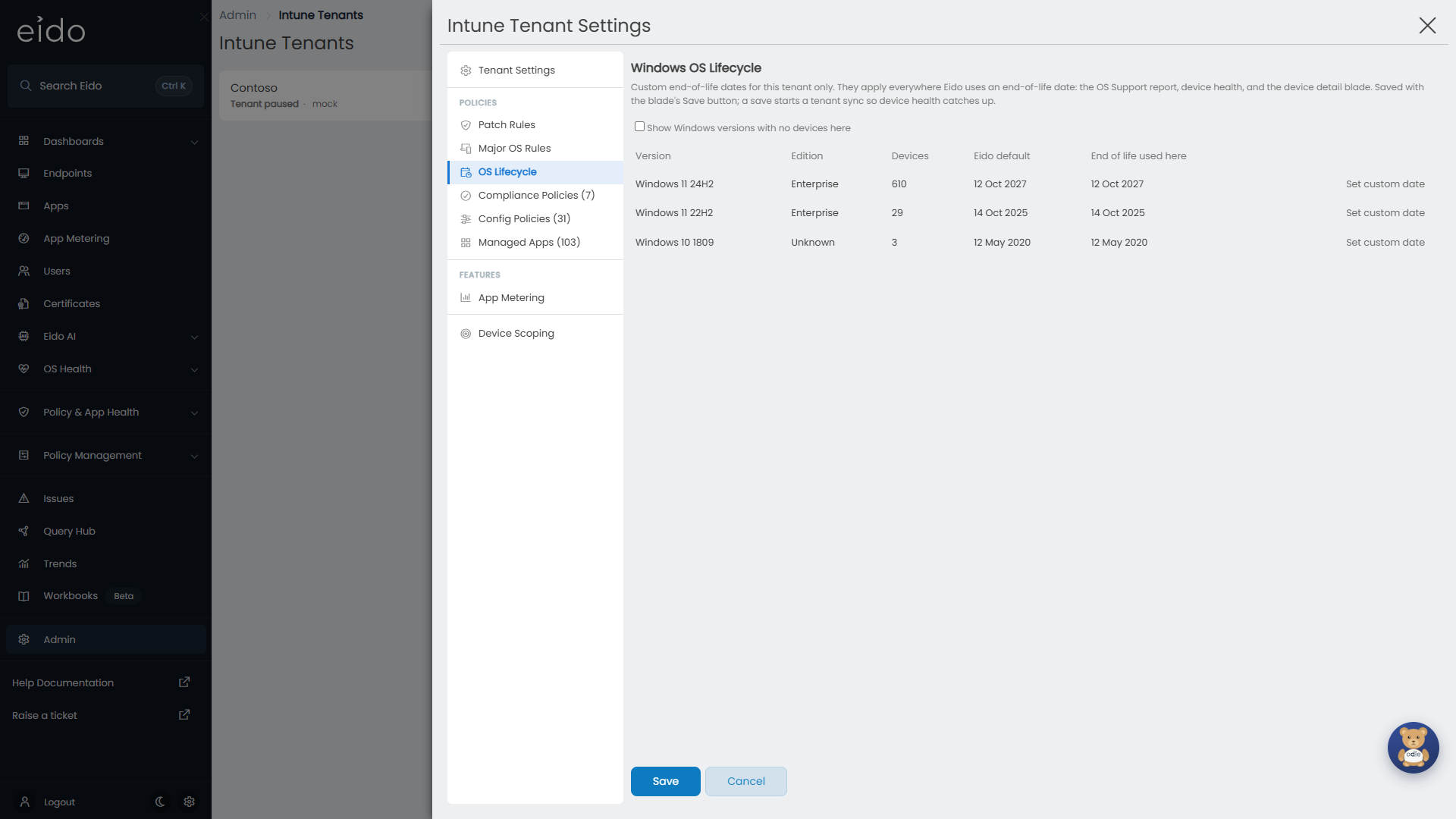
| Column | Meaning |
|---|---|
| Version | The Windows version. |
| Edition | The edition family the date applies to, because Microsoft supports some editions for longer than others. |
| Devices | How many of this tenant’s devices are on it. |
| Eido default | The date Eido uses unless you change it. Shown struck through when you have set your own. |
| End of life used here | The date in force for this tenant. Custom marks a date you set. Earlier than default marks a custom date that is sooner than Eido’s. Under a custom date, Eido shows who set it and when. |
The list starts with the versions your devices are actually on. Tick Show Windows versions with no devices here to see the rest, for example to set a date before devices arrive on that version.
Set, change or remove a custom date#
- On the row, press Set custom date (or Edit if it already has one).
- Pick the date and press Save on the row.
- Press Save at the bottom of the panel.
To go back to Eido’s date, press Revert to default on the row, then Save at the bottom.
An earlier date than the default is allowed. Eido marks it so nobody mistakes it for a slip. Custom dates are for Windows only.
Compliance Policies, Config Policies and Managed Apps#
These three sections work the same way. Each lists every compliance policy, configuration policy or managed app Eido has found in the tenant, with the number found shown beside the section’s name. For each one you choose how much it matters when a device does not meet it.
| Choice | Effect |
|---|---|
| Ignore | A device failing this policy, or missing this app, is not marked down for it. Use it for policies that are expected to fail on some devices, or that you are not responsible for. |
| Medium | A failure grades the device Medium for that area. |
| High | A failure grades the device High for that area. |
The grades feed Compliance policies, Configuration policies and Managed apps, and the matching columns on Endpoints.
Use Search… to find a policy or app by name. The list is in name order, 25 to a page, with Previous and Next at the bottom. A managed app also shows its platform, its type and version, and whether it is Assigned or Not assigned.
Setting many at once#
Above the list, Set all N filtered to has Ignore, Medium and High buttons. N is the number of policies or apps that match the current Search…, across every page, not only the 25 on screen. With nothing typed in the search, it means every item in the section. The buttons are unavailable when nothing matches.
Pressing one asks you to confirm, and says how many will change and to what. Confirming changes the rows on screen, but nothing is stored until you press Save. Closing the settings without saving leaves every grade as it was. If every match already has that grade, Eido says so and changes nothing.
Items that use Advanced are skipped, and the confirmation says how many. To include them, tick Also include … that use Advanced rules first. Those items then go back to the single grade you choose, and their rules are discarded when you save.
Each section has its own buttons and its own tick-box.
Newly discovered items start as#
Each section has a Newly discovered … start as choice of Ignore, Medium or High. It decides the grade a policy or app is given the first time Eido finds it. It starts at Medium for config policies and managed apps and High for compliance policies, which is how Eido has always graded them, so nothing changes for a tenant until you change it.
The choice only affects items found after you save it. Items Eido already knows keep their grades, so use Set all N filtered to to change those. Choosing Ignore means new items raise no issues until somebody changes them. The choice is saved with Save like the rest of the settings. Changing only a Newly discovered … start as choice does not start a sync, because it matters only when Eido next finds something new.
Advanced: a grade for each status#
A single choice treats every result that is not healthy the same. Turning on Advanced for a policy or app lets you grade each status Intune reports separately.
| Part | What it does |
|---|---|
| When status … then | A rule. Pick a status from the list, or type one, and choose Healthy, Medium or High. |
| Add rule | Adds another status. The bin removes one. |
| Default (no match) | The grade used when the reported status matches none of your rules. |
The statuses offered depend on the section.
| Section | Statuses offered |
|---|---|
| Compliance Policies | Compliant, NonCompliant, InGracePeriod, NotApplicable, Error, Conflict, Unknown |
| Config Policies | Succeeded, Error, Conflict, Pending, NotApplicable, Unknown |
| Managed Apps | Installed, Failed, NotInstalled, Install Pending, Uninstall Pending, Not Applicable, Unknown |
Turning Advanced on for the first time changes nothing by itself. Eido fills in rules that reproduce what the single choice was already doing: the statuses that normally count as healthy are set to Healthy, and Default (no match) takes the grade you had chosen. You then change only the exceptions. Typical uses are treating Conflict as High while leaving Error as Medium, or treating Install Pending as Medium for an app that should already be everywhere.
Turning Advanced off again goes back to the single choice and discards the rules when you save.
Device Scoping#
By default Eido brings in every device Intune manages in the tenant. Device Scoping narrows that to the devices you want Eido to cover. A device left out is not shown anywhere in Eido and is not counted.
Turn on Enable device scoping to see the rules. A device must pass every rule you set.
| Rule | Choices | Effect |
|---|---|---|
| Device platforms | All platforms, or any of Windows, iOS/iPadOS, macOS, Android | Only devices on the ticked platforms are brought in. Untick All platforms to pick. Picking specific platforms also leaves out anything that is none of the four, such as Linux. |
| Device type scope (Windows) | All, or any of Azure Virtual Desktop (AVD), Physical, Windows 365 | Applies to Windows devices only. Other platforms are unaffected by it. |
| Exclude by management agent | ConfigMgr, Co-managed | Leaves out devices that Intune reports as managed by Configuration Manager alone, or as co-managed. Devices managed by Intune alone are always included. |
| Limit by Entra group | None, User groups, Device groups | Brings in only devices whose primary user is in one of the listed groups, or only devices that are themselves in one of the listed groups. One or the other, not both. |
| Include devices with no primary user | Tick box | When unticked, a device with no primary user is left out. Ticked by default. |
Excluding ConfigMgr and co-managed devices#
Devices managed only through Configuration Manager appear in Intune but do not run Intune’s compliance, configuration or app workloads, so they show as Unknown in those areas. If Eido is not where you look after them, excluding them keeps your figures about the devices Intune really manages.
When you tick one of these, Eido shows how many devices currently in Eido match and will be removed at the next sync. Check the number is what you expect before saving.
Limiting by Entra group#
- Under Limit by Entra group, choose User groups or Device groups.
- In Group GUIDs, paste the object ID of each group, one per line or separated by commas. The object ID is shown on the group’s overview page in the Microsoft Entra admin centre.
- Press Save.
Things to know:
- Membership is followed through nested groups. A device in a group that is itself a member of a listed group counts.
- With User groups, a device with no primary user cannot match any group, so it is left out whatever the Include devices with no primary user box says.
- Windows 365 Cloud PCs are not filtered by group. They are brought in if they pass the other rules.
- Eido stores the IDs you enter, not the names. If a group is deleted or its ID was mistyped, nothing matches it.
What happens to devices that fall out of scope#
Scoping is applied during each sync. A device that no longer passes is removed from Eido at the next sync, along with it dropping out of counts, reports and alerts. If you widen the scope later, the device comes back at the following sync.
Devices Eido never brings in#
Two kinds of device are left out whether or not scoping is on:
- devices managed only by Microsoft Defender for Endpoint
- Microsoft Dev Box machines
Questions people ask#
I changed a threshold. Why have the grades not changed?#
Grades are worked out during a sync. Saving starts one, but it takes time to finish. Check the tenant’s status on Intune Tenants.
Why is a device missing from Eido?#
Work through these in order: it is one of the kinds Eido never brings in, it is outside your Device Scoping rules, it was enrolled since the last sync, or it belongs to a tenant that is not linked.
A new policy has appeared in Intune. What grade does it get?#
It is listed in the matching section after the next sync. Open the section and check its grade if the policy is one you care about, or one you expect to fail on some devices.
Do these settings change anything in Intune?#
No. Everything on this panel changes how Eido reads and grades the tenant. Nothing is written to Intune or to any device.
Can I copy one tenant’s settings to another?#
No. Each tenant is set up separately.