
Signing up creates a new Eido organisation with you as its first administrator, on a free 30 day trial. It takes a couple of minutes and needs nothing installed. This page follows the whole path, from the sign-up form to the point where Eido is reading your Intune tenant.
If your organisation already uses Eido, do not sign up again. Ask one of your administrators to add you under Team, then go to Regions and signing in.
Before you start#
You need two things.
- A Microsoft work account. Eido has no passwords of its own. Everybody signs in with Microsoft Entra single sign-on.
- Somebody who can approve access to Intune. Connecting a tenant needs a Microsoft Entra administrator to grant consent once. That can be a different person from the one who signs up. See Connecting Intune.
Create the account#
-
Open the sign-up page
Go to https://www.eido.io/sign-up. The Sign up for free link on the Eido sign-in page goes to the same place.
-
Fill in the three fields
Field What to enter Name Your own name, as you want it shown in Eido. Email The address you sign in to Microsoft with. See the warning below. Company Name Your organisation. This becomes the name of your Eido organisation, and the default name of the first Intune tenant you connect. All three are required.
-
Press Sign Up
Eido creates your organisation, starts the 30 day trial and sends you a welcome email.
If sign-up is refused#
There was an issue signing up. Please contact [email protected] to continue the signup process. means the email address is already registered in that region. Either you already have an account (try signing in), or a colleague has added you to your organisation’s Eido. If neither is true, raise a ticket with Eido support.
The welcome email#
The email is addressed to the name you gave, comes from [email protected], and has one button: Login to Eido. That button opens the sign-in page for the region your account was created in. Keep the email, or bookmark that page, because an account exists in one region only.
If it has not arrived after a few minutes, check your spam or junk folder. If it is not there either, raise a ticket with Eido support.
You do not need the email to sign in. Opening the sign-in page for your region directly works just as well.
Sign in for the first time#
-
Press Sign in with Microsoft
You are sent to Microsoft’s own sign-in page.
-
Sign in with your work account
Microsoft asks for whatever your organisation normally requires, including multi-factor authentication. Eido never sees your password.
-
Approve the sign-in request, if asked
The first time, Microsoft may ask you to let Eido sign you in and read your basic profile. This is only for signing in. It is separate from the access to Intune that is granted later, and it does not let Eido read your tenant.
Some organisations do not let users approve applications themselves. If Microsoft says that approval from an administrator is needed, ask your Entra administrator to approve the Eido sign-in application, then try again.
Accept the terms#
The first time anybody opens a newly created organisation, Eido shows Terms of Service & Data Processing Agreement over the whole screen. Nothing else can be used until it is accepted.
| Who you are | What you see |
|---|---|
| An administrator | Links to the Eido Terms of Service and Data Processing Agreement, a switch confirming you are authorised to accept them on behalf of your organisation, and Accept and Continue. The button stays unavailable until the switch is on. |
| Anybody else | A message saying the terms have not yet been accepted and that an administrator needs to sign in and accept them. The only button is Log Out. |
As the person who signed up, you are an administrator, so you will see the first version.
Acceptance is needed once for the whole organisation, not once per person. Eido records who accepted and when. If the terms change materially in future, an administrator is asked to accept the new version before the organisation can carry on.
Get started#
After the terms, Eido opens Welcome to Eido! Let’s get started! There are three things to do, in order. Until they are done, Eido brings you back to this page whenever you try to go elsewhere, and Get Started stays at the top of the menu.
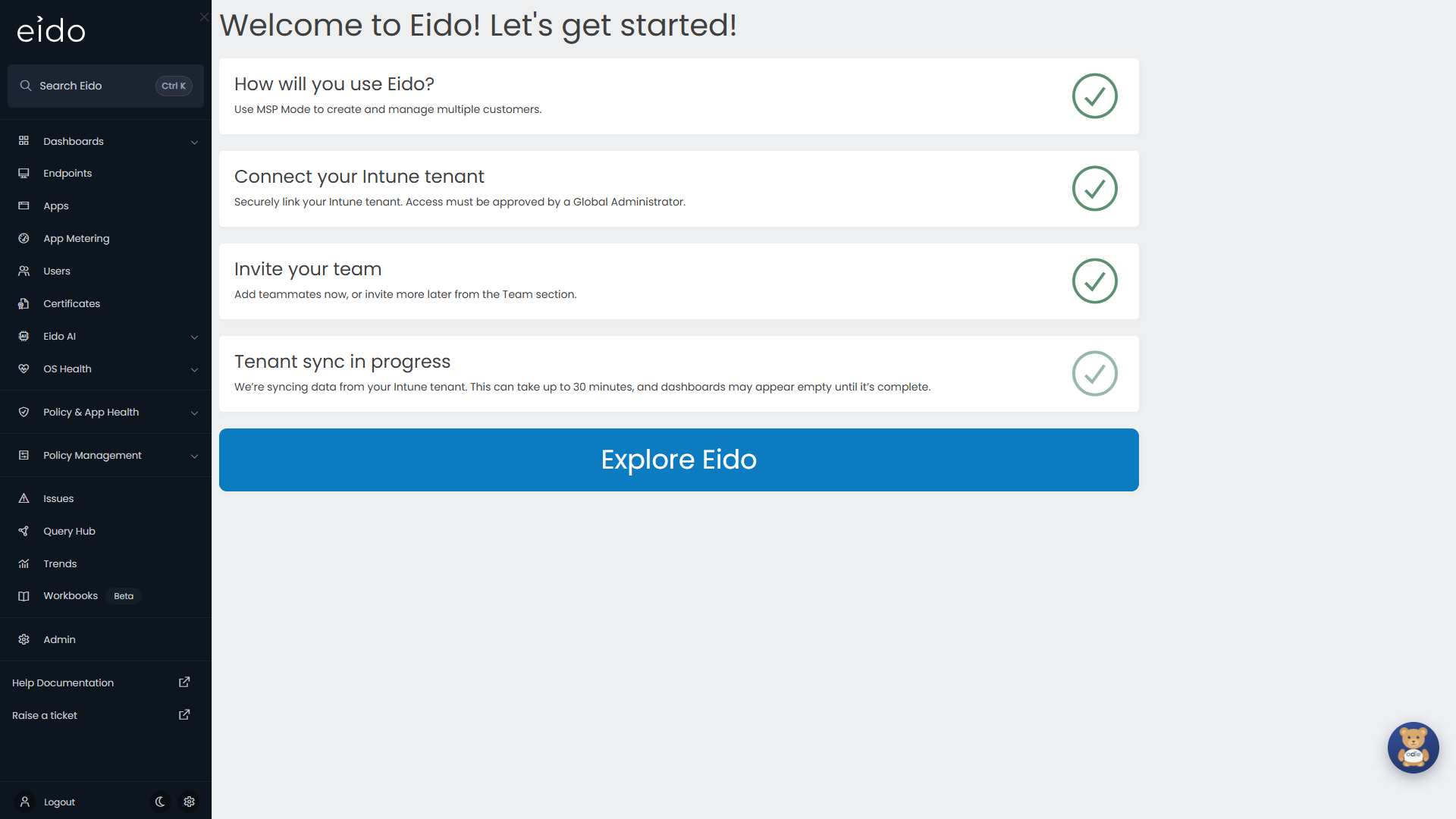
1. How will you use Eido?#
| Choice | Pick it when |
|---|---|
| Internal IT Team | You look after your own organisation’s devices. |
| MSP | You look after devices for several customers. This turns on customers, so each Intune tenant can be linked to the customer it belongs to and people can be limited to the customers they look after. See Customers. |
2. Connect your Intune tenant#
Press Grant Access to choose an access level and sign in to Microsoft as an administrator who can grant consent. Connecting Intune walks through every screen.
If the right administrator is not available, press Skip. You can connect a tenant at any time from Intune Tenants. Eido will be empty until you do.
3. Invite your team#
Enter a name and email address for up to three colleagues and press Invite, or press Skip.
- Each address must be the one that person signs in to Microsoft with.
- People added here are given the Admin role. If that is more than they need, change it afterwards, or skip this step and add people from Team, where you choose the role as you add them.
- A row can be left empty. A row with a name needs an email address, and the other way round.
Tenant sync in progress#
Once the steps are done, Explore Eido appears at the bottom of the page and the rest of the menu opens up.
The first read of your Intune tenant starts by itself, within a minute or so of the tenant being connected. It can take up to 30 minutes. Dashboards and lists may be empty or partly filled until it finishes. What Eido syncs explains what arrives and in what order.
Your trial#
A new organisation is on a 30 day trial. The number of days left is shown at the top of the menu. The day after the last day, Eido shows Your trial has expired with an Upgrade Now button that opens billing. See Plans and billing.
Questions people ask#
Can I sign up with a personal email address?#
The address has to be one you can sign in to Microsoft with as a work account, because that is the only way into Eido.
I signed up but “This user account does not exist on Eido”#
Either you are on the wrong region, or the address you signed up with is not your Microsoft sign-in name. See Regions and signing in.
Does signing up give Eido access to our Intune data?#
No. Signing up creates an empty organisation. Eido can read a tenant only after a Microsoft Entra administrator has granted consent on Microsoft’s own screen. Permissions Eido needs lists what is asked for.