
Eido connects to ServiceNow in three separate ways. They do different jobs, are set up in different places, and none of them depends on the others.
| Connection | What flows | Where you set it up |
|---|---|---|
| Software usage | ServiceNow reads application usage from Eido, and sends Eido the reclamation rules that decide what is metered. | Admin → Integrations → ServiceNow |
| Incidents | Eido reads your incidents for Eido AI, and adds its findings to a ticket as a work note. | Admin → Integrations → ServiceNow AI Connector |
| Tickets from alerts | Eido raises an incident when an alert fires or an automation runs. | In each alert or automation |
The first two are on the Integrations page, which is open to administrators of the whole Eido account.
Software usage for ServiceNow#
This connection is for software asset management. Eido measures how much each application is really used, with App Metering. ServiceNow decides which licences to reclaim. The connection gives ServiceNow the usage, and lets ServiceNow tell Eido which products to measure.
What flows each way#
From ServiceNow to Eido: reclamation rules. The Eido app in your ServiceNow instance sends its reclamation rules, with the products they cover and the process names of each product. Eido turns each product into a metered application.
From Eido to ServiceNow: monthly usage. For each of those products, ServiceNow reads one line per device, per user, per month:
- the product
- the device, by its Intune device ID
- the user’s name and email address (a person with no email address in Entra ID is sent with their name only)
- the month
- when the product was last used
- how many times it was opened
- how many minutes it was used for
Eido never connects to your ServiceNow instance for this. The ServiceNow app calls Eido, on its own schedule, and identifies itself with a credential that you generate.
Before you start#
- App Metering is switched on for the tenant, and its devices are reporting. Without that there is no usage to read.
- The Eido app is installed in your ServiceNow instance. If you do not have it, ask Eido support.
Generate a credential#
Each credential belongs to one Intune tenant. ServiceNow can only read the usage of the tenant its credential was made for.
-
Open the panel
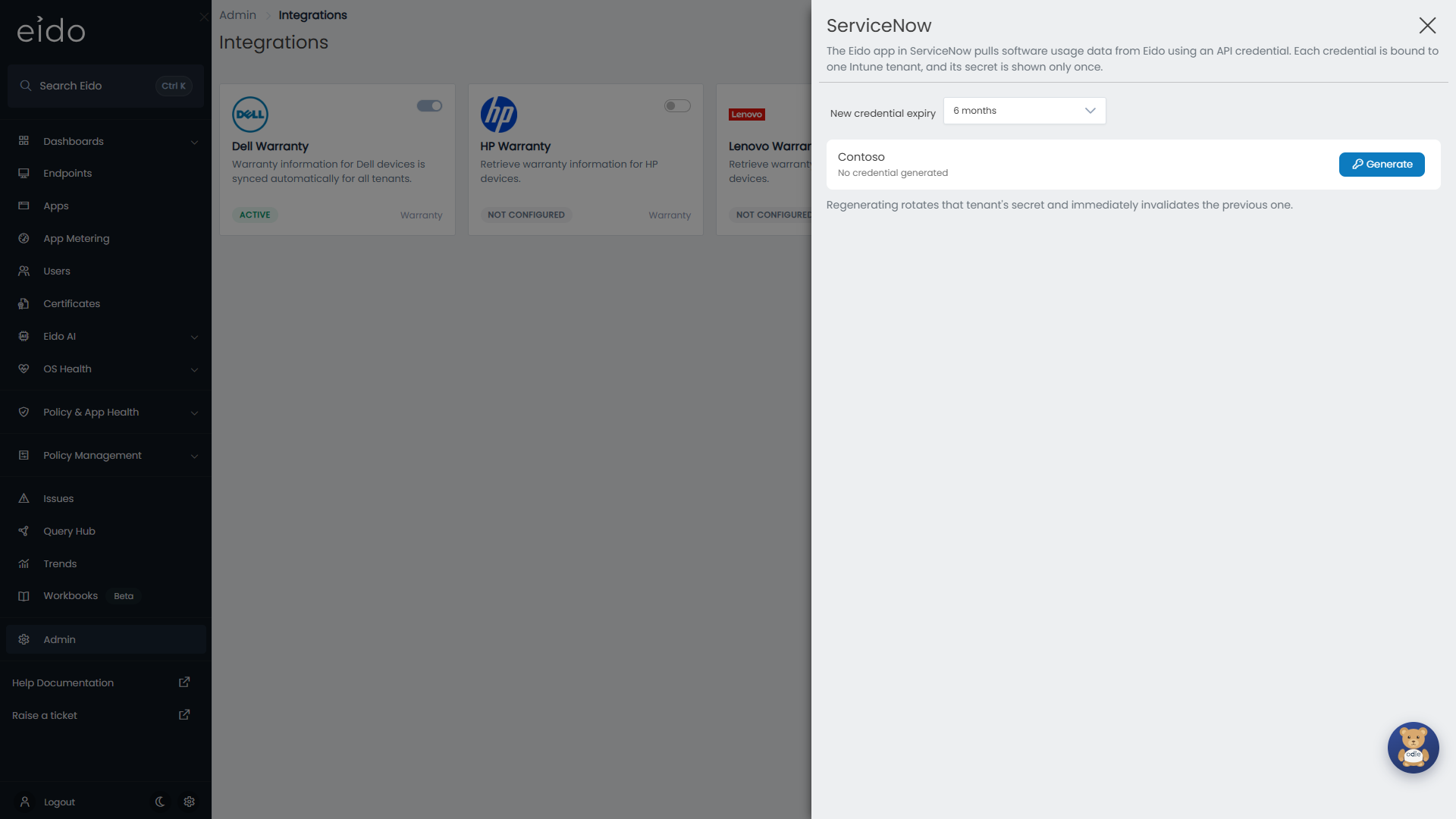
Go to Admin → Integrations and press the ServiceNow tile. The panel lists every Intune tenant you have linked.
-
Choose how long it lasts
Set New credential expiry to 3 months, 6 months or 12 months. It starts on 6 months.
-
Generate
Press Generate beside the tenant.
-
Copy both values
ServiceNow credential generated shows a Client ID and a Client secret. The secret is hidden until you press the eye icon. Each has a copy button.
-
Enter them in ServiceNow
Put both values into the Eido app in your ServiceNow instance, then press Done.
Reading the list#
Under each tenant’s name:
| Line | Meaning |
|---|---|
| No credential generated | ServiceNow has no access to this tenant. |
| Generated, with a date | When the current credential was made. |
| Expires, with a date | When it stops working. Shown in red as Expired once that date has passed. |
| Last contacted, with a date | The last time ServiceNow successfully used the credential. This is your proof that the ServiceNow side is working. |
| Not contacted yet | ServiceNow has never successfully used the credential. |
Regenerate, and what happens at expiry#
Regenerate replaces the tenant’s secret. The old secret stops working immediately, so update the Eido app in ServiceNow straight away.
A credential is not renewed automatically. When it expires, ServiceNow is refused until you regenerate it. Put the expiry date in your calendar. The expiry of the new credential is whatever New credential expiry is set to when you press Regenerate.
Revoke#
Revoke removes the tenant’s credential, after a confirmation. ServiceNow loses access until a new one is generated, and control of the tenant’s metered applications returns to Eido. See what happens to the applications.
Reclamation rules become metered applications#
Once ServiceNow has sent its rules, open the tenant’s settings (Admin → Intune Tenants, then the tenant, then App Metering). You will find one application for each ServiceNow product, marked Managed by ServiceNow.
| What happens in ServiceNow | What happens in Eido |
|---|---|
| A product is covered by a reclamation rule | An application with the product’s name appears, enabled, with a Process Name rule for each of the product’s processes. |
| A product’s processes change | The application’s rules are updated to match. |
| A product is no longer covered by any rule | Its application is disabled. It is not deleted, and its history is kept. Devices stop recording its use within about an hour. |
| The product is covered again | The application is enabled again, with the history from before. Nothing was recorded while it was disabled, so that time shows as no use. |
A managed application opens as App Details, read only. To change what it watches, change the rule or the product’s processes in ServiceNow. Eido follows the next time the rules arrive, which is typically within the hour.
ServiceNow takes charge of metering#
While at least one managed application is enabled, ServiceNow is in charge of what the tenant meters:
- Applications you added yourself are paused: Eido disables them every time the rules arrive. Their names, rules and history are left alone.
- Add App is unavailable, with a note explaining why.
- If you already had an application with the same name as a ServiceNow product, it is taken over. It becomes a managed application and its rules are replaced with the product’s processes.
If ServiceNow removes every rule, its applications are disabled and it is no longer in charge. Your own applications stay disabled until you enable them again, and from then on they stay enabled.
When you revoke the credential#
- The managed applications stay on the list, with their rules, their enabled or disabled state, and their history. They become ordinary applications that you can edit and delete.
- The applications that were paused are not enabled again automatically. Enable the ones you want.
Which usage ServiceNow receives#
- Completed months only. The current month is not sent until it has ended.
- Managed applications only. Usage of applications that you added yourself is never sent to ServiceNow, though you still see it in Eido.
- Changes are sent again. If a month’s figures change after ServiceNow has read them, ServiceNow picks up the new figures on its next read.
Incidents for Eido AI#
The ServiceNow AI Connector brings your incidents into Eido so that Eido AI can work on them.
What flows each way#
From ServiceNow to Eido. Eido reads your incidents continuously: new ones, and changes to existing ones. For each incident it also reads the comments, the work notes and the emails sent from it, because that conversation is where most of the diagnostic detail is. It reads the caller’s email address so that it can tell who the incident is about.
From Eido to ServiceNow. One thing only. When Eido AI finishes diagnosing a device for an incident, it adds a work note to that incident with the root cause it found, how confident it is, a short summary and a link to the full report in Eido. Eido never changes any other field, never closes an incident and never writes a comment the caller can see.
Set it up#
You need a ServiceNow account for Eido to sign in with, and the address of your instance.
| The account can | Needed for |
|---|---|
| Read incidents | Everything. Without it the connection test fails. |
| Read users | Finding each caller’s email address. |
| Read journal entries and emails | The comments, work notes and emails on each incident. |
| Write work notes on incidents | The work note with Eido AI’s findings. Optional. |
A read-only account is enough for everything except the work note. If the account cannot write, the findings stay in Eido and the incident is left untouched.
- Go to Admin → Integrations and press ServiceNow AI Connector.
- Enter the Instance URL (the address of your ServiceNow instance), the Username and the Password.
- Press Test connection. Wait for Connection successful.
- Switch on Enabled.
- Press Save.
The results of Test connection, and how to change, pause or remove the connection, are in Integrations.
What happens to the incidents#
- Your existing incidents arrive first, as history. They give Eido a picture of what normal looks like. They are never sent for AI triage.
- Incidents opened after you enabled the connector are triaged by Eido AI.
- Each incident is matched to a person by comparing the caller’s email address with the people Eido has synced from Entra ID, across all your tenants. From the person, Eido knows their devices.
- An incident with no match still arrives. It is listed, but because Eido cannot tell whose it is, it cannot be tied to a device or to an Intune change.
Where you see them#
- In Query Hub, the Eido AI: ServiceNow Incidents view lists them with Number, State, Priority, Category, Caller, Intune Tenant, Opened and Last Updated. Caller Email, Matched User, Customer, Resolved, Closed and Backfilled can be added as columns. Backfilled marks the incidents that arrived as history.
- AI Diagnostics shows the investigations Eido AI has run for incidents, each with a link back to the incident in ServiceNow.
- Intune Changes uses them to show when a change is followed by a rise in tickets from the people it affected.
Tickets from alerts and automations#
Separately from both connections above, Eido can raise an incident in ServiceNow when something goes wrong. An alert has a ServiceNow Settings section, and an automation has a ServiceNow action. Each carries its own ServiceNow address and account, so nothing on the Integrations page is needed for them, and removing an integration does not affect them.
Questions people ask#
The tenant says Not contacted yet#
ServiceNow has not successfully used the credential. Check that the Client ID and Client secret in the Eido app in ServiceNow are the ones from the most recent Generate or Regenerate, that the credential has not expired, and that the ServiceNow side has run since you entered them.
I lost the client secret#
It cannot be shown again. Press Regenerate, copy the new secret, and update ServiceNow. The old secret stops working at once.
Applications I added keep switching themselves off#
ServiceNow is in charge of metering for that tenant, and pauses applications that are not its own every time its rules arrive. Either add the product to a reclamation rule in ServiceNow, or revoke the credential to take control back.
A product has no usage in ServiceNow#
Work through these.
- Is the month over? Only completed months are sent.
- Open the application in the tenant’s App Metering section. Do its Process Name rules match the real file names of the product’s programs, including
.exe? - Does the application show usage on Eido’s App Metering page? If not, the problem is with collection, not with ServiceNow. See Setting up App Metering.
- Is Last contacted recent? If not, ServiceNow is not reading.
Usage in ServiceNow is lower than on Eido’s App Metering page#
The App Metering page shows the last 30 days, including the current month so far. ServiceNow receives whole calendar months, and only for managed applications.
No work note appears on incidents#
The work note is only written when Eido AI has completed a device diagnosis for that incident, and only if the connector’s account is allowed to write work notes. Incidents that arrived as history, and incidents Eido could not match to a person, are not diagnosed.
An incident is missing its matched user#
The caller’s email address in ServiceNow does not match the email address of anybody Eido has synced from Entra ID. Correct it in ServiceNow, or check that the person’s tenant is linked to Eido.